How to Set Up Email on iPhone: Gmail, Outlook, and More
By Chris Stefaner, Co-founder of Swizero
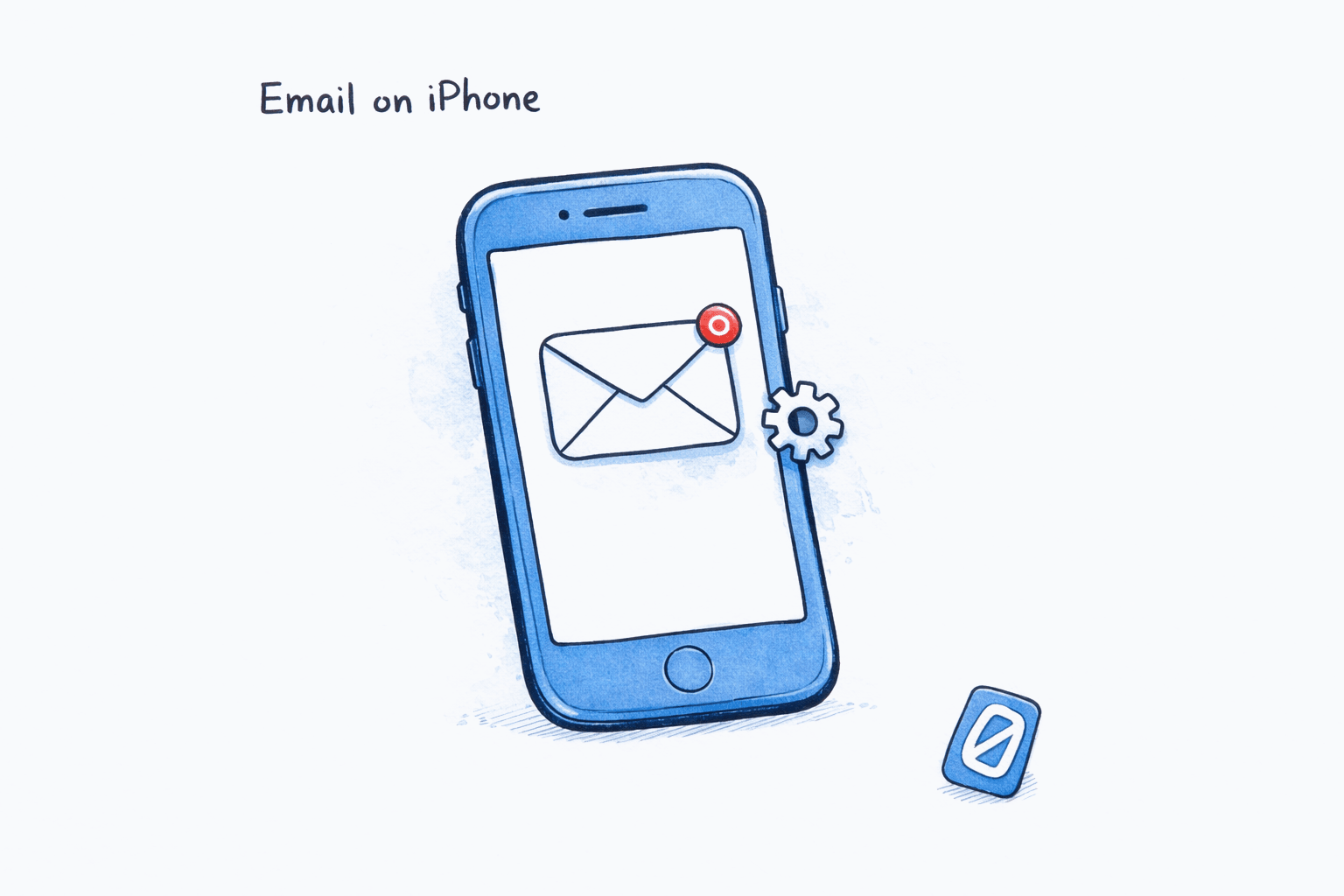
You can set up email on iPhone by going to Settings > Mail > Accounts > Add Account and selecting your provider. The entire process takes about 90 seconds for Gmail, Outlook, Yahoo, and iCloud. For custom IMAP accounts (work email, self-hosted domains), you will need your server settings, but the process is still straightforward. This iPhone email setup guide walks through every provider step by step, including troubleshooting when things go wrong.
How to Set Up Email on iPhone Using the Mail App#
If you are wondering how to set up email on iPhone using the default app, Apple’s built-in Mail app supports all major providers. This is the fastest method for most people because iOS handles the server configuration automatically.
Open the Settings app on your iPhone. Scroll down and tap Mail, then tap Accounts, then tap Add Account.
You will see a list of supported providers: iCloud, Microsoft Exchange, Google, Yahoo, Aol, and Outlook.com. Tap your provider and follow the authentication flow. For most accounts, this means entering your email address and password, then granting the Mail app permission to access your inbox.
Once authenticated, iOS asks which data to sync: Mail, Contacts, Calendars, and Notes. Toggle on what you need (Mail is on by default) and tap Save. Your inbox starts loading immediately.
Open Mail Settings
MobileGo to Settings on your iPhone home screen. Scroll down and tap Mail, then tap Accounts near the top of the screen.
On iOS 18 and later, you can also search for 'Mail' in the Settings search bar at the top to jump directly there.
Add a New Account
MobileTap Add Account at the bottom of the Accounts list. A screen appears showing supported email providers: iCloud, Microsoft Exchange, Google, Yahoo, Aol, and Outlook.com. Tap the logo matching your email service.
Sign In and Grant Access
MobileEnter your email address and password when prompted. For Google and Outlook accounts, you will be redirected to their sign-in page inside a browser window. Complete any two-factor authentication if enabled, then tap Allow or Accept to grant the Mail app access.
If you have two-factor authentication enabled and do not have your phone nearby for the verification code, you will need an app password instead. See the FAQ section below.
That covers the basic flow for how to set up email on iPhone. The steps are identical whether you are adding your first email account or your fifth. iOS handles multiple accounts well, and you can switch between them in the Mail app’s Mailboxes view.
How Do You Configure Gmail on iPhone?#
Gmail is the most common add email account iPhone request, so it is worth covering how to configure Gmail on iPhone in detail. You have two options: Apple’s Mail app or Google’s Gmail app.
Option A: Gmail in the Mail App#
Follow the general steps above and tap Google from the provider list. Google’s OAuth screen opens inside a browser view. Enter your Gmail address, tap Next, enter your password, tap Next, and approve access. The Mail app now pulls in your Gmail messages.
One thing to know: the Mail app uses IMAP to sync Gmail. That means labels in Gmail appear as folders in Mail. If you use Gmail’s category tabs (Primary, Social, Promotions), those do not carry over to the Mail app. You will see a flat inbox with all categories mixed together.
Option B: The Gmail App#
If you prefer Gmail’s native interface, download the Gmail app from the App Store. Open it, tap Sign in, and enter your Google credentials. The Gmail app preserves labels, categories, Smart Compose, and Gemini features that the Mail app does not support.
For a deeper comparison of how different apps handle your Gmail account, our Gmail vs Outlook breakdown covers the key differences in AI features, search, and organization.
How to Set Up Outlook on iPhone#
Knowing how to set up email on iPhone extends beyond Gmail. Outlook works with the Mail app or Microsoft’s dedicated Outlook app. Both are solid choices, but they behave differently.
Option A: Outlook in the Mail App#
In Settings > Mail > Accounts > Add Account, tap Outlook.com for personal Microsoft accounts (Outlook.com, Hotmail, Live.com). For work or school accounts that use Microsoft 365, tap Microsoft Exchange instead.
Enter your email and password. For Exchange accounts, your IT department may require you to install a management profile. If prompted with a “Remote Management” message, that is normal for corporate accounts.
Option B: The Outlook App#
Microsoft’s Outlook app for iOS supports Outlook.com, Microsoft 365, Gmail, Yahoo, and IMAP accounts all in one place. Download it from the App Store, open it, and sign in with your Microsoft account. You can add additional accounts from different providers inside the app’s settings.
The Outlook app has its own Focused Inbox feature that separates important emails from everything else. If you are curious how Outlook’s filtering compares to other approaches, our comparison of the best email apps in 2026 covers the landscape.
What About Yahoo, AOL, or iCloud Email?#
Yahoo and AOL accounts follow the same flow as Gmail. In Add Account, tap Yahoo or Aol, enter your credentials, and authorize access. Both use OAuth, so the iPhone mail app setup process is essentially automatic.
For iCloud Mail (your @icloud.com address), the account is usually already configured if you are signed into your Apple ID. Check Settings > Mail > Accounts and look for iCloud. If Mail is toggled off under your iCloud account, toggle it on. No separate add step is needed.
If you have an @icloud.com address on a different Apple ID than the one signed into your phone, you will need to add it as a separate account using the iCloud option in Add Account.
How to Set Up a Custom IMAP Email Account on iPhone#
If you need to know how to set up email on iPhone for a work or university account, the process is slightly different. Work email addresses, university accounts, and self-hosted domains typically use IMAP or POP (a protocol for downloading email from a server). IMAP is the better choice for iPhone because it syncs in both directions.
Here is what you need before starting:
| Setting | Example | Where to find it |
|---|---|---|
| Email address | you@company.com | Your IT admin or email provider |
| Password | (your email password) | Your email account settings |
| Incoming mail server | imap.company.com | IT admin, hosting provider, or email provider docs |
| Incoming port | 993 (IMAP SSL) | Same as above |
| Outgoing mail server (SMTP) | smtp.company.com | Same as above |
| Outgoing port | 587 (TLS) | Same as above |
Select Other (Manual Setup)
MobileIn Settings > Mail > Accounts > Add Account, tap Other at the bottom of the provider list. Then tap Add Mail Account on the next screen.
Enter Server Details
MobileFill in your Name, Email, Password, and a Description (like "Work Email"). Tap Next. On the following screen, select IMAP at the top, then enter your Incoming Mail Server hostname (e.g., imap.company.com) and Outgoing Mail Server hostname (e.g., smtp.company.com). Tap Next to verify.
If verification fails, double-check that your incoming server uses port 993 with SSL and your outgoing server uses port 587 with TLS. These are the most common secure settings.
After iOS verifies the connection, toggle on Mail (and Contacts/Calendars if your server supports them) and tap Save. Your custom account now appears alongside any other accounts in the Mail app.
Honestly, IMAP setup is where most people get stuck when learning how to set up email on iPhone. If your email provider has a support page with their exact server settings, find that page first. It saves a lot of guessing.
Once all your accounts are connected, the next challenge is managing them. Swizero sits on top of Gmail and reduces your inbox to a fixed card limit, so you spend less time sorting through messages across multiple accounts.
Tips for iPhone Email Setup#
Now that you know how to set up email on iPhone, here are some tips to get the most out of your configuration.
-
Turn off fetch for accounts you check rarely. Go to Settings > Mail > Accounts > Fetch New Data and set infrequently used accounts to Manual. This saves battery and reduces notification noise. You will still see new emails when you open the Mail app; they just will not push to your lock screen.
-
Use the default Mail app as your hub if you have 3+ accounts. The built-in Mail app handles multiple accounts with a unified inbox view. Third-party apps like Gmail or Outlook are great for single-provider power features, but the Mail app is the simplest way to see everything in one place. For help choosing, our best email apps comparison breaks down the trade-offs.
-
Check notification settings per account. Go to Settings > Notifications > Mail and configure alerts for each account individually. Most people want push notifications for their primary work email but not for newsletters or secondary accounts.
-
If you manage a high-volume inbox, consider an AI layer. Adding accounts is the easy part. The harder problem is what to do with 100+ daily messages across those accounts. Tools that use AI to sort and prioritize email can help you focus on what actually needs a response.
-
Enable “Protect Mail Activity” for privacy. Under Settings > Mail > Privacy Protection, toggle on Protect Mail Activity. This prevents senders from tracking when you open emails and hides your IP address from embedded tracking pixels.
Frequently Asked Questions#
How do I add a second email account to my iPhone?#
Once you know how to set up email on iPhone, adding a second account is simple. Go to Settings > Mail > Accounts > Add Account and repeat the same setup process. There is no limit to how many email accounts you can add. Each new account appears as a separate inbox in the Mail app, and you can also view all accounts together using the “All Inboxes” view.
Why is my email not syncing on iPhone after setup?#
The most common cause is an incorrect password or expired authentication token. Go to Settings > Mail > Accounts, tap the problem account, and re-enter your password. If you changed your email password recently on another device, the iPhone still has the old one. For Gmail and Outlook, removing and re-adding the account forces a fresh OAuth token.
Do I need an app password for Gmail on iPhone?#
This is a common question when people configure Gmail on iPhone. Only if you have two-factor authentication enabled and the standard sign-in flow fails. Google’s OAuth process (the browser-based sign-in) usually handles two-factor automatically. But if your organization restricts OAuth or you use an older device, you may need to generate an app password at myaccount.google.com > Security > App passwords. This 16-character code replaces your normal password during iPhone email setup.
What is the difference between IMAP and POP on iPhone?#
IMAP syncs your email in both directions. Actions you take on your phone (reading, deleting, moving) are reflected on the server and on every other device connected to that account. POP downloads emails to your phone and optionally deletes them from the server, which means other devices may not see the same messages. For almost every use case, choose IMAP.
Can I use the Gmail app and Apple Mail at the same time?#
Yes. Adding your Gmail account in Settings > Mail does not prevent you from also using the Gmail app. Both apps connect to the same Gmail servers independently. Emails you read in one app will appear as read in the other (since both use IMAP). The only downside is duplicate notifications, which you can fix by disabling notifications for one of the two apps.
How do I set up a work email with Microsoft Exchange on iPhone?#
The iPhone mail app setup process for Exchange is straightforward. Go to Settings > Mail > Accounts > Add Account and tap Microsoft Exchange. Enter your work email address and tap Next. Your organization’s sign-in page should load automatically. If it asks for a server address, enter the one provided by your IT department (commonly outlook.office365.com for Microsoft 365). Approve any remote management prompts if they appear.
How do I remove an email account from my iPhone?#
Go to Settings > Mail > Accounts, tap the account you want to remove, scroll down, and tap Delete Account. This removes the email, contacts, calendars, and notes associated with that account from your phone. It does not delete the account itself or any data on the server. You can re-add it anytime.
Which email app should I use on iPhone if I have multiple accounts?#
If all your accounts are with different providers (one Gmail, one Outlook, one Yahoo), Apple’s built-in Mail app is the simplest option because it shows a unified inbox. If you are primarily a Gmail user, the Gmail app offers features like Smart Compose and category tabs that the Mail app lacks. For a detailed comparison, see our guide to the best AI email assistants in 2026.
Sources#
- Add an email account to your iPhone - Apple Support, 2026. Official documentation for adding email accounts on iPhone and iPad.
- Sign in with app passwords - Google Account Help - Google Support. How to generate app-specific passwords for accounts with two-factor authentication.
- Set up email in the iOS Mail app - Microsoft Support, 2026. Instructions for adding Outlook and Exchange accounts to iPhone.
Your inbox doesn't have to feel like this.
Apply what you just learned, faster.
Put this into practice with Swizero