Email Security: How to Spot Phishing and Protect Your Inbox
By Chris Stefaner, Co-founder of Swizero
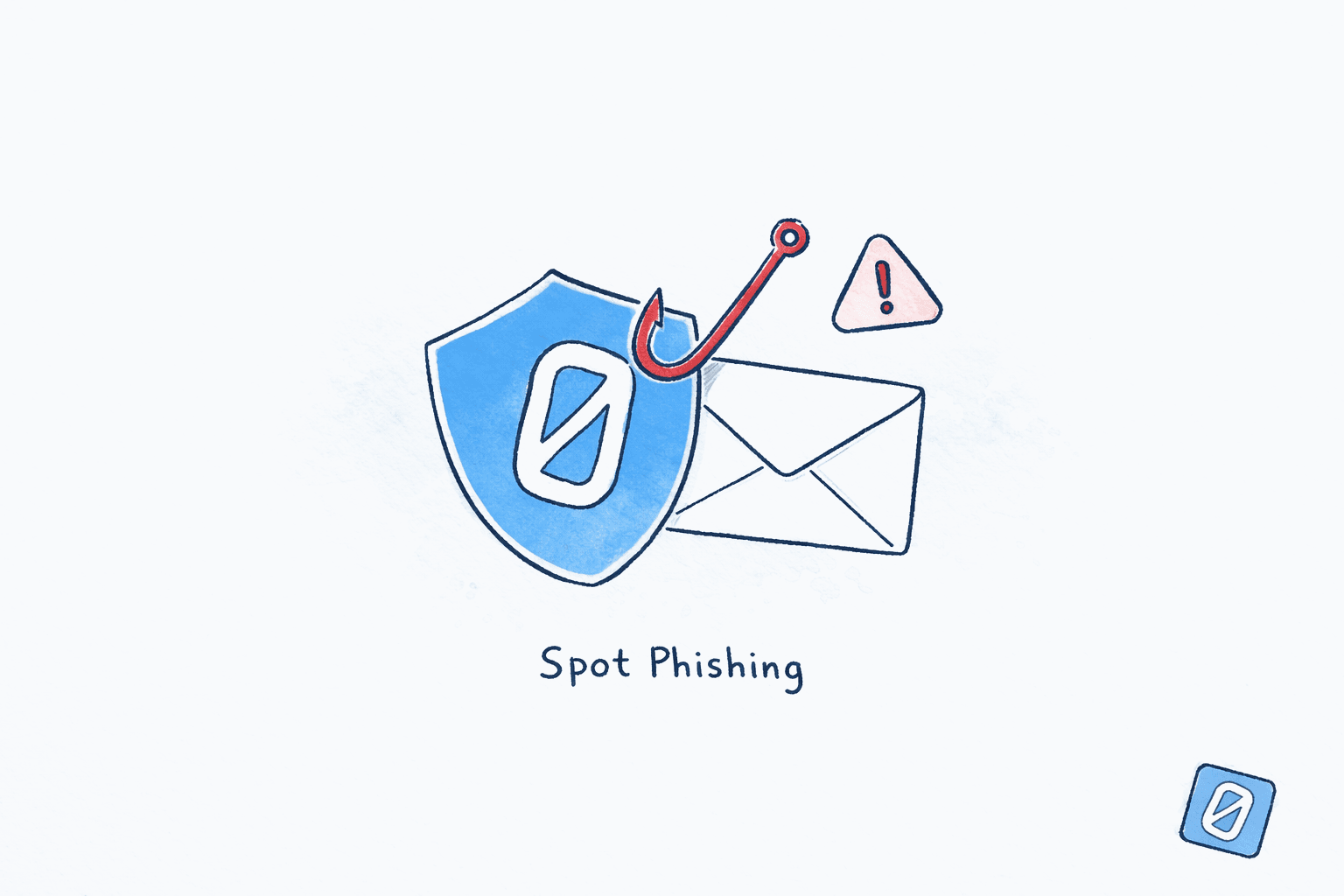
Phishing is the single most common way people lose control of their email accounts, and email security phishing threats are getting harder to detect. According to the APWG’s Q4 2025 Phishing Activity Trends Report, researchers observed 853,244 phishing attacks in a single quarter. The emails behind those attacks no longer look like obvious scams. AI-generated phishing messages now achieve click rates of 54%, compared to just 12% for manually written ones, according to research compiled by Hoxhunt.
This guide walks you through how to spot phishing emails, lock down your Gmail account, and protect your inbox from hackers, all without needing an IT background. These email security tips apply whether you use Gmail, Outlook, or any other client.
What Does a Phishing Email Actually Look Like?#
The stereotype of a phishing email, riddled with typos and sent by a foreign prince, is outdated. Modern phishing email examples look polished, branded, and urgent. They mimic real services you use every day: your bank, your cloud storage provider, your company’s HR portal.
Here are the patterns that actually give them away:
Urgency that doesn’t match reality. “Your account will be suspended in 24 hours.” “Unusual sign-in detected, verify immediately.” Legitimate companies rarely create artificial deadlines in email. If something were truly urgent, you’d see the alert inside the service itself, not just in your inbox.
Sender address mismatches. The display name might say “Google Security” but the actual address is security-alert@g00gle-support.net. Always check the full sender address, not just the name shown in bold.
Requests for credentials or financial information. No legitimate company asks for your password, credit card number, or two-factor authentication codes via email. Period. If an email asks you to “confirm” or “verify” sensitive information, it is almost certainly a phishing attempt.
Links that don’t match their labels. Hover over any link before clicking. The displayed text might say accounts.google.com while the actual URL points to accounts-google.verify-login.xyz. One extra word in a domain is all it takes.
Unexpected attachments. Files with extensions like .zip, .exe, .scr, or .html from unknown senders are immediate red flags. Even PDFs and Word documents can contain malicious macros.
Honestly, the hardest part of learning how to spot a phishing email isn’t memorizing a checklist. It’s slowing down enough to actually look. Most people fall for phishing not because they’re careless, but because they’re busy and the email arrived at exactly the wrong moment. That’s why email security phishing awareness has to be habitual, not occasional.
Check the Sender's Full Address
DesktopOn desktop Gmail, click the small arrow next to "to me" below the sender name. This expands the full header showing the actual email address, not just the display name. Look for misspellings, extra characters, or domains that do not match the company.
On mobile, tap the sender name at the top of the email to reveal the full address.
Hover Over Links Before Clicking
DesktopOn desktop, move your cursor over any link in the email without clicking. A small tooltip appears in the bottom-left corner of your browser showing the real destination URL. Compare this URL to what the link text claims.
On mobile, long-press the link to preview the URL. If the domain looks unfamiliar or has extra words, don't tap it.
How to Spot a Phishing Email That Uses AI?#
This is the new frontier of email security phishing defense. In 2025, 82.6% of phishing emails detected by security researchers used AI-generated text, a 53.5% year-over-year increase. That means perfect grammar, natural phrasing, and convincing brand language. The old advice of “look for spelling errors” is nearly useless now.
What still works is looking at context and behavior, not polish:
- Does this email match an action you took? Password reset emails are suspicious if you didn’t request one. Package delivery notices are suspicious if you didn’t order anything.
- Is the request unusual for this sender? Your CEO emailing you about a wire transfer on a Saturday? Your “IT department” asking for your password through a Google Form? These are behavioral red flags, regardless of how well the email is written.
- Does it skip your name? Greetings like “Dear Customer” or “Dear User” suggest the sender doesn’t actually know who you are. Real services usually address you by name.
One emerging threat worth knowing about: QR code phishing, sometimes called “quishing.” Microsoft reported a 146% surge in QR code phishing in Q1 2026. Attackers embed QR codes in emails that, when scanned, redirect to credential-harvesting pages. Traditional email security tools can’t analyze QR codes the way they scan URLs, which makes them especially effective. If you receive an unexpected QR code in an email, treat it with the same suspicion you’d give a suspicious link.
| Phishing Signal | What It Looks Like | What to Do |
|---|---|---|
| Mismatched sender domain | support@paypa1.com instead of paypal.com | Check the full sender address |
| Urgency or threat language | “Act within 24 hours or lose access” | Pause, verify directly on the service’s website |
| Request for credentials | “Confirm your password to avoid suspension” | Never submit credentials through email links |
| Unexpected QR code | QR code in an “IT security” email | Don’t scan; verify with the sender directly |
| Generic greeting | “Dear Valued Customer” | Legitimate services use your real name |
How to Protect Your Inbox from Hackers#
Knowing how to spot phishing email examples is the first line of defense. To truly protect your inbox from hackers, you need to harden your account as well. These email security tips take 10 minutes and dramatically reduce your risk.
Enable Two-Factor Authentication on Gmail
DesktopGo to myaccount.google.com → Security → 2-Step Verification and click Get Started. Choose your verification method: Google Prompts (easiest), a security key (strongest), or an authenticator app.
SMS-based 2FA is better than nothing, but SIM-swapping attacks can bypass it. Use Google Prompts or a security key if possible.
Review Third-Party App Permissions
DesktopGo to myaccount.google.com → Security → Third-party apps with account access. Remove any apps you do not recognize or no longer use. Each connected app is a potential entry point.
Do this quarterly. Apps you connected years ago may have been acquired or compromised since then.
Check for Suspicious Forwarding Rules
DesktopIn Gmail, click the gear icon → See all settings → Forwarding and POP/IMAP tab. Verify that no unknown forwarding addresses are listed. Attackers sometimes add silent forwarding rules to copy every email you receive.
Use a password manager. Unique passwords for every account mean that one breach doesn’t cascade into five. If your Gmail password is the same as your old forum account from 2014, you’re one database leak away from trouble.
Switch to passkeys when available. Google now supports passkeys, which are tied to your device’s biometric authentication. They’re phishing-resistant by design because the authentication happens locally. There’s no password to steal, no code to intercept.
These steps form the foundation of any solid email security phishing defense strategy. For a broader look at which email apps handle security well, our comparison of the best email apps in 2026 covers privacy and security features across major clients.
What to Do If You Clicked a Phishing Link#
It happens. Even people well-versed in email security phishing best practices occasionally click something they shouldn’t. The key is responding fast.
If you entered credentials on a fake site:
- Change the compromised password immediately, directly through the real service (type the URL manually, don’t use any links from the suspicious email).
- Enable or re-verify two-factor authentication.
- Check your account’s recent activity. In Gmail, scroll to the bottom-right of your inbox and click “Details” to see every active session. Sign out of any you don’t recognize.
- Review your email filters and forwarding rules for anything you didn’t create.
If you downloaded an attachment:
- Disconnect from Wi-Fi or unplug ethernet.
- Run a full malware scan using your operating system’s built-in tools (Windows Defender, or Malwarebytes for Mac).
- If the device is company-owned, contact your IT team before doing anything else.
If you just clicked a link but didn’t enter any information: you’re probably fine. Most phishing attacks require you to interact further. Still, clear your browser cache, run a quick scan, and monitor your accounts for unusual activity over the next few days.
The Verizon 2025 Data Breach Investigations Report found that the human element was involved in approximately 60% of breaches. That’s not a reason to panic. It’s a reason to build email security phishing habits that reduce your exposure, even when you’re distracted.
If managing email security on top of an already overflowing inbox feels like too much, Swizero reduces your inbox to a fixed card limit so you can focus on what matters, with fewer distractions for phishing emails to hide behind.
Email Security Phishing Prevention Tips for Everyday Professionals#
You don’t need enterprise security software to stay safe. These habits, applied consistently, cover the vast majority of real-world threats.
- Verify before you act. When an email asks you to do something sensitive (transfer money, share a document, update a password), verify the request through a different channel. Call the person. Ping them on Slack. Don’t reply to the email itself.
- Keep your recovery options current. Make sure your Gmail recovery email and phone number are up to date. If you ever get locked out, these are how you get back in. Check them at
myaccount.google.com→ Security → Ways we can verify it’s you. - Be skeptical of “internal” emails. Business email compromise accounted for $2.77 billion in U.S. losses in 2024 according to the FBI’s Internet Crime Report. These attacks impersonate colleagues or executives, and they rarely contain malware or suspicious links. They just ask for something plausible. The latest email statistics for 2026 paint a wider picture of how overwhelmed inboxes make these attacks more effective.
- Report, then delete. In Gmail, use the Report phishing option (three-dot menu → Report phishing) instead of just deleting. This helps Google improve its filters for everyone. For practical strategies on maintaining a clean, manageable inbox, our email productivity guide for busy professionals covers the fundamentals.
- Use a privacy-conscious email setup. If what happens to your data in AI-powered email concerns you, that’s a related but distinct question from phishing protection. Both matter, but they protect against different things.
I could write an entire post about business email compromise alone, but the key email security phishing takeaway is simple: the attacks that cost people the most money don’t use malware. They use trust.
Frequently Asked Questions#
What is phishing in email security?#
Email security phishing refers to a type of cyberattack where criminals send fraudulent emails designed to trick you into revealing sensitive information like passwords, credit card numbers, or personal data. The emails typically impersonate trusted organizations and create a false sense of urgency. Phishing accounts for over 36% of all data breaches globally.
How can I tell if an email is phishing or legitimate?#
Check the sender’s full email address for misspellings or unfamiliar domains. Hover over links to see the actual destination URL before clicking. Be suspicious of urgent language, requests for credentials, generic greetings, and unexpected attachments. If in doubt, navigate directly to the company’s website rather than clicking any links in the email.
What should I do if I accidentally clicked a phishing link?#
If you entered credentials, change your password immediately on the real website (type the URL manually) and enable two-factor authentication. Check your account’s recent login activity and review email forwarding rules for unauthorized additions. If you only clicked the link without submitting any information, the risk is lower, but monitor your accounts for unusual activity.
Does Gmail protect against phishing emails?#
Gmail is one of the strongest email security phishing defenses available. It blocks more than 99.9% of spam, phishing, and malware from reaching your inbox and stops over 100 million phishing attempts daily. However, no filter is perfect. Sophisticated attacks, especially those using AI-generated text or targeting specific individuals (spear phishing), can slip through. Two-factor authentication and user vigilance remain essential.
What is QR code phishing (quishing)?#
QR code phishing, or quishing, involves attackers embedding malicious QR codes in emails. When scanned, these codes redirect to fake login pages designed to steal credentials. QR code phishing surged 146% in Q1 2026 according to Microsoft, partly because traditional email security tools struggle to analyze QR codes the way they scan URLs.
Are passkeys more secure than passwords for email?#
Passkeys are significantly more secure than traditional passwords because they use cryptographic key pairs tied to your specific device and biometric authentication. There is no password string to steal, phish, or guess. Google, Apple, and Microsoft all support passkeys for email accounts, and they represent the strongest available protection against credential theft.
How often should I review my email security settings?#
To protect your inbox from hackers long-term, review your email security settings quarterly. Check for unauthorized forwarding rules, remove third-party apps you no longer use, verify your recovery email and phone number, and confirm that two-factor authentication is still active. Account compromises sometimes go undetected for weeks because attackers set up silent forwarding rules rather than changing passwords.
Sources#
- Phishing Activity Trends Report, Q4 2025. APWG, 2025. 853,244 phishing attacks observed in Q4 2025.
- Phishing Trends Report (Updated for 2026). Hoxhunt, 2026. AI-generated phishing emails achieved 54% click rates vs. 12% for manually written; 82.6% of phishing emails used AI-generated text.
- QR code phishing surges 146%. TechRadar / Microsoft Security, 2026. 146% increase in QR code phishing in Q1 2026.
- 2025 Data Breach Investigations Report. Verizon, 2025. Human element involved in approximately 60% of breaches.
- Business Email Compromise Statistics 2026. Hoxhunt / FBI IC3 Report, 2024. $2.77 billion in BEC losses in the U.S. in 2024.
- Gmail Email Security & Privacy. Google Safety Center, 2026. Gmail blocks 99.9% of spam, phishing, and malware.
Your inbox doesn't have to feel like this.
Apply what you just learned, faster.
Put this into practice with Swizero