How to Use an AI Agent to Sort Emails
By Chris Stefaner, Co-founder of Swizero
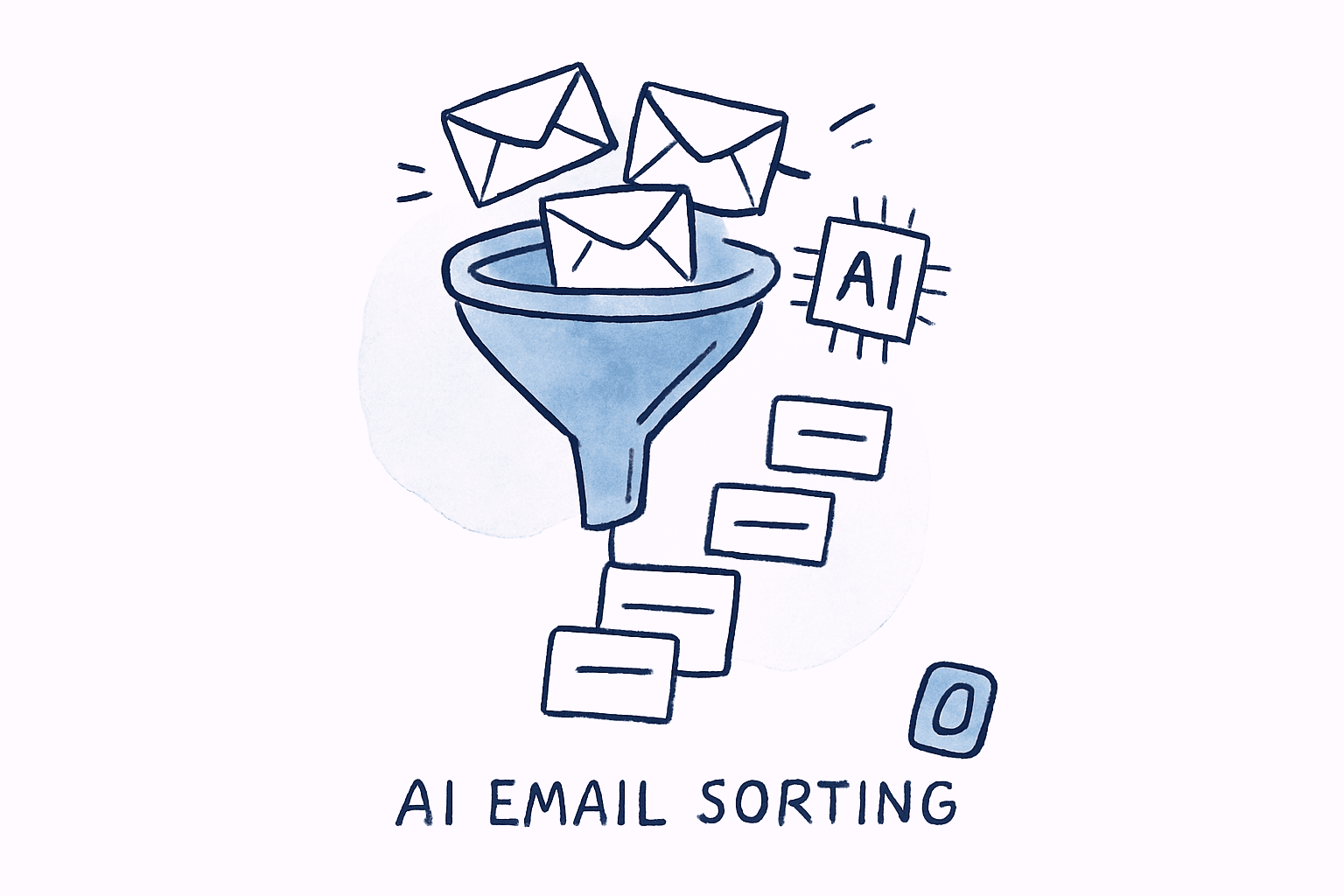
You can use an AI agent to sort your emails by connecting software that reads your inbox, classifies each message by intent and importance, and surfaces what matters before you open anything. Three approaches exist in 2026: Gmail’s built-in Gemini features, a custom automation pipeline you wire together yourself, or a dedicated AI email app that handles everything out of the box. This guide covers all three in ascending order of power so you can pick the one that fits how bad the inbox problem actually is.
What Makes an AI Agent Different from Gmail Filters?#
A Gmail filter matches exact rules you set. An AI agent reads for meaning. A filter catches emails where the subject contains “invoice.” An AI agent recognizes that “Q3 payment reconciliation” is a finance action item even when the word “invoice” never appears in the message.
Filters break the moment a sender changes their subject line or phrasing. An AI agent adapts because it classifies by intent, not by string matching. This kind of intent-based sorting is a form of email triage: deciding what deserves your attention before you ever open the inbox. Our breakdown of how AI email assistants actually work covers the models behind this in detail.
Gartner predicted that 40% of enterprise apps would feature task-specific AI agents by the end of 2026, up from less than 5% in 2025. Email is one of the first categories where that shift is visible to everyday users, and it is a big part of what’s driving the broader shift toward agentic email.
Approach 1: Gmail’s Built-In AI (Free, Zero Setup)#
Gmail already uses machine learning to sort your email. Priority Inbox ranks messages by your behavior patterns. Gemini, Google’s AI model integrated directly into Gmail in early 2026, goes further: it reads message content, summarizes threads, and can surface to-dos and high-priority items in a dedicated AI Inbox view.
For most people, this is the right starting point.
Enable Priority Inbox
DesktopOpen Gmail on desktop, click the gear icon in the top right, then select See all settings. Go to the Inbox tab, set Inbox type to Priority Inbox, configure up to four sections, and click Save Changes.
Click the importance markers (yellow arrows) next to emails during the first week. Every correction trains the model faster.
Turn On Smart Features
DesktopIn Settings, go to the General tab and make sure Smart features and personalization is checked. This lets Gmail's AI analyze your email content for sorting and summaries.
Enable AI Inbox (If Available)
DesktopIn Settings → Inbox, look for Show AI Inbox and check the box. AI Inbox surfaces suggested to-dos and priority topics in a separate view above your main inbox.
AI Inbox requires Google Workspace with Gemini access. Personal Gmail accounts may not see this option yet. It can take up to 7 days after enabling for your first set of to-dos and topics to appear.
Where it falls short. Priority Inbox handles the broad important-versus-not split reasonably well. It cannot create custom categories, route messages to external tools, or sort by nuanced intent like “flag anything from investors but not from investors I have already declined.” For those use cases, you need Approach 2 or 3.
If you are still deciding between email platforms, our Gmail vs Outlook 2026 comparison covers how each one handles AI sorting and prioritization differently.
Approach 2: Build Your Own AI Email Sorting Pipeline#
This is the frontier approach. With the Gmail API, an LLM, and a visual automation tool like n8n, you can build a classification pipeline that triages your inbox exactly the way you think about email. The tradeoff is honest: this takes a weekend to build and weeks to tune.
A custom AI email organizer typically chains three pieces together:
- An email connector that reads your Gmail inbox via the Gmail API or an MCP (Model Context Protocol) connector that gives a large language model direct access to your messages
- A classification layer powered by Claude or GPT-4o that reads each message and returns structured JSON with priority, category, and suggested action
- An automation layer in n8n (self-hosted) or Make.com (cloud) that acts on the output: applying labels, routing to Slack, drafting replies, or archiving noise
Get Gmail API Credentials
DesktopGo to Google Cloud Console, create a project, enable the Gmail API, and generate OAuth 2.0 credentials. Download the credentials JSON file to your local machine.
The free tier (250 quota units per user per second) covers personal use entirely. You do not need a paid plan.
Write a Classification Prompt
Call the Claude API or OpenAI API with a system prompt that takes email metadata (sender, subject, first 300 characters of body) and returns a JSON object with fields: `priority`, `category`, and `suggested_action`. Start with three priority tiers (urgent, normal, low) before adding nuance.
Run your prompt against 50 real emails and manually check the outputs before connecting any automation. Prompt engineering for email classification is iterative; your first version will not be your best.
Wire the Automation
In n8n, connect a Gmail trigger node to your LLM classification step. Add downstream action nodes: apply Gmail labels based on category, post urgent items to Slack, or queue draft replies for your review.
Test against a small batch of archived emails before enabling real-time processing. A miscalibrated prompt can mislabel hundreds of messages in minutes.
When this works well, it is genuinely powerful. You can classify emails by deal stage, auto-draft responses in your company’s tone, route support requests to the right team, or flag any email mentioning a specific contract term.
Honestly, this approach is overkill for most people. But if you enjoy building with APIs, the investment compounds. LLM outputs are probabilistic, so plan for ongoing monitoring. Good email triage strategies are about identifying signal versus noise before you spend time on anything, and a custom pipeline does that automatically once calibrated.
Approach 3: Use a Dedicated AI Email App#
Everything from Approach 2 (AI classification, smart prioritization, contextual summaries, draft replies) packaged in one app, one hand, no config.
Swizero sits on top of Gmail as an interface layer. You keep your Gmail account and your existing email address. The AI ranking algorithm processes your inbox and distills it down to a fixed card limit. Each card is an AI-generated summary of one email or thread. You swipe through them: left to delete, right to flag, up to reply with an AI-drafted response. When the cards are done, your daily session is complete.
The contrast is the point. You could spend a weekend setting up OAuth credentials, writing classification prompts, and debugging n8n workflows, then monitoring the whole system weekly. Or you could open an app and swipe through a handful of cards. Same outcome, different cost.
This approach also addresses something no amount of sorting fixes on its own. The real problem with email is not inefficiency, it is infinity. A perfectly sorted inbox is still an inbox that never ends. Making it finite by design changes how you relate to email at a structural level, which is why we built AI email management around constraints rather than features.
Which Approach Fits Your Situation?#
| Situation | Best approach | Setup time | Maintenance |
|---|---|---|---|
| You want free, basic smart sorting today | Gmail Priority Inbox + Gemini (Approach 1) | 5 minutes | None |
| You use Google Workspace and want AI context from Calendar and Docs | Gmail AI Inbox (Approach 1) | 10 minutes | None |
| You want custom categories and enjoy working with APIs | Custom pipeline with n8n + LLM (Approach 2) | 1-2 days | Weekly tuning |
| You want AI sorting without any setup or maintenance | Dedicated AI email app (Approach 3) | Under 5 minutes | None |
For a side-by-side breakdown of the major email clients in 2026 and which ones include AI sorting out of the box, our best email apps comparison covers that in detail.
How to Use Any AI Agent to Sort Emails More Accurately#
1. Train the AI deliberately for the first week. Every correction improves the model. Set aside five minutes daily to review AI decisions during the first week. This upfront investment saves hours later.
2. Start with sorting only, not auto-replies. Let the AI prove it understands your email before trusting it to respond on your behalf. Sorting errors are invisible to your contacts. Reply errors are not.
3. Create explicit VIP rules. AI is good at patterns, but important senders should never be deprioritized by accident. Add your manager, key clients, and critical contacts to a VIP list that always surfaces first regardless of what the classification layer decides.
4. Scan filtered-out email once a week. No AI catches everything. A weekly five-minute scan of what got archived or deprioritized prevents important messages from disappearing. The inbox zero alternative framework builds weekly reviews into the workflow.
5. Measure before and after. Track how long you spend in email this week before changing anything. After two weeks with AI sorting enabled, check again. If you are not saving meaningful time, something in your setup needs adjusting.
If setting up filters and pipelines feels like solving the wrong problem, Swizero handles AI sorting, summarization, and prioritization out of the box, with no API keys, no prompt engineering, and no monitoring.
Frequently Asked Questions#
Can an AI agent sort emails without reading them?#
No. AI email sorting requires read access to your messages to understand content, context, and sender importance. The relevant distinction is what happens to your data after processing. Some tools retain your email content on their servers. Privacy-focused tools use zero-retention processing where your email is analyzed and the content is immediately discarded, or route ranking through local heuristics on your device so nothing is transmitted at all.
Does AI email sorting work with Outlook and Yahoo, or just Gmail?#
Most AI email sorting tools support Gmail natively because Google’s API is well-documented and widely supported. Outlook support varies by tool. Yahoo Mail has limited third-party API access, so fewer tools support it reliably. If you use multiple providers, look for IMAP support, which covers most accounts regardless of provider.
How long does it take for AI sorting to get accurate?#
Most AI email sorting tools reach 80-90% accuracy within two weeks, assuming you correct misclassifications during the first week. Gmail’s Priority Inbox handles basic sorting correctly around 60-70% of the time out of the box. A custom-built pipeline can reach higher accuracy faster because you control the classification prompt directly.
Will an AI email agent delete my messages?#
Not unless you explicitly configure auto-deletion, which most tools disable by default. AI sorting typically labels, categorizes, or moves messages. The original email stays in your account. If you are concerned, start with a tool that only adds labels without moving anything, and verify the behavior before enabling more aggressive actions.
Is it safe to connect an AI tool to my work email?#
Check whether the tool stores your email content after processing and whether it shares data with third parties for model training. The key question is retention: does the AI provider keep a copy of your messages, or is processing ephemeral? Enterprise tools like Google Workspace’s Gemini operate within your existing security perimeter. Standalone tools vary significantly, so look for explicit zero-retention language in the privacy policy before connecting a work account.
How is AI sorting different from setting up Gmail filters?#
Filters match exact conditions: specific senders, subject keywords, or phrases. AI sorting understands meaning. A filter catches “invoice” in the subject line. AI sorting recognizes that a message about Q3 payment reconciliation is a finance action item even if the word “invoice” never appears. AI adapts as your patterns change; filters stay static until you manually update them.
What is the best free AI email organizer?#
Gmail’s built-in AI features (Priority Inbox plus Gemini summaries) are the best free option for most users. Priority Inbox sorts by importance using machine learning, and Gemini can summarize long threads. For more advanced AI sorting with custom categories, you would need a third-party tool or a custom pipeline, most of which require a paid subscription or API costs.
How do I organize emails in Gmail using AI?#
Enable Priority Inbox in Gmail Settings under the Inbox tab, turn on Smart features and personalization, and enable AI Inbox if your account has access. Gmail’s AI will automatically sort incoming messages by importance and surface priority items. For more granular organization, combine Gmail’s AI with manual labels and filters to create a layered system where AI handles the broad sorting and filters handle specific rules.
Sources#
- Gartner Predicts 40% of Enterprise Apps Will Feature Task-Specific AI Agents by 2026 - Gartner, 2025. Enterprise AI agent adoption rising from 5% to 40%.
- Gmail Is Entering the Gemini Era - Google, 2026. AI Overviews, AI Inbox, and Gemini-powered email sorting in Gmail.
- Model Context Protocol Overview - Anthropic, 2026. Technical specification for MCP connectors including email access patterns.
- Gmail API Documentation - Google Developers, 2026. Official reference for OAuth setup, message access, and quota limits.
- n8n Documentation: Gmail Integration - n8n, 2026. How to connect Gmail to automation workflows.
Your inbox doesn't have to feel like this.
Apply what you just learned, faster.
Put this into practice with Swizero