Email Migration Guide: Switch Providers Without Losing Data
By Chris Stefaner, Co-founder of Swizero
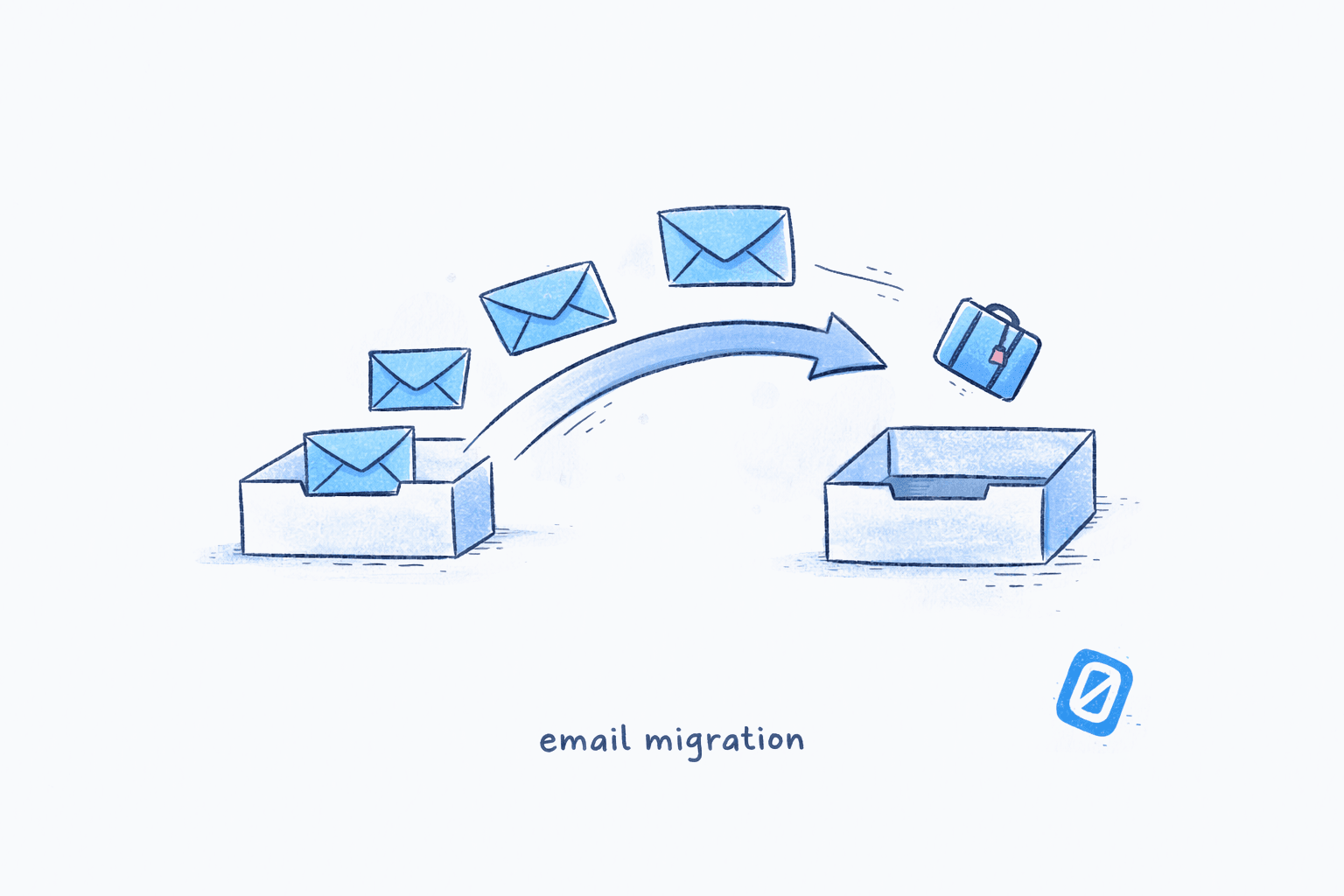
Switching email providers does not have to mean losing years of messages, contacts, or carefully built folder structures. This email migration guide walks you through every step of moving from one provider to another, whether you’re going from Gmail to Outlook, Outlook to Gmail, or any combination in between. The entire process takes about an hour for most people, and when done correctly, nothing gets left behind.
The key to any email migration guide is doing things in the right order: export first, then set up forwarding, then import, then run both accounts in parallel for a few weeks. Skip a step or rush the sequence, and that’s when messages slip through the cracks. Below you’ll find the exact steps for each phase, with platform-specific instructions where the process differs.
What Does a Complete Email Migration Guide Cover?#
Before touching any export buttons, take 15 minutes to prepare. This prevents the most common migration headaches: missing labels, forgotten filters, and contacts that vanish because they were stored in a format your new provider can’t read.
Make a quick inventory of what you’re moving:
- Emails: How many messages? Gmail shows your total storage usage under Settings > Google Account > Storage. Outlook shows mailbox size under File > Account Settings.
- Contacts: Export format matters. Gmail exports as CSV or vCard (.vcf). Outlook exports as CSV or through People > Manage > Export.
- Calendar events: Most providers export calendars as .ics files, which are universally importable.
- Filters and rules: These rarely transfer automatically. Screenshot or write down your current rules so you can recreate them.
- Signatures: Copy the HTML or text of your current signature before you switch.
One caveat worth mentioning: email account migration doesn’t transfer app-specific passwords or two-factor authentication settings. You’ll need to reconfigure those on your new provider separately. It’s an easy thing to forget until you’re locked out of something at 7 AM on a Monday.
How to Export Your Emails (Gmail, Outlook, and Others)#
The first step in any email migration guide is exporting your data. Every major email provider offers a way to download your full archive. The export format depends on the provider, but the two most common are MBOX (Gmail) and PST (Outlook). Both can be imported into most modern email platforms.
Exporting from Gmail via Google Takeout#
Google Takeout is Gmail’s built-in export tool. It packages your entire email history into a downloadable MBOX file.
Open Google Takeout
DesktopGo to takeout.google.com and sign in with your Google account. Click Deselect all at the top to clear every product, then scroll down to Mail and check the box.
Click 'All Mail data included' under the Mail checkbox to choose specific labels instead of exporting everything. This is useful if you only want to migrate certain folders.
Choose Delivery Method and Export
DesktopClick Next step. Choose Send download link via email as the delivery method. Set file type to .zip and max file size to 2 GB (or 50 GB if your archive is large). Click Create export.
Large exports can take hours or even a full day to generate. Google sends you an email when the download link is ready. Don't close your browser tab expecting an instant download.
Your export arrives as a .zip file containing an MBOX file. MBOX is a standard format that Thunderbird, Apple Mail, and most migration tools can read directly.
Exporting from Outlook as a PST File#
Outlook stores everything in PST files, which can be exported and reimported across Outlook installations.
Export from Outlook Desktop
DesktopOpen Outlook and go to File → Open & Export → Import/Export. Select Export to a file, then choose Outlook Data File (.pst). Select the account or folder you want to export, check Include subfolders, and click Finish.
If you have multiple email accounts in Outlook, make sure you select the correct one before exporting. Each account exports as a separate PST file.
Exporting from Other Providers#
Most email providers support IMAP, which means you can use a free desktop client like Thunderbird as a bridge. Add your old account via IMAP, let it sync fully, then drag messages to a local folder. From there, export as MBOX and import into your new provider.
How to Transfer Emails to a New Account#
Once you have your exported file (MBOX from Gmail, PST from Outlook, or a local backup from Thunderbird), the next phase of this email migration guide is importing those messages into your new provider.
Importing into Gmail#
Gmail doesn’t have a direct MBOX import button in its web interface, so you’ll need a workaround. The most reliable option: use Thunderbird as a bridge.
- Install Mozilla Thunderbird (free, available on Mac and Windows).
- Add your new Gmail account to Thunderbird via IMAP.
- In Thunderbird, use Tools → Import to open your MBOX file into a local folder.
- Select all imported messages and drag them into your Gmail IMAP inbox (or a specific label folder) within Thunderbird.
- Thunderbird uploads the messages to Gmail’s servers. Depending on your archive size, this can take anywhere from minutes to several hours.
For organizations on Google Workspace, Google provides the Google Workspace Migration for Microsoft Outlook (GWMMO) tool, which handles PST imports directly.
Importing into Outlook#
Outlook handles PST imports natively. For MBOX files (from Gmail), you’ll need to convert to PST first using Thunderbird or a free converter.
To import a PST file: open Outlook, go to File → Open & Export → Import/Export, select Import from another program or file, choose Outlook Data File (.pst), and browse to your exported file. Select whether to replace duplicates or allow them, then click Finish.
For users looking to migrate Gmail to Outlook specifically, Microsoft’s own Add Account feature offers a simpler path: add your Gmail account via IMAP in Outlook’s settings, let it sync, and your messages appear automatically. This method syncs rather than imports, meaning the messages remain on Gmail’s servers too.
How to Transfer Your Contacts#
Contacts are the part of email account migration that people forget about until they try to send a message from their new account and realize their address book is empty.
From Gmail#
Go to contacts.google.com, click Export in the left sidebar, choose your format (Google CSV for another Gmail account, Outlook CSV for Outlook, or vCard for Apple Mail and most other providers), and download the file.
From Outlook#
In Outlook on the web, go to People → Manage contacts → Export contacts. You’ll get a CSV file. In Outlook desktop, the path is File → Open & Export → Import/Export → Export to a file → Comma Separated Values.
Importing Contacts#
- Into Gmail: Go to contacts.google.com, click Import in the left sidebar, and upload your CSV or vCard file.
- Into Outlook: Go to People → Manage contacts → Import contacts and upload the CSV.
- Into Apple Mail/iCloud: Open Contacts on your Mac, go to File → Import, and select the vCard file.
If you have more than 3,000 contacts, split the file into smaller batches before importing. Some providers throttle large imports or silently drop contacts past a certain threshold.
How Do You Set Up Email Forwarding During the Transition?#
No email migration guide would be complete without forwarding. This is the step that separates a clean migration from a messy one. Forwarding ensures that emails sent to your old address still reach you while you notify contacts of the change.
Gmail Forwarding#
In Gmail, go to Settings → See all settings → Forwarding and POP/IMAP. Click Add a forwarding address, enter your new email, and verify it. Then select Forward a copy of incoming mail to and choose whether to keep, archive, or delete the Gmail copy.
Outlook Forwarding#
In Outlook on the web, go to Settings → Mail → Forwarding. Check Enable forwarding, enter your new email address, and decide whether to keep a copy in Outlook.
How long to keep forwarding active: Run both accounts for at least 30 days. Some services, subscriptions, and automated systems will keep sending to your old address for months. I’d honestly recommend keeping forwarding on for 90 days if your provider allows it. The cost of missing one important email far outweighs the minor annoyance of checking two inboxes briefly.
What About Your Email App?#
One thing worth considering: the provider you use and the app you use to access it are two separate decisions. You can keep Gmail as your email provider and use a completely different app to read and manage your messages. If your motivation for switching providers is really about the interface, not the backend, a different email app might solve the problem without the migration hassle at all.
If you’re switching providers because your inbox feels unmanageable, Swizero sits on top of Gmail and reduces your inbox to a fixed card limit, so you get a fresh interface without migrating a single message.
Tips for a Smooth Email Migration#
Now that this email migration guide has covered the core steps, here are additional tips to avoid common pitfalls when you switch email providers.
- Update critical accounts first. Banks, healthcare portals, and government services should be the first places you update your email. These are the accounts where a missed notification actually matters.
- Send a “new email” announcement. A brief message to your most frequent contacts saves weeks of forwarded stragglers. Include both your old and new addresses so recipients can update their records.
- Don’t delete the old account immediately. Keep it active and forwarding for at least 90 days. Some password reset flows and two-factor recovery options may still point to it.
- Recreate filters manually. Filters and sorting rules don’t transfer between providers. If you have complex filtering logic, this is a good time to simplify. You might find that half your old rules were solving problems that no longer exist.
- Test before you trust. Send a few test emails from a separate account to both your old and new addresses. Confirm that forwarding works, that replies from your new account show the correct sender name, and that your signature renders properly. Tools like AI-powered email sorting can also help you get your new inbox organized from day one.
Frequently Asked Questions#
Will I lose my emails if I switch email providers?#
No, not if you follow this email migration guide and export your messages before deactivating your old account. Both Gmail (via Google Takeout) and Outlook (via PST export) let you download your entire archive. Import the archive into your new provider and you’ll have access to every message. The risk of data loss comes from skipping the export step or deleting your old account before confirming the import was complete.
How long does it take to transfer emails to a new account?#
The export itself takes anywhere from a few minutes to 24 hours, depending on the size of your archive. Google Takeout for a 5 GB Gmail account typically processes within a few hours. The import step also varies by method: IMAP sync can take several hours for large mailboxes, while PST imports in Outlook usually complete within minutes for files under 10 GB.
Can I migrate Gmail to Outlook without losing contacts?#
Yes. When you migrate Gmail to Outlook, export your contacts from Google Contacts as a CSV file, then import the CSV into Outlook via People > Manage contacts > Import. Labels and contact groups transfer as categories in Outlook. Calendar events can be exported as .ics files from Google Calendar and imported into Outlook Calendar separately.
Do I need to tell everyone my new email address?#
You should notify your most important contacts directly, but setting up email forwarding from your old account covers the transition period. Keep forwarding active for at least 30 to 90 days. During that time, update your email address on subscriptions, online accounts, and professional profiles. Most people find that after 60 days, almost all inbound mail arrives at the new address without forwarding.
What is the difference between IMAP and POP3 for email migration?#
IMAP (Internet Message Access Protocol) keeps your emails on the server and syncs them across all devices. POP3 (Post Office Protocol) downloads emails to one device and usually removes them from the server. For migration, IMAP is almost always the better choice because it lets you access the same messages from multiple devices and email clients simultaneously during the transition. POP3 can result in emails being stored on only one device, which complicates the migration process.
Can I use both email accounts at the same time?#
Yes, and you should during the transition period. Most email apps, including Gmail, Outlook, and Apple Mail, let you add multiple accounts. Run both for 30 to 90 days with forwarding enabled on the old account. This overlap period ensures nothing falls through the cracks while you gradually shift all activity to the new address.
Is there a way to transfer emails to a new account automatically?#
The closest thing to a fully automatic way to transfer emails to a new account is adding your old account to your new email client via IMAP. This syncs all existing messages without requiring a manual export and import cycle. However, this method creates a live connection, not a one-time copy, so the messages remain on both servers. For a clean break, the export-then-import approach described in this email migration guide gives you a complete, independent copy in your new account.
Does switching email providers affect my best AI email assistant?#
It depends on the tool. AI email assistants that work at the provider level (like Gmail’s built-in AI features) stay with the original provider. Third-party AI email tools that connect via IMAP or sit on top of your provider typically work with any account and just need to be reconnected after the switch.
Sources#
- Google Takeout: Download Your Data - Google, 2026. Official tool for exporting Gmail archives as MBOX files.
- Import Gmail to Outlook - Microsoft Support, 2026. Step-by-step guide for adding Gmail accounts to Outlook via IMAP.
- Export, Back Up, or Restore Contacts - Google Contacts Help, 2026. Instructions for exporting contacts as CSV or vCard.
- Gmail Statistics 2026: Visits Data and Market Share - DemandSage, 2026. Gmail serves 1.8 billion active users with approximately 30% email client market share.
- Google Workspace Migration for Microsoft Outlook - Google Workspace Admin Help, 2026. Enterprise tool for importing PST files directly into Gmail.
Your inbox doesn't have to feel like this.
Apply what you just learned, faster.
Put this into practice with Swizero