How to Create Email Groups in Gmail and Outlook (2026)
By Chris Stefaner, Co-founder of Swizero
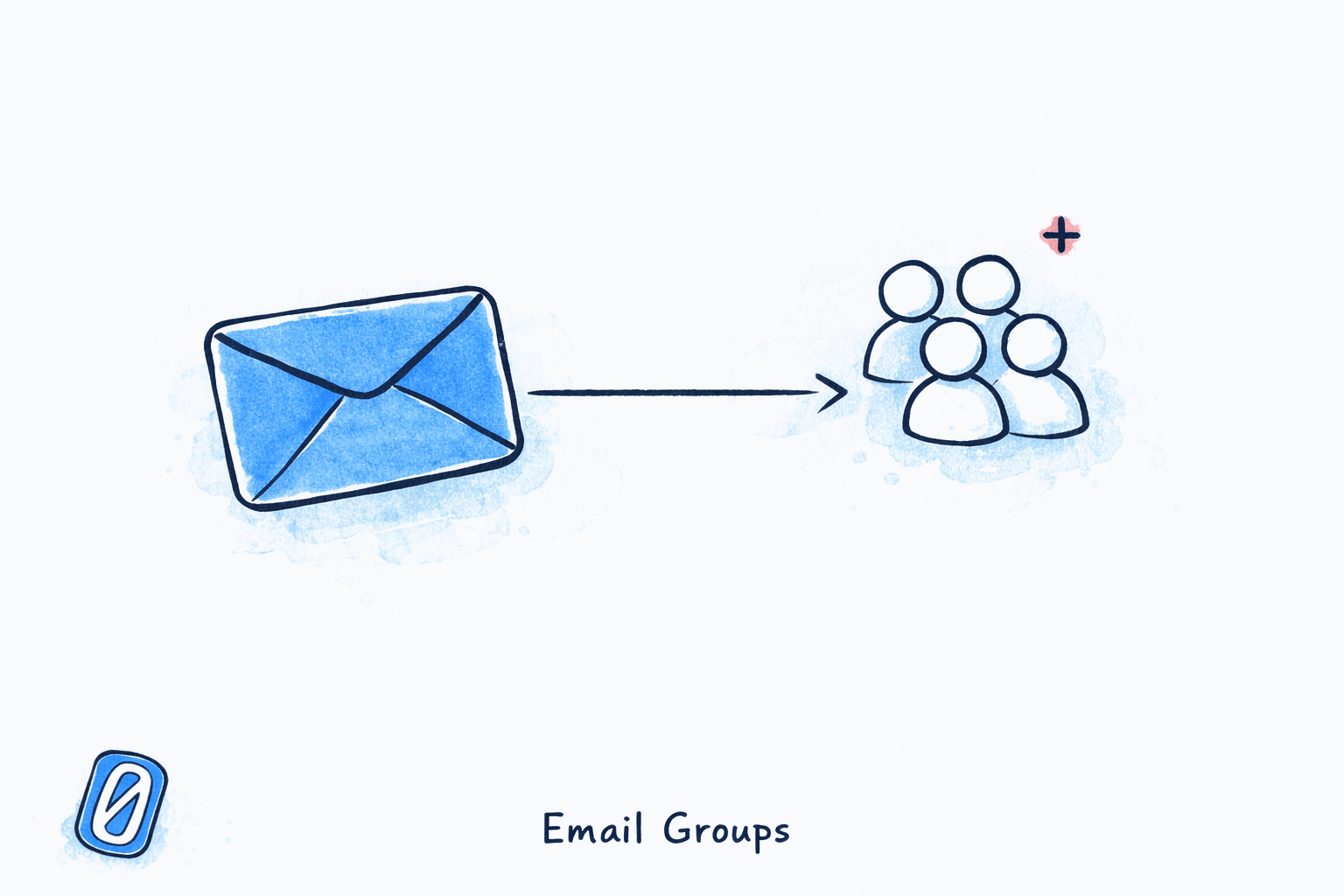
To create an email group in Gmail, you build a contact label in Google Contacts and add people to it. In Outlook, you create a Contact Group (or distribution list) from the People section. Either method lets you email multiple people by typing a single group name instead of adding addresses one by one. This guide walks you through how to create email groups in both platforms, on desktop and mobile, plus tips for managing groups as they grow. If you have ever wondered how to create email groups without an IT admin, the answer is simpler than you think.
How to Create an Email Group in Gmail (Contact Labels)#
Gmail doesn’t call them “groups.” It calls them “labels,” and they live inside Google Contacts, not inside Gmail itself. Once you create a label and assign contacts to it, you can type the label name into Gmail’s To field and it expands into every address in that label.
Here’s the process on desktop:
Step 1: Open Google Contacts#
Go to contacts.google.com in your browser, or click the Google Apps grid (the 9-dot icon in the top-right corner of Gmail) and select Contacts.
Open Google Contacts
DesktopGo to contacts.google.com directly, or click the Google Apps grid (⋮⋮⋮ icon) in the top-right corner of Gmail and select Contacts from the dropdown.
You can also type 'contacts.google.com' directly in your browser address bar. This is often faster than navigating from within Gmail.
Step 2: Select the Contacts You Want to Group#
Hover over each contact you want to include and check the checkbox that appears on the left. You can select as many contacts as you need. If a contact doesn’t exist yet, click Create contact first and add their email address.
Select Contacts for Your Group
DesktopHover over each contact and click the checkbox on the left side to select them. To add someone who is not in your contacts yet, click Create contact in the top-left corner and enter their details first.
Step 3: Create a Label (Gmail’s Version of a Group)#
With your contacts selected, click the Manage labels icon in the top toolbar (it looks like a tag or label icon). Select Create label, type a name for your group (like “Marketing Team” or “Book Club”), and click Save.
Apply a Label to Selected Contacts
DesktopWith contacts selected, click the Manage labels icon (tag icon) in the toolbar at the top. Choose Create label, enter a name like "Marketing Team," and click Save.
Label names autocomplete in Gmail's compose window. Use short, distinctive names so they are easy to type later.
Step 4: Send an Email to Your Gmail Contact Group#
Go back to Gmail, click Compose, and start typing your label name in the To field. Gmail suggests the label with a group icon next to it. Click it, and every contact in that label populates the To field.
That’s the entire process for learning how to create email groups in Gmail. Four steps, and you never need to type those addresses individually again.
How to Create an Email Group in Outlook (Contact Groups)#
Outlook uses the term “Contact Group” (desktop app) or “Contact List” (Outlook on the web). The concept is the same: a named collection of email addresses you can message all at once. If you’ve heard the phrase “email distribution list” in an office setting, this is what it refers to at the individual user level.
For the differences between Gmail and Outlook as platforms, see our full comparison. The group creation process, though, is similar in spirit.
On Outlook Desktop (Classic and New)#
Open People in Outlook
DesktopClick the People icon in the bottom-left navigation bar (it looks like two silhouettes). In New Outlook, click People in the left sidebar or the bottom icon row.
Create a New Contact Group
DesktopIn Classic Outlook: click New Contact Group in the ribbon. In New Outlook: click the dropdown arrow next to "New contact" and select New contact list. Give your group a name.
In New Outlook, the wording changed from 'Contact Group' to 'Contact List,' but the functionality is identical.
Add Members to the Group
DesktopClick Add Members in the ribbon (Classic) or start typing names in the members field (New). You can add people from your Outlook Contacts, your organization address book, or type new email addresses directly.
If you add members by typing a new email address, double-check for typos. Outlook does not verify external addresses against a directory.
Click Save & Close when you’re finished. The contact group now appears in your People view and can be used in any new email’s To, Cc, or Bcc field.
On Outlook Web (outlook.com / outlook.office.com)#
Open Outlook on the web and click People in the left sidebar. Click the dropdown next to New contact and choose New contact list. Name your list, add members by searching or typing email addresses, and click Create.
The web version works the same way as New Outlook for desktop, since they share the same codebase.
How to Create Email Groups on Your Phone#
Learning how to create email groups on mobile is more limited. Gmail requires the Google Contacts app, and Outlook mobile only lets you use existing groups, not create new ones. Both platforms steer you toward desktop for group creation.
Gmail App (iPhone and Android)#
The Gmail app does not let you create contact labels directly. You need to use the Google Contacts app or go to contacts.google.com in your mobile browser.
Open the Google Contacts app, tap a contact you want to group, tap the three-dot menu, and select Add to label. From there you can create a new label or choose an existing one. Repeat for each contact you want in the group. It’s slower than desktop, but once the label exists, it syncs automatically to Gmail on all your devices.
Outlook Mobile App#
Outlook’s mobile app (iOS and Android) does not support creating Contact Groups directly. You can use groups created on desktop or web, and they’ll appear as autocomplete suggestions when composing. But to create or edit a group, you need to use Outlook on the web or the desktop app.
This is one of those friction points that makes knowing how to create email groups on mobile less useful than it should be. If you find yourself juggling email on mobile frequently, setting up your groups from a computer first saves real time.
What About Outlook Distribution Groups and Microsoft 365 Groups?#
If you use Outlook through a company or school with Microsoft 365, you’ll encounter two additional types of groups beyond personal Contact Groups:
| Group Type | Who Can Create It | Best For | Shared Mailbox? |
|---|---|---|---|
| Contact Group (Contact List) | Any user | Personal groups, small teams, informal lists | No |
| Distribution Group | IT admin (usually) | Company-wide announcements, department lists | No |
| Microsoft 365 Group | Admin or allowed users | Team collaboration with shared calendar, files, OneNote | Yes |
Distribution Groups are the traditional email distribution list in corporate environments. They work like a shared alias: emails sent to the group address (like marketing@company.com) get delivered to every member. Only an admin can typically create or manage these.
Microsoft 365 Groups go further with a shared mailbox, calendar, file storage, and OneNote notebook. This is the Outlook email group setup organizations tend to prefer when they need collaboration, not just email delivery.
For most individual users, a Contact Group is all you need. It’s the email group list how to that applies regardless of whether you have admin access.
If managing who gets which emails feels like a chore on top of a chore, Swizero takes a different approach to inbox overload: a fixed card limit that surfaces only what matters, so you spend less time sorting and more time responding.
How Should You Manage Email Groups After Creating Them?#
-
Keep groups small and specific. A group called “Everyone” creates noise. Groups like “Q4 Launch Team” or “Soccer Parents” mean every message in them is relevant to every recipient. People stop reading group emails when too many feel irrelevant to them.
-
Review membership quarterly. People change roles, leave companies, and switch email addresses. Stale groups generate bounce-backs and send sensitive information to people who shouldn’t see it. Set a calendar reminder to audit group membership every quarter.
-
Use Bcc for large external groups. If you’re emailing a group of 50+ external contacts (customers, event invitees, newsletter subscribers), put the group in Bcc and your own address in To. This prevents everyone from seeing each other’s email addresses and avoids accidental reply-all storms. For guidance on writing effective group emails, clear subject lines and short messages matter even more when sending to many people.
-
Name groups so they autocomplete fast. Type-ahead matching is how you’ll use groups daily. “Marketing” is easier to type than “Q4-2026-mktg-external-stakeholders.” Prefix groups by team or context if you have many: “work-design” vs “personal-family.”
-
Know when to upgrade to a mailing list. Once you know how to create email groups, the next question is scale. Contact groups and contact lists are fine for up to about 50-100 people. Beyond that, you’re better served by a proper email distribution list tool (Google Groups for Gmail users, distribution groups via Exchange for Outlook organizations, or dedicated platforms like Mailchimp for external audiences). Personal contact groups were never designed for bulk sending.
If you’re exploring which email platform handles groups better, the answer depends on whether you need personal groups (both are fine) or organizational infrastructure (Microsoft 365 has a significant edge).
Frequently Asked Questions#
How do I create an email group in Gmail without Google Contacts?#
If you want to know how to create email groups without leaving Gmail, the short answer is you cannot create a reusable email group directly inside Gmail’s compose window. Gmail’s group functionality is built entirely on Google Contacts labels. You need to visit contacts.google.com or use the Google Contacts app to create a label, add members, and then use that label name in Gmail’s To field.
Can I create a distribution list in Outlook without admin access?#
Yes. Any Outlook user can create a personal Contact Group (Classic Outlook) or Contact List (New Outlook and web). These are stored in your own contacts and only you can use them. What requires admin access is creating a shared Distribution Group or Microsoft 365 Group that the entire organization can email.
What is the difference between a contact group and a distribution list?#
A contact group is a personal collection of email addresses saved in your own contacts. Only you can use it. A distribution list (distribution group) is an organization-level email alias managed by an IT administrator, where anyone in the organization can send to the group address and all members receive the message.
How many contacts can I add to a Gmail label or Outlook contact group?#
Gmail contact labels do not have a documented hard limit on members. Outlook Contact Groups support up to 500 members on Exchange Online. For larger lists, organizations typically use Distribution Groups or Microsoft 365 Groups, which support thousands of members.
Can I send a group email without everyone seeing each other’s addresses?#
Yes. Place the group name in the Bcc field instead of the To field. Put your own address in the To field. Every recipient receives the email individually without seeing who else received it. This is the standard practice for emailing large groups of external contacts.
Do Gmail contact groups sync across devices?#
Yes. Gmail contact labels sync through your Google account. Any label you create on desktop at contacts.google.com automatically appears on your phone, tablet, and any other device signed into the same Google account. Changes sync within a few minutes.
After you learn how to create email groups, how do you edit or delete them?#
In Gmail, go to contacts.google.com, click the label name in the left sidebar, and use the edit or delete options. In Outlook, open People, find your Contact Group or Contact List, open it, and use the edit/remove members options in the ribbon or toolbar.
Can I use email groups in Outlook mobile?#
You can use existing Contact Groups when composing email on Outlook mobile. The group name appears in autocomplete suggestions. However, you cannot create or edit Contact Groups from the Outlook mobile app. You need to use Outlook desktop or Outlook on the web to manage group membership.
Sources#
- Create a contact group or distribution list in Outlook — Microsoft Support, 2025. Official documentation for Outlook Contact Groups across platforms.
- Create, edit, or delete a label in Google Contacts — Google Support, 2025. Official guide to contact labels in Google Contacts.
- Overview of Microsoft 365 Groups for administrators — Microsoft Learn, 2025. Documentation on M365 Groups vs Distribution Groups.
Your inbox doesn't have to feel like this.
Apply what you just learned, faster.
Put this into practice with Swizero