How to Forward Emails Automatically
By Chris Stefaner, Co-founder of Swizero
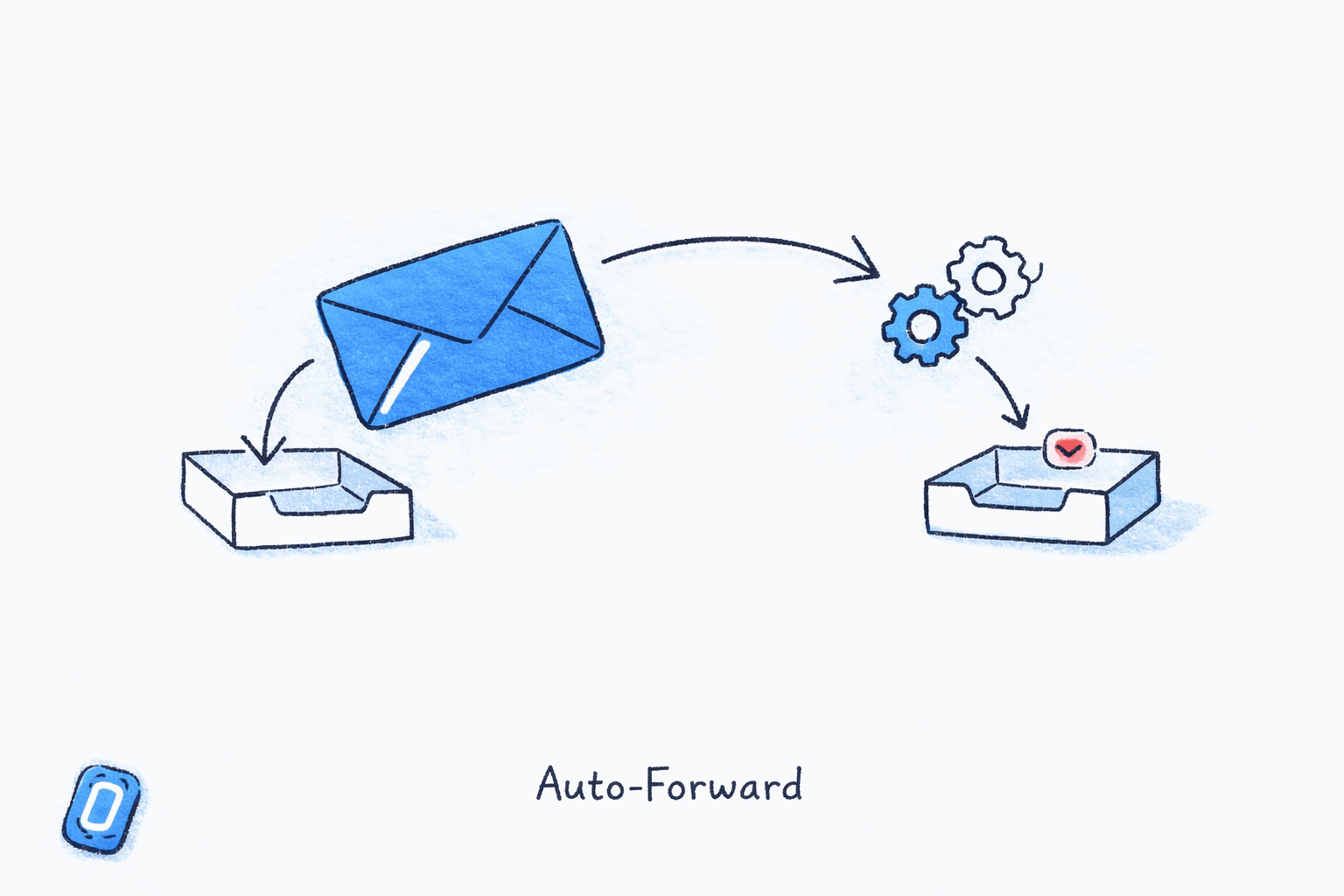
You can forward emails automatically in Gmail by going to Settings, clicking the Forwarding and POP/IMAP tab, and adding a forwarding address. In Outlook, open Settings, select Mail, then Forwarding, and toggle it on. Both platforms also let you create rules that forward only specific messages based on sender, subject, or keywords.
This guide covers how to forward emails automatically in every major email provider: Gmail, Outlook, Yahoo Mail, and Apple Mail (iCloud). You’ll find instructions for both all-mail forwarding and filter-based email redirect rules, plus security considerations you should know before turning anything on.
How to Forward Emails Automatically in Gmail#
Gmail offers two methods: forward everything, or forward only emails matching certain criteria. Both require you to verify the destination address first.
Forward All Incoming Emails#
The simplest way to learn how to forward emails automatically in Gmail is the all-mail method.
Open Forwarding Settings
DesktopClick the gear icon in the top-right corner of Gmail, then click See all settings. Navigate to the Forwarding and POP/IMAP tab.
In the Forwarding section, click Add a forwarding address. Type the email address where you want messages sent, then click Next, Proceed, and OK.
Verify the Forwarding Address
DesktopGmail sends a confirmation email to the forwarding address. Open that email and click the verification link, or copy the confirmation code back into Gmail settings.
The verification email sometimes lands in spam. Check the spam folder of the destination account if you don't see it within a few minutes.
Once verified, return to the Forwarding and POP/IMAP tab. Select Forward a copy of incoming mail to and choose your verified address from the dropdown. Then pick what happens to the Gmail copy: keep it in the inbox, mark as read, archive it, or delete it. Click Save Changes.
Forward Only Specific Emails with Filters#
Filter-based forwarding is useful when you only need certain messages (from a specific sender, with a certain subject line, or containing particular keywords) sent to another address.
You must add and verify a forwarding address first (follow the steps above). Then:
Create a Forwarding Filter
DesktopIn the Gmail search bar, click the Show search options icon (the small triangle). Enter your filter criteria: sender, subject, keywords, or other parameters. Click Create filter at the bottom of the search panel.
In the filter actions, check Forward it to and select your verified forwarding address. Click Create filter. Only new messages matching your criteria will be forwarded. Gmail allows a maximum of 20 forwarding filters per account.
Mobile Limitations#
The Gmail mobile app does not support setting up auto-forwarding or creating filter rules. You need to use Gmail in a desktop browser for these settings. On mobile, you can only forward individual emails manually.
How to Set Up Email Forwarding in Outlook#
Outlook’s forwarding options vary depending on whether you use Outlook.com (web), the new Outlook desktop app, or a Microsoft 365 work account.
Outlook on the Web (Outlook.com and Microsoft 365)#
Enable Forwarding in Outlook Web
DesktopClick the Settings gear icon in the top-right corner. Select Mail, then Forwarding. Toggle Enable forwarding to on. Enter the destination email address.
Check 'Keep a copy of forwarded messages' if you want emails to stay in your Outlook inbox after forwarding.
Click Save. All incoming messages will now auto-forward to the address you entered.
Outlook Desktop App (Rules-Based Forwarding)#
The classic Outlook desktop app uses inbox rules for forwarding. Open Outlook, click File, then Manage Rules & Alerts. Click New Rule, select Apply rule on messages I receive, and skip the conditions step to forward everything (or select conditions like specific senders or subject keywords for selective forwarding). Choose Forward it to as the action, enter the destination address, and finish the wizard.
One important note: rules created in the desktop Outlook app only run when Outlook is open, unless your account is on Exchange or Microsoft 365. Server-side accounts process rules even when the app is closed.
Admin-Controlled Forwarding (Microsoft 365)#
If you use a work or school Microsoft 365 account, your IT administrator may have disabled external forwarding as a security measure. If the forwarding toggle is greyed out, contact your admin. They can configure forwarding through the Microsoft 365 admin center under the user’s mail settings.
Does Email Forwarding Work in Yahoo and Apple Mail?#
Yes, but with limitations. If you want to know how to forward emails automatically in Yahoo or Apple Mail, here is how each platform handles it.
Yahoo Mail#
Yahoo Mail requires a Yahoo Mail Plus paid subscription to enable automatic forwarding. Free accounts cannot auto-forward.
If you have Yahoo Mail Plus: click the More options icon, select Settings, click Mailboxes, and select your primary mailbox. Under Auto-forwarding, enter the forwarding address and click Verify. Follow the verification instructions sent to the destination email.
Apple Mail (iCloud)#
Apple Mail itself has no forwarding settings. Forwarding is configured through iCloud.com in a browser.
Set Up iCloud Mail Forwarding
DesktopGo to icloud.com/mail and sign in. Click the settings gear icon near the top of the sidebar, then choose Settings. Select Mail Forwarding in the sidebar. Check the box next to Forward my email to and enter the destination address.
You cannot set up iCloud mail forwarding from the iPhone Mail app. You must use a browser.
You can optionally check Delete messages after forwarding if you don’t want copies stored in iCloud.
Email Forwarding Comparison: Gmail vs Outlook vs Yahoo vs Apple Mail#
| Feature | Gmail | Outlook (Web) | Yahoo Mail | Apple Mail (iCloud) |
|---|---|---|---|---|
| All-mail forwarding | Yes (free) | Yes (free) | Paid only (Yahoo Mail Plus) | Yes (free, via iCloud.com) |
| Filter-based forwarding | Yes (up to 20 filters) | Yes (via inbox rules) | No | No |
| Verification required | Yes | No | Yes | No |
| Works on mobile app | No (desktop browser only) | Yes (Outlook mobile settings) | No | No (browser only) |
| Keep copy option | Yes | Yes | Yes | Yes |
| Admin can disable | Yes (Workspace admins) | Yes (Microsoft 365 admins) | No | No |
If you’re weighing which platform suits your workflow best, the forwarding capabilities are one more factor to consider.
If you’re forwarding emails to consolidate multiple accounts into one inbox, Swizero takes a different approach: it sits on top of Gmail and surfaces only the emails that need your attention as a ranked stack of cards, so you spend less time sorting and more time deciding.
What Are the Security Risks of Auto-Forwarding?#
Automatic forwarding is convenient, but it creates real security exposure. According to Red Canary’s Threat Detection Report, detections for malicious email forwarding rules rose by nearly 600% in 2023, with consistent growth through 2024 and 2025. Attackers who gain access to an email account often create forwarding rules as their very first action, silently copying messages containing keywords like “invoice,” “payroll,” or “password” to an external address.
The FBI has warned that auto-forwarding rules are a primary tool in business email compromise (BEC) scams, which cost American organizations over $2.7 billion in 2024.
Honestly, I didn’t think much about forwarding security until I started researching this guide. The attack vector is surprisingly simple: one phished password, one hidden forwarding rule, and sensitive data leaks silently for weeks.
How to Protect Yourself#
- Review your forwarding rules regularly. In Gmail, check Settings, then Forwarding and POP/IMAP. In Outlook, check Settings, then Mail, then Rules. Look for rules you didn’t create.
- Enable two-factor authentication. This is the single most effective defense against unauthorized access to your email account.
- Watch for suspicious rule names. Attackers often name rules with a single period (.) or a semicolon (;) to make them easy to overlook.
- Use alert policies if your organization supports them. Microsoft 365 admins can set up alerts for new forwarding rules through the Security & Compliance Center.
For a deeper look at how different email apps handle your data, see our guide on what actually happens to your data with AI email tools.
Tips for Better Email Forwarding#
Now that you know how to forward emails automatically, these tips will help you avoid the most common mistakes.
- Use filters instead of all-mail forwarding when possible. Forwarding everything creates noise at the destination. Filter-based forwarding sends only what matters, which aligns with the broader principle of working through email in focused sessions rather than drowning in volume.
- Label forwarded messages at the source. In Gmail, combine your forwarding filter with a “Skip the Inbox” and “Apply label” action. This keeps your source inbox clean while still archiving a searchable copy.
- Test before you rely on it. After setting up forwarding, send yourself a test email and verify it arrives at the destination. Check both the content and the headers to confirm the forwarding address isn’t flagged as spam.
- Document your forwarding rules. If you manage email for a team or delegate inbox access to an assistant, keep a shared record of which accounts forward where. Undocumented forwarding is the number one cause of “missing email” support tickets.
- Don’t chain forwards. Forwarding from Account A to Account B to Account C increases latency, strips headers, and can trigger spam filters. Point each source account directly at the final destination.
Frequently Asked Questions#
Can you forward emails automatically without the sender knowing?#
Yes. When you set up how to forward emails automatically, the process happens silently on the server side. The original sender receives no notification that their message was forwarded. The forwarded copy arrives in the destination inbox like any other email, though some email clients display a “forwarded” tag in the message headers.
Does Gmail forwarding forward old emails or only new ones?#
Gmail’s auto-forwarding only applies to new incoming messages received after you enable it. Existing emails in your inbox are not forwarded retroactively. If you need to move old emails, you can manually forward them or use Google Takeout to export and import them into another account.
Can my employer see if I set up email forwarding?#
If you use a Google Workspace or Microsoft 365 work account, yes. Administrators can view and audit forwarding rules through the admin console. Some organizations actively block external forwarding or receive automated alerts when a forwarding rule is created. Check your company’s email policy before setting up forwarding on a work account.
Why are my forwarded emails going to spam?#
This is a common problem after learning how to forward emails automatically. Forwarded emails can trigger spam filters at the destination because the “From” address doesn’t match the forwarding account. This is especially common when the original sender’s domain has strict SPF or DKIM policies. To fix it, add the forwarding account to your contacts or allowlist at the destination, and mark any incorrectly flagged messages as “Not spam.”
Is there a limit to how many emails Gmail can forward?#
Once you know how to forward emails automatically in Gmail, you might wonder about volume limits. Gmail doesn’t impose a daily cap on forwarded messages for personal accounts, but forwarding filters are limited to 20 per account. Google Workspace administrators can set additional restrictions. If you forward extremely high volumes (hundreds per hour), Google’s automated systems may temporarily throttle forwarding to prevent abuse.
What is the difference between forwarding and redirecting email?#
Forwarding sends a copy of the message from your account, so the “From” field shows your address. Redirecting (available in Outlook via rules) preserves the original sender’s address in the “From” field, making the message appear as though it came directly from the original sender. Redirecting is better for shared mailboxes and delegation setups because replies go back to the original sender, not to you.
Sources#
- Automatically forward Gmail messages to another account - Google Gmail Help. Official documentation for Gmail’s forwarding and filter-based forwarding setup.
- Turn automatic forwarding on or off in Outlook - Microsoft Support. Step-by-step instructions for Outlook.com and new Outlook forwarding.
- Use rules to automatically forward messages - Microsoft Support. Rule-based forwarding in Outlook desktop and web.
- Automatically forward email in Mail on iCloud.com - Apple Support. iCloud Mail forwarding configuration.
- Enable automatic email forwarding in Yahoo Mail - Yahoo Help. Yahoo Mail Plus forwarding feature.
- Email Forwarding Rule, Red Canary Threat Detection Report - Red Canary, 2024. Detections for malicious forwarding rules rose nearly 600% in 2023.
- FBI Warns of Auto-Forwarding Email Rules Abused for BEC Scams - SecurityWeek. FBI advisory on business email compromise using forwarding rules.
- Configure email forwarding, Microsoft 365 admin - Microsoft Learn. Admin-level forwarding configuration for Microsoft 365.
Your inbox doesn't have to feel like this.
Apply what you just learned, faster.
Put this into practice with Swizero