How to Create an Email Alias in Gmail, Outlook, and iCloud
By Chris Stefaner, Co-founder of Swizero
You can create an email alias in Gmail using plus addressing (yourname+tag@gmail.com) with zero setup, in Outlook by adding an alias through your Microsoft account settings, and in iCloud by creating one in Mail settings on iCloud.com. Each method gives you an alternate address that delivers to your existing inbox.
The process takes under two minutes on any provider. If you have ever wondered how to create an email alias, the steps are simpler than most guides make them look. Below, you’ll find step-by-step instructions for Gmail, Outlook, and iCloud, along with a comparison of alias methods so you can pick the right approach for your situation.
What Is an Email Alias (and Why Would You Want One)?#
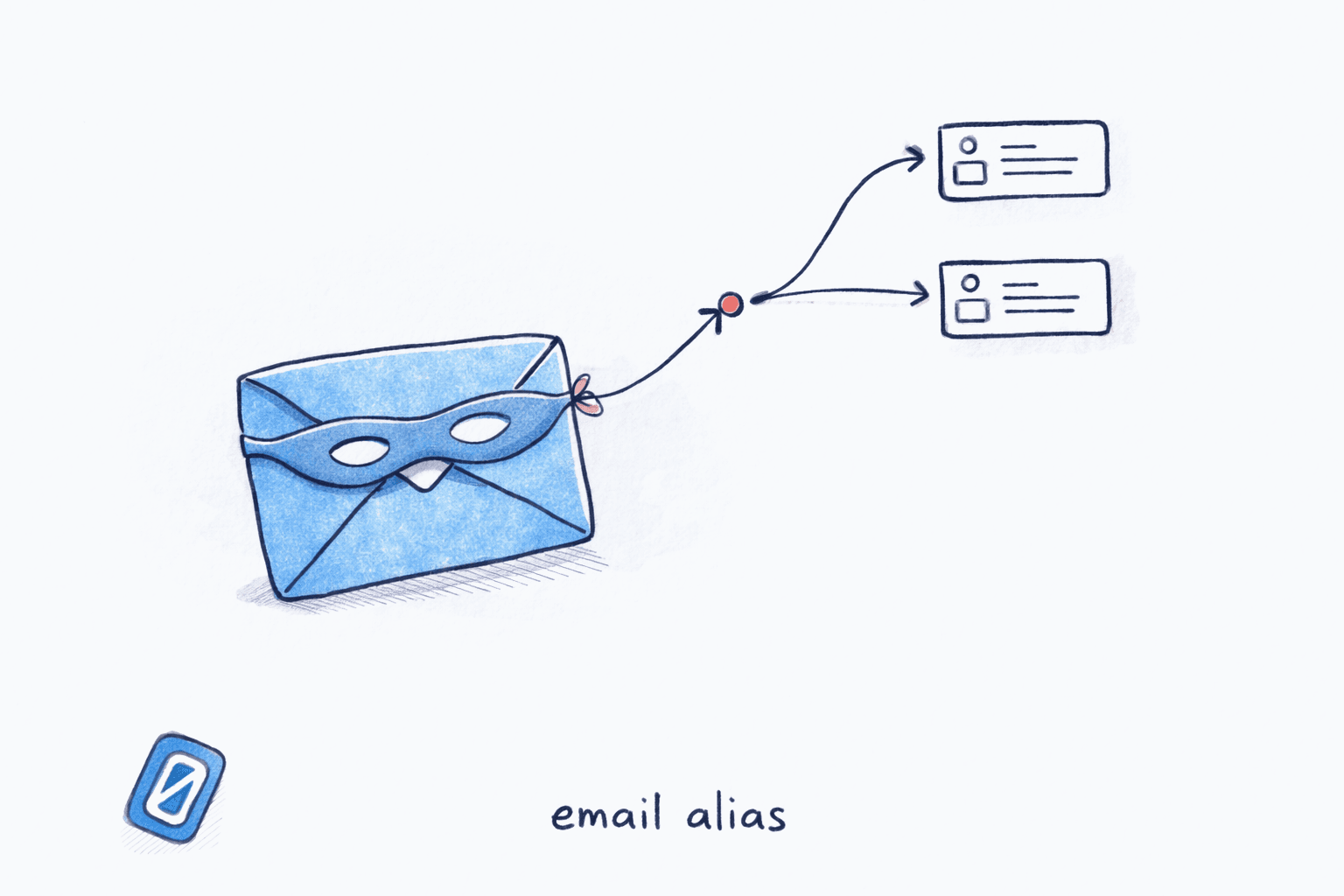
An email alias is an alternate address that routes messages to your existing inbox without requiring a separate account. You use the same login, the same contacts, and the same settings. The alias just gives you a different public-facing address.
People use aliases for several reasons. Signing up for newsletters with a tagged address lets you filter or delete everything from that tag later. Using a dedicated alias for online shopping keeps your primary address off marketing lists. If spam starts arriving at a specific alias, you know exactly which service leaked or sold your information. Security researcher Brian Krebs noted in his 2022 analysis The Security Pros and Cons of Using Email Aliases that alias users can detect data breaches faster because unexpected email to a specific alias signals a leak.
Aliases also simplify professional life. Once you know how to create an email alias, the possibilities open up quickly. Freelancers can create project-specific addresses. Small business owners can set up support@, billing@, or hello@ addresses that all land in one inbox. And anyone tired of sorting through an overloaded inbox can use aliases as a built-in organization system.
How to Create an Email Alias in Gmail#
Gmail offers two alias methods: plus addressing (instant, no setup) and the “Send mail as” feature (for sending from a different address).
Method 1: Plus Addressing (No Setup Required)#
Plus addressing works immediately on every Gmail account. Append a + sign and any tag after your username, and mail sent to that address arrives in your regular inbox.
Example: If your address is jane@gmail.com, then jane+newsletters@gmail.com, jane+shopping@gmail.com, and jane+work@gmail.com all deliver to the same inbox.
To start using it, just give out the tagged address wherever you sign up. No configuration needed. You can then create Gmail filters to automatically label or sort messages by their +tag.
Limitations to know: Some websites reject the + character in email fields. Banks, airlines, and older e-commerce platforms are common offenders. The tag is also visible in the address itself, which means it offers no real privacy protection. A 2022 Krebs on Security investigation found that data brokers routinely strip plus tags as a normalization step, collapsing all your tagged addresses back to your base email.
Method 2: “Send Mail As” (Send From a Different Address)#
If you own another email address and want to send and receive from it inside Gmail, use the “Send mail as” feature. This is common for people who manage a custom domain address (like hello@yourbusiness.com) alongside their personal Gmail.
Open Gmail Settings
DesktopClick the gear icon in the top-right corner of Gmail, then select See all settings from the dropdown.
Go to Accounts and Import
DesktopSelect the Accounts and Import tab (labeled Accounts on some versions). Scroll to the Send mail as section and click Add another email address.
Enter the Alias and Verify
DesktopType your name and the alias address. Check the Treat as an alias box. Click Next Step, then open the verification email Gmail sends to that address and click the confirmation link.
After verification, a dropdown appears in the From field when you compose a new email, letting you choose which address to send from.
Once verified, you can set the alias as your default sending address in the same Accounts and Import section. Replies to emails sent from the alias will come back to your Gmail inbox.
For Google Workspace users, admins can also create aliases through the Google Admin console under Directory > Users, which makes the alias available across the entire organization without needing individual SMTP verification.
How to Create an Email Alias in Outlook#
Outlook.com (personal Microsoft accounts) lets you create aliases directly through your account settings. Microsoft 365 business accounts use the admin center instead.
For Personal Outlook.com Accounts#
Open Your Microsoft Account Settings
DesktopGo to [account.live.com](https://account.live.com) and sign in. Click Your info in the top navigation, then select Manage how you sign in to Microsoft.
Add a New Email Alias
DesktopClick Add email. Choose either Create a new email address and add it as an alias (to get a new @outlook.com address) or Add an existing email address as an alias (to link an address you already own). Click Add alias.
New Outlook.com aliases use @outlook.com by default. Older accounts may also see @hotmail.com or @live.com as options.
After adding the alias, messages sent to it arrive in your primary Outlook inbox. You can send from the alias by selecting it in the From field when composing.
Outlook alias limits: Microsoft allows a maximum of 10 active aliases per account, with a cap of 2 new aliases per 7-day period. If you hit the creation limit, you’ll need to wait up to a year before you can add more, even if you delete existing ones.
For Microsoft 365 Business Accounts#
Admins create aliases through the Microsoft 365 admin center. Navigate to Users > Active users, select the user, open the Account tab, click Manage username and email, type the new alias, and click Add. Users can then send from the alias in Outlook without any additional client-side configuration.
The Microsoft Learn documentation on adding aliases for Microsoft 365 users covers edge cases like shared mailboxes and distribution groups.
How to Create an Email Alias in iCloud#
Apple offers two distinct alias features: traditional iCloud Mail aliases (free, up to 3) and Hide My Email (requires iCloud+, unlimited random addresses).
Traditional iCloud Mail Aliases#
Open iCloud Mail Settings
DesktopGo to [icloud.com/mail](https://icloud.com/mail) and sign in with your Apple Account. Click the gear icon at the top of the Mailboxes list, then select Settings.
Add a New Alias
DesktopIn Account settings, click Add Alias. Enter your desired alias address (3-20 characters, which becomes alias@icloud.com), a label for organization, and the full name you want to appear in the From field. Click OK.
You can only create 3 iCloud Mail aliases. If you delete one, you must wait 7 days before creating a replacement.
iCloud Mail aliases are free for anyone with an active iCloud email address. Messages sent to an alias arrive in your primary inbox by default. You can send from the alias on iCloud.com and on any Apple device with Mail turned on in iCloud settings.
Hide My Email (iCloud+ Subscribers)#
Hide My Email is Apple’s privacy-focused alias system. It generates unique, random addresses (like random-string@privaterelay.appleid.com) that forward to your real inbox. The key difference from traditional aliases: the sender never sees your real email address, and you can deactivate any individual address at any time.
You can create Hide My Email addresses on iPhone (Settings > your name > iCloud > Hide My Email), on Mac (System Settings > Apple Account > iCloud > Hide My Email), or on iCloud.com. It requires an iCloud+ subscription, which starts at $0.99/month.
Honestly, for most people who just want a second address for filtering, the free 3-alias limit is plenty. Hide My Email is better suited for one-time signups where you want the ability to cut off the address entirely if spam follows.
How Does Email Alias Compare to Forwarding and Plus Addressing?#
Each method routes mail to your inbox differently, with trade-offs in privacy, flexibility, and setup effort.
| Feature | Plus Addressing | True Alias | Email Forwarding |
|---|---|---|---|
| Setup required | None | Moderate (provider settings) | Moderate (DNS or provider settings) |
| Hides your real address | No (base address visible) | Partially (same domain visible) | Yes (if configured correctly) |
| Can send from the address | No | Yes | No (replies come from your primary) |
| Works on all websites | No (some reject + sign) | Yes | Yes |
| Provider examples | Gmail, Outlook, iCloud | Gmail “Send as”, Outlook alias, iCloud alias | Any email provider |
| Privacy level | Low | Medium | Medium-High |
| Best for | Quick filtering, leak detection | Professional identity, multi-brand | Consolidating old accounts |
Plus addressing is the fastest option but the least private. If you want to learn how to create an email alias that you can actually send from, true aliases are the better choice for professional use. Forwarding works best when you’re consolidating accounts from different providers into one inbox.
If managing multiple aliases and filter rules sounds like adding complexity to an already crowded inbox, Swizero takes a different approach: a fixed card limit means your inbox only shows what matters, regardless of which address it was sent to.
Tips for Managing Email Aliases#
Knowing how to create an email alias is only the first step. The real value comes from managing your aliases well over time.
-
Use a consistent naming convention. Pick a pattern (like
yourname+service@gmail.comoryourname.service@outlook.com) and stick with it. When an alias starts receiving spam, you’ll immediately know which service is responsible. -
Keep a record of your aliases. A simple note or spreadsheet listing each alias and what you used it for saves headaches later, especially during account recovery. Some password managers (like 1Password or Bitwarden) let you store alias information alongside login credentials.
-
Set up filters immediately. Creating the alias is half the job. The other half is telling your email client what to do with messages that arrive there. In Gmail, create a filter for
to:yourname+tag@gmail.comto auto-label or auto-archive. In Outlook, use Rules. In iCloud, assign a color label to each alias. The difference between a productive inbox and a chaotic one is often just a few well-placed filters. -
Don’t use aliases for critical accounts. Your bank, health portal, and primary social accounts should use your real address. Aliases can complicate account recovery if you forget which one you used or if you delete the alias later.
-
Consider dedicated privacy tools for high-risk signups. For websites you don’t fully trust, Apple’s Hide My Email or standalone relay services offer more protection than a simple plus address.
Frequently Asked Questions#
How do I create an email alias for free?#
The easiest way to learn how to create an email alias for free is to start with Gmail’s plus addressing, which is completely free and requires no setup. Just append +anytag to your existing Gmail username (like yourname+tag@gmail.com). Outlook.com also lets you create up to 10 aliases at no cost through your Microsoft account settings. iCloud offers 3 free aliases to anyone with an iCloud email address.
What is the difference between an email alias and email forwarding?#
An email alias is an alternate address attached to your existing account. It shares your inbox, contacts, and settings, and you can usually send from it. Email forwarding redirects mail from one independent account to another. The forwarded messages go through two delivery steps, and replies typically come from your primary address rather than the forwarding address.
Can you send emails from an alias in Gmail?#
Yes, if you use the “Send mail as” feature in Gmail settings (under Accounts and Import). After adding and verifying the alias address, a dropdown appears in the From field when composing, letting you choose which address to send from. Plus addressing does not support sending, only receiving.
Do email aliases protect your privacy?#
Traditional aliases and plus addresses offer limited privacy because your base domain or address is still visible. For stronger privacy, Apple’s Hide My Email generates random relay addresses that completely mask your real email. Brian Krebs noted that alias users can detect data breaches faster, but data brokers routinely strip plus tags to expose the underlying address.
Is plus addressing the same as an email alias?#
Not exactly. Plus addressing is a subset of aliasing. It modifies your existing address with a +tag (like name+shopping@gmail.com) and requires no setup. A true alias is a separate address (like support@yourdomain.com) configured in your account settings that can typically be used for both sending and receiving. Plus addressing only works for receiving.
How many aliases can you create in Gmail, Outlook, and iCloud?#
Gmail plus addresses are unlimited. Gmail “Send mail as” aliases have no published cap but require individual verification for each one. Outlook.com allows up to 10 active aliases with a 2-per-week creation limit. iCloud Mail allows 3 aliases. iCloud+ Hide My Email addresses are unlimited.
Will learning how to create an email alias affect my existing emails?#
No. Adding an alias does not change your primary address, delete any existing messages, or alter your account settings. It simply adds a new address that routes to the same inbox. You can remove an alias later without affecting your primary account.
Sources#
- Send emails from a different address or alias. Google Gmail Help. Steps for configuring “Send mail as” aliases.
- Add or remove an email alias in Outlook.com. Microsoft Support. Official guide including alias limits.
- Add and manage email aliases for iCloud Mail. Apple Support. iCloud alias creation process and 3-alias limit.
- Set up and use Hide My Email in iCloud+. Apple Support. Privacy relay alias feature for iCloud+ subscribers.
- The Security Pros and Cons of Using Email Aliases. Brian Krebs, Krebs on Security, 2022. Security benefits and breach detection via aliases.
- Add another email alias for a user. Microsoft Learn. Microsoft 365 admin alias configuration.
- Add or delete an alternate email address (email alias). Google Workspace Admin Help. Workspace-level alias management.
Your inbox doesn't have to feel like this.
Apply what you just learned, faster.
Put this into practice with Swizero