How to Create Gmail Filters: Step-by-Step Guide
By Chris Stefaner, Co-founder of Swizero
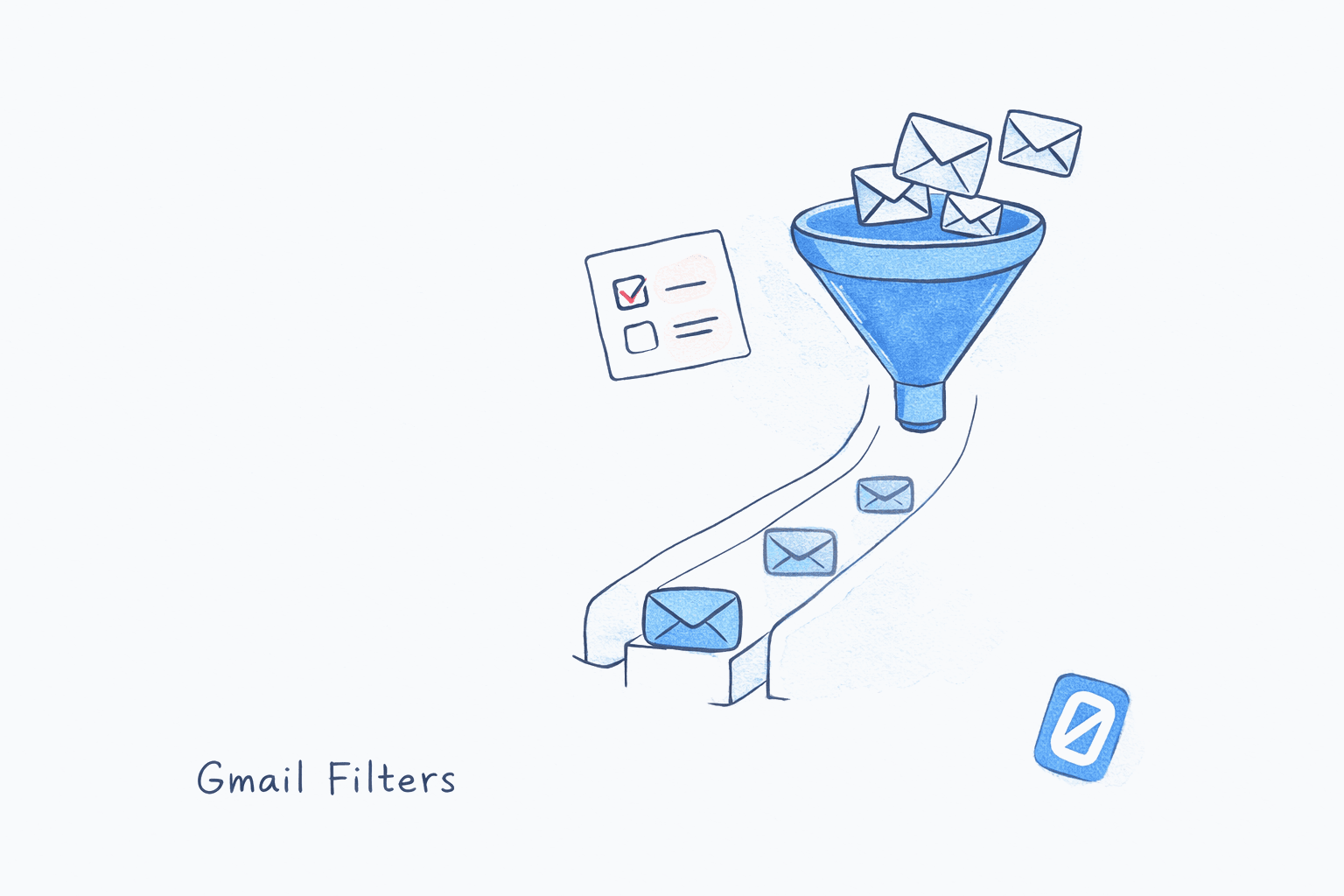
You create Gmail filters by clicking the filter icon in the search bar, entering your conditions (sender, keywords, size, etc.), and choosing an action like applying a label or archiving. The entire process takes about 60 seconds.
Gmail filters can only be created on desktop. The Gmail mobile app has no filter creation interface, which means you’ll need a browser. Below, you’ll find three methods for creating filters, a reference table of advanced search operators, and tips for building filters that actually reduce inbox noise long-term.
How to Create Gmail Filters (3 Methods)#
Gmail gives you three entry points for creating filters. They all lead to the same filter-creation dialog, but each starts from a different spot.
Method 1: From the Search Bar (Fastest)#
Click the filter icon (a small triangle) at the right end of the Gmail search bar. This opens the advanced search panel where you can specify conditions: From, To, Subject, Has the words, Doesn’t have, Has attachment, and Size. Fill in your criteria, click Search to preview matching messages, then click the filter icon again and select Create filter.
Open Advanced Search
DesktopClick the filter icon (small triangle / Show search options) at the right end of the Gmail search bar. A dropdown panel appears with filter condition fields.
You can also type search operators directly in the search bar and then click the filter icon to convert them into a filter.
Set Conditions and Create Filter
DesktopFill in your conditions (From, Subject, Has the words, etc.), then click Search to preview results. Re-open the advanced search panel (click the filter icon), then click Create filter at the bottom of the panel. Choose your actions and click Create filter to save.
Method 2: From an Existing Email#
Already have a message from a sender you want to filter? Open or hover over the email, click the three-dot menu (More), and select Filter messages like these. Gmail pre-fills the sender address in the filter dialog. Adjust any additional conditions, then proceed to choose your actions.
This method is ideal when you receive an email and think “I never want to see these in my inbox again.”
Filter from an Existing Message
DesktopOpen the email, click the three vertical dots (More) in the top-right of the message, then select Filter messages like these. Gmail opens the filter dialog with the sender pre-filled.
This works from both the inbox list view (hovering) and inside an opened email.
Method 3: From Gmail Settings#
This method lets you see all your existing filters and create new ones in one place. Click the gear icon in the top-right corner, select See all settings, then navigate to the Filters and Blocked Addresses tab. Click Create a new filter at the bottom of the list.
Create Filter from Settings
DesktopClick the gear icon (top-right) → See all settings → Filters and Blocked Addresses tab → scroll to bottom → click Create a new filter.
Filter Actions: What Gmail Can Do Automatically#
Once you’ve set your conditions, Gmail presents a list of actions to apply to matching messages:
| Action | What It Does |
|---|---|
| Skip the Inbox (Archive it) | Messages bypass your inbox and go directly to All Mail or a label |
| Mark as read | Messages arrive without triggering an unread count |
| Star it | Adds a star for easy retrieval |
| Apply the label | Sorts messages into a specific label (create new labels here too) |
| Forward it | Sends a copy to another email address |
| Delete it | Sends matching messages straight to Trash |
| Never send it to Spam | Overrides Gmail’s spam filter for trusted senders |
| Always mark it as important | Boosts messages from this filter in Priority Inbox |
| Never mark it as important | Prevents messages from appearing in important |
| Categorize as | Routes to a specific tab (Primary, Social, Promotions, Updates, Forums) |
You can combine multiple actions on a single filter. A common combination: “Apply the label ‘Newsletters’ + Skip the Inbox + Mark as read” keeps subscription emails organized but silent.
Can You Create Gmail Filters on Mobile?#
Gmail’s mobile app does not support creating filters. There’s no workaround within the app itself. However, you have two options:
Option 1: Use your phone’s browser. Open Gmail in Safari or Chrome, tap the three-dot menu, and select “Desktop site.” This loads the full Gmail interface where you can create filters normally. The screen is cramped, but it works.
Option 2: Wait until you’re at a computer. If the filter isn’t urgent, flag the email you want to filter (swipe right to star it) and create the filter later on desktop.
For people who manage most of their email on mobile, the inability to create filters on the go is a genuine friction point. It’s one reason many mobile-first users explore email apps that automate sorting differently.
Advanced Gmail Filter Operators#
For power users, Gmail’s filter conditions accept the same search operators you can type in the search bar. These let you build precise rules that the basic dialog fields cannot express:
| Operator | Example | What It Matches |
|---|---|---|
from: | from:noreply@github.com | Messages from a specific address |
from: (domain) | from:@linkedin.com | All messages from a domain |
to: | to:me | Messages sent directly to you (not CC/BCC) |
subject: | subject:invoice | Keyword in subject line |
has:attachment | has:attachment | Any message with a file attached |
larger: | larger:10M | Messages larger than 10 MB |
older_than: | older_than:1y | Messages older than one year |
is:unread | is:unread | All unread messages |
label: | label:work | Messages with a specific label |
OR | from:a@x.com OR from:b@x.com | Messages matching either condition |
- (minus) | -from:boss@company.com | Exclude messages from this sender |
You can combine operators in the “Has the words” field when creating a filter. For example, entering has:attachment larger:5M as the “Has the words” criterion creates a filter that catches only large attachments.
For a deeper dive into search operators for inbox organization, see our guide on how to organize Gmail.
How to Edit or Delete Existing Filters#
To manage your filters, go to Settings (gear icon) > See all settings > Filters and Blocked Addresses. Every active filter is listed with its conditions and actions. Click edit to modify a filter or delete to remove it entirely.
Find and Edit Your Filters
DesktopClick gear icon → See all settings → Filters and Blocked Addresses tab. All active filters are listed. Click edit next to any filter to modify it, or delete to remove it.
Gmail allows up to 1,000 filters per account. If you hit the limit, consolidate similar filters using OR operators.
How Do You Apply a Filter to Existing Emails?#
By default, new filters only apply to future incoming messages. To apply a filter retroactively, check the box labeled Also apply filter to matching conversations at the bottom of the action selection screen when creating the filter.
This is useful when you’re setting up filters for senders who’ve already sent you hundreds of messages. The filter will process all matching emails in your account immediately.
Tips for Creating Gmail Filters That Work#
-
Start broad, then narrow. Begin with a simple “from:” filter for a sender. If it catches messages you want, add conditions later. Overly specific filters miss messages.
-
Use labels as folders. Gmail’s labels function like folders but better. A single message can have multiple labels. Create a labeling system first, then build filters that route messages into it. For more on email productivity strategies, structured labeling is a foundation.
-
Combine “Skip the Inbox” with a label. This is the most powerful filter pattern. Messages arrive silently in their label. You check them on your schedule instead of being interrupted. This technique pairs naturally with the email batching approach that research shows reduces stress.
-
Audit filters quarterly. Filters decay. Senders change addresses, mailing lists shut down, and your priorities shift. Review your filter list every few months and delete anything that no longer matches real messages.
If you’re building filters to manage an inbox that keeps growing faster than you can organize it, Swizero takes the opposite approach: AI ranks what matters and surfaces only a fixed card limit per session, so you finish your inbox instead of endlessly filtering it.
- Test before committing. Always click “Search” before creating the filter to see which existing messages match. A misconfigured filter can silently archive or delete messages you need.
Frequently Asked Questions#
Can you create Gmail filters on your phone?#
No. Gmail’s mobile app does not support creating, editing, or deleting filters. You need to use Gmail on a desktop browser. As a workaround, you can request the desktop site in your phone’s browser, but the interface is not optimized for small screens.
Do Gmail filters apply to old emails or only new ones?#
Filters apply only to new incoming messages by default. To apply a filter retroactively, check the “Also apply filter to matching conversations” box during filter creation. This processes all existing messages that match your conditions.
How many filters can you have in Gmail?#
Gmail allows up to 1,000 filters per personal account. Google Workspace accounts may have different limits depending on the plan. If you’re approaching the limit, consolidate similar filters using OR operators in the conditions.
Why is my Gmail filter not working?#
The most common reasons a Gmail filter stops working: the sender changed their email address, you have conflicting filters (a higher-priority filter catches the message first), or the filter conditions are too specific. Go to Settings > Filters and Blocked Addresses to review your conditions. Test them by pasting the conditions into the search bar.
Can Gmail filters forward emails to another address?#
Yes. Select “Forward it to” as a filter action and choose a verified forwarding address. You must verify the forwarding address first in Settings > Forwarding and POP/IMAP. Note that forwarding filters only work for new incoming messages. For a complete guide, see our post on how to forward emails automatically.
What’s the difference between Gmail filters and labels?#
Labels are categories (like folders, but a message can have multiple). Filters are rules that automatically apply actions to messages. They work together: you create a label, then create a filter that applies that label to matching messages. Labels organize. Filters automate.
Can you create filters based on email size or attachments?#
Yes. In the filter creation dialog, use the “Has attachment” checkbox for attachment-based filters. For size-based filters, use the Size field (greater than or less than a specific MB value). You can also type larger:5M in the “Has the words” field for more control.
Do Gmail filters work with Google Workspace accounts?#
Yes. Gmail filters work identically for personal Gmail and Google Workspace accounts. Workspace admins can also create organization-wide content compliance rules through the Admin Console, but individual user filters function the same way.
Sources#
- Create rules to filter your emails - Google Gmail Help. Official documentation on filter creation, conditions, and actions.
- Refine searches in Gmail - Google Gmail Help. Complete reference for Gmail search operators that also work in filter conditions.
Your inbox doesn't have to feel like this.
Apply what you just learned, faster.
Put this into practice with Swizero