How to Block an Email Address: Gmail, Outlook, iPhone
By Chris Stefaner, Co-founder of Swizero
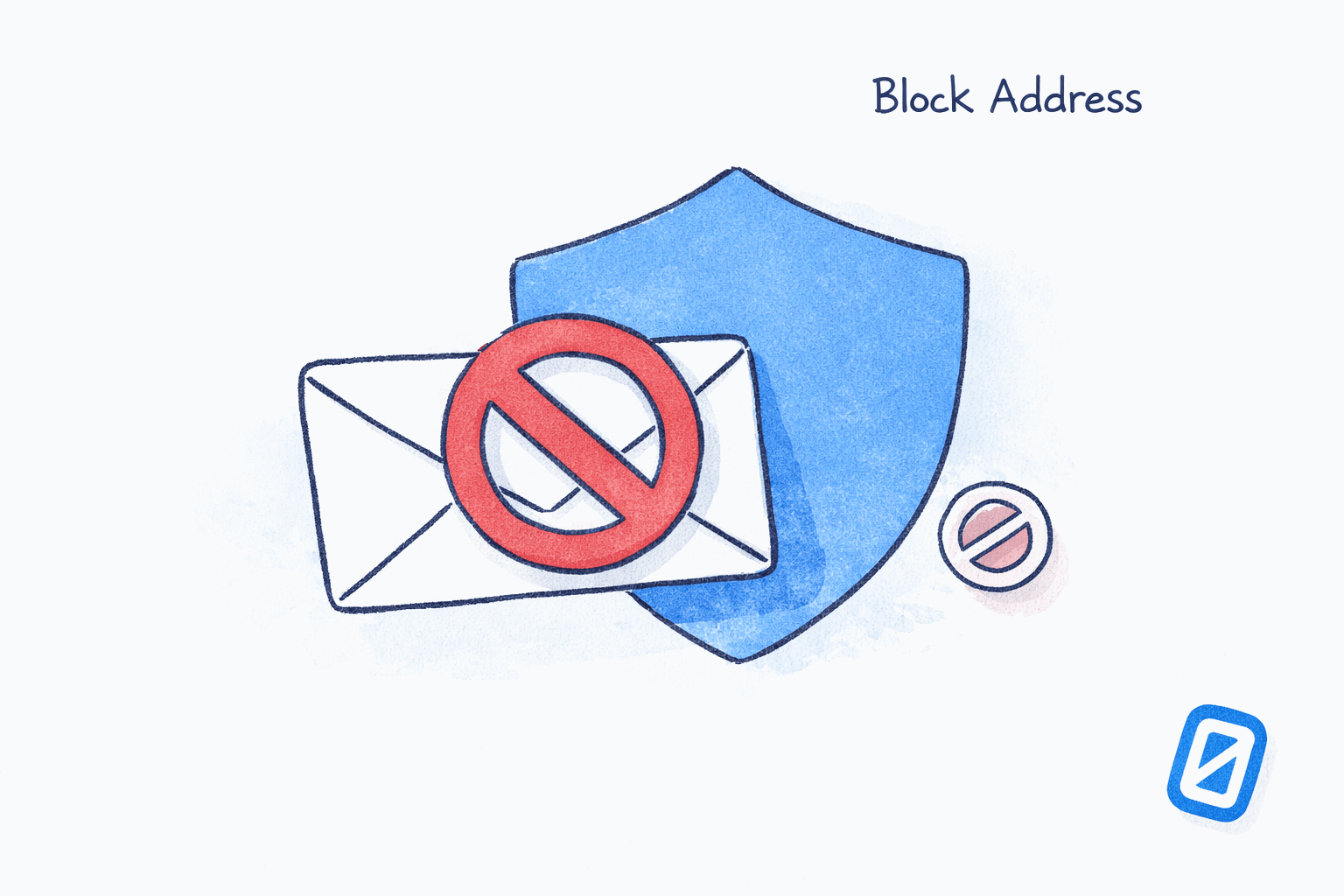
To block an email address, open a message from the sender you want to block, tap or click the three-dot menu (or the sender’s name), and select “Block.” The exact steps vary by platform, but every major email provider offers a built-in blocking option that takes under 30 seconds.
This guide covers how to block an email address in Gmail, Outlook, Apple Mail, and Yahoo Mail, with separate instructions for desktop and mobile. You’ll also learn what happens after you block someone, the limitations of blocking, and when filtering or reporting spam is the better move.
How to Block an Email Address in Gmail#
Gmail’s blocking feature works the same way on desktop and mobile: it sends all future messages from a blocked sender straight to your Spam folder.
On Desktop (Web Browser)#
Open the email from the sender you want to block. Click the three vertical dots in the top-right corner of the message, then select Block [sender’s name] from the dropdown. Gmail will ask you to confirm. Click Block.
Open the Three-Dot Menu
DesktopInside the email, click the three vertical dots (More) in the top-right corner of the message header, next to the reply arrow.
Select "Block [Sender]"
DesktopClick Block [sender name] from the dropdown menu. A confirmation dialog appears. Click Block to confirm.
The block option shows the sender's actual name, so you can verify you're blocking the right person.
On the Gmail App (iPhone or Android)#
Open the email, tap the three-dot menu in the top-right corner, and tap Block [sender’s name]. The flow is nearly identical to desktop.
Manage Your Blocked List in Gmail#
To view or edit your blocked senders, go to Settings (gear icon) > See all settings > Filters and Blocked Addresses. Scroll to the bottom to find your blocked list. You can unblock any address by clicking Unblock next to it.
One limitation: Gmail’s block feature works per email address, not per domain. If you’re getting unwanted emails from multiple addresses at the same domain, you’ll need to create a filter instead. For a deeper look at how Gmail and Outlook handle features like this differently, see our Gmail vs Outlook comparison.
How to Block a Sender in Outlook#
Knowing how to block an email address in Outlook is just as straightforward as Gmail. Blocked messages go to your Junk Email folder.
On Outlook.com or New Outlook (Desktop)#
Right-click the message from the sender you want to block. Hover over Junk, then select Block Sender. Outlook asks you to confirm. Click Block.
Right-Click the Message
DesktopIn your inbox, right-click the email from the unwanted sender. Hover over Junk in the context menu, then click Block Sender.
You can also block from inside an open message by clicking the three-dot menu and selecting Block.
On Outlook via Settings#
Go to Settings (gear icon) > Mail > Junk email. Under Blocked senders and domains, click the + Add button, type the email address or full domain, and click Save. This method lets you block entire domains (e.g., blocking @example.com stops every address at that domain).
Block via Junk Email Settings
DesktopClick the gear icon → Mail → Junk email. Under Blocked senders and domains, click + Add, enter the email address or domain, then click Save.
Outlook lets you block entire domains from this settings page. Free accounts support up to 10,000 blocked entries.
On the Outlook Mobile App#
Open the email, tap the three-dot menu in the top-right corner, then tap Report Junk > Block Sender. Confirm your choice. The sender is added to your blocked list across all Outlook devices.
How to Block Email on iPhone (Apple Mail)#
Apple Mail’s blocking feature works at the system level, so a blocked sender is blocked across Mail, Messages, and FaceTime on all your Apple devices.
Block from an Email#
Open the email in the Mail app. Tap the sender’s name at the top of the message. Tap Block this Contact in the dropdown that appears.
Tap the Sender's Name
MobileOpen the email, then tap the sender name or email address at the top of the message. A dropdown card appears with contact details. Tap Block this Contact.
Block Without Opening the Email#
In your inbox, long-press (press and hold) the email. A context menu appears. Tap Block Sender directly from here.
Configure Where Blocked Emails Go#
By default, Apple Mail may leave blocked emails in your inbox with a “Blocked” label. To send them straight to Trash, go to Settings > Apps > Mail > Blocked Sender Options and select Move to Trash.
Set Blocked Emails to Trash
MobileGo to Settings → Apps → Mail → scroll to Blocked Sender Options → select Move to Trash.
Without this setting, blocked emails stay in your inbox with a banner. Most people want them moved to Trash automatically.
For tips on managing your email setup on iPhone, we’ve covered the full landscape of what’s available in 2026.
How to Block Email in Yahoo Mail#
Yahoo Mail lets you block specific addresses and, on paid plans, entire domains.
From Your Inbox#
Select the unwanted message (or multiple messages). Click the three-dot icon (More) at the top of the inbox. Select Block Senders. Choose whether to block future emails only, or also delete existing messages from those senders. Click OK.
From Settings#
Click the gear icon > More Settings > Security and Privacy. Under Blocked Addresses, click Add and enter the email address. Yahoo Mail free accounts can block up to 1,000 individual addresses and 3 domains. Yahoo Mail Plus users can block up to 500 domains.
What Does Blocking Actually Do?#
Once you know how to block an email address, the next question is what happens behind the scenes. Each provider handles blocked senders slightly differently. Here’s a comparison across the four major platforms.
| Feature | Gmail | Outlook | Apple Mail | Yahoo Mail |
|---|---|---|---|---|
| Where blocked emails go | Spam folder | Junk Email folder | Inbox (labeled) or Trash | Deleted or blocked |
| Block entire domains | No (use filters) | Yes | No | Yes (limited) |
| Sender notified? | No | No | No | No |
| Syncs across devices | Yes (Google account) | Yes (Microsoft account) | Yes (Apple ID) | Yes (Yahoo account) |
| Block limit | No published limit | 10,000 entries | No published limit | 1,000 addresses |
| Can block from inbox list | No (must open email) | Yes (right-click) | Yes (long-press) | Yes (select + menu) |
The blocked sender never finds out. Their emails simply stop appearing in your inbox. On Gmail and Outlook, the messages still technically arrive but are diverted to Spam or Junk. On Apple Mail (with the right setting), they go straight to Trash.
Is Blocking the Same as Reporting Spam?#
No. Blocking and reporting spam are related but serve different purposes.
Blocking is personal: it tells your email provider to divert messages from one specific address away from your inbox. It only affects your account.
Reporting spam is communal: it flags the message to your email provider’s spam detection system. Your report trains the algorithm to catch similar messages for all users, not just you. In Gmail, for example, clicking “Report spam” sends the message to Google’s spam team for analysis.
Filtering is the most flexible option. You can create custom rules that auto-archive, label, delete, or forward emails based on sender, subject line, keywords, or domain. Filters are ideal when blocking is too blunt (you want some emails from a domain but not others) or when you need to handle email from addresses that change frequently. If you’re looking to reduce email overload more broadly, filtering is often the better long-term strategy.
For persistent spam from addresses that keep changing, report the messages as spam rather than blocking each individual address. Spam reports help the provider’s machine learning model recognize the pattern.
If you’re blocking and filtering dozens of senders just to keep your inbox manageable, Swizero takes a different approach: a fixed card limit means your inbox only shows what actually matters, so the noise never reaches you in the first place.
Tips for Stopping Unwanted Emails#
Learning how to block an email address is the first step, but these additional practices will help you keep unwanted messages out for good.
-
Unsubscribe before you block. Legitimate newsletters and marketing emails include an unsubscribe link at the bottom. Unsubscribing removes you from the list entirely, while blocking just hides the messages on your end. For tips on managing professional email volume, unsubscribing is usually the first step.
-
Use filters for domains, not just addresses. If you’re getting unwanted email from multiple addresses at the same company, create a filter that matches the domain (e.g., *@example.com) and auto-deletes or archives those messages.
-
Never reply to spam. Replying confirms your address is active and can increase the volume of junk you receive. Delete, block, or report.
-
Check your blocked list periodically. It’s easy to forget who you’ve blocked. In Gmail, go to Settings > Filters and Blocked Addresses. In Outlook, go to Settings > Mail > Junk email. You might find old blocks that no longer matter.
-
Guard your email address. Use a secondary email for online signups, newsletters, and forms. Keep your primary address for people you actually want to hear from. For a broader perspective on how your email data gets used, our guide on AI email privacy covers what happens behind the scenes.
Frequently Asked Questions#
When I learn how to block an email address, does it notify the sender?#
No. When you block someone on Gmail, Outlook, Apple Mail, or Yahoo, the sender receives no notification. Their emails are silently diverted to your Spam, Junk, or Trash folder depending on the platform. From the sender’s perspective, the email appears to have been sent normally.
Can I block an entire domain in Gmail?#
Gmail’s built-in block feature only works for individual email addresses. To block all emails from a domain, you need to create a filter: go to the search bar, click the filter icon, enter the domain in the “From” field, click “Create filter,” and select “Delete it.” This achieves the same result as a domain-level block.
What happens to emails I already received from a blocked sender?#
Blocking only affects future emails. Messages you’ve already received from that sender stay wherever they are. If you want to remove existing messages, you’ll need to search for emails from that sender and delete them manually, or create a filter that also applies to existing conversations.
Can a blocked sender still see my emails?#
Yes. Blocking someone only prevents their messages from reaching your inbox. It does not prevent you from sending them emails, and it does not hide your messages from them. If you’ve sent emails to a blocked contact, they can still read and reply to those messages (though their replies will be diverted on your end).
How do I block emails on iPhone if I use Gmail, not Apple Mail?#
How to block an email address on iPhone depends on which app you use. If you use the Gmail app on iPhone, follow the Gmail blocking steps: open the email, tap the three-dot menu, and tap “Block [sender].” The Apple Mail blocking feature only applies to emails viewed through the built-in Mail app. Each app maintains its own block list independently.
Is there a limit to how many email addresses I can block?#
After you learn how to block an email address, you might wonder if there’s a cap. It depends on the provider. Outlook supports up to 10,000 blocked entries (addresses and domains combined). Yahoo Mail allows 1,000 blocked addresses on free accounts. Gmail and Apple Mail do not publish official limits. In practice, you’re unlikely to hit a cap on any platform.
Sources#
- Block an email address in Gmail. Google Support. Official steps for blocking senders on desktop, Android, and iOS.
- Block or unblock senders in Outlook. Microsoft Support. Official guide for Outlook desktop, web, and mobile blocking.
- Flag or block emails in Mail on iPhone. Apple Support. Official iOS Mail blocking documentation.
- Block and unblock email addresses in Yahoo Mail. Yahoo Help. Official Yahoo Mail blocking guide with account limits.
- Block or unblock senders in Mail on Mac. Apple Support. Desktop Apple Mail blocking steps and settings.
- Block phone numbers, contacts, and emails on iPhone. Apple Support. System-level blocking across Mail, Messages, and FaceTime.
Your inbox doesn't have to feel like this.
Apply what you just learned, faster.
Put this into practice with Swizero