How to Organize Gmail: Labels, Filters, and Search
By Chris Stefaner, Co-founder of Swizero
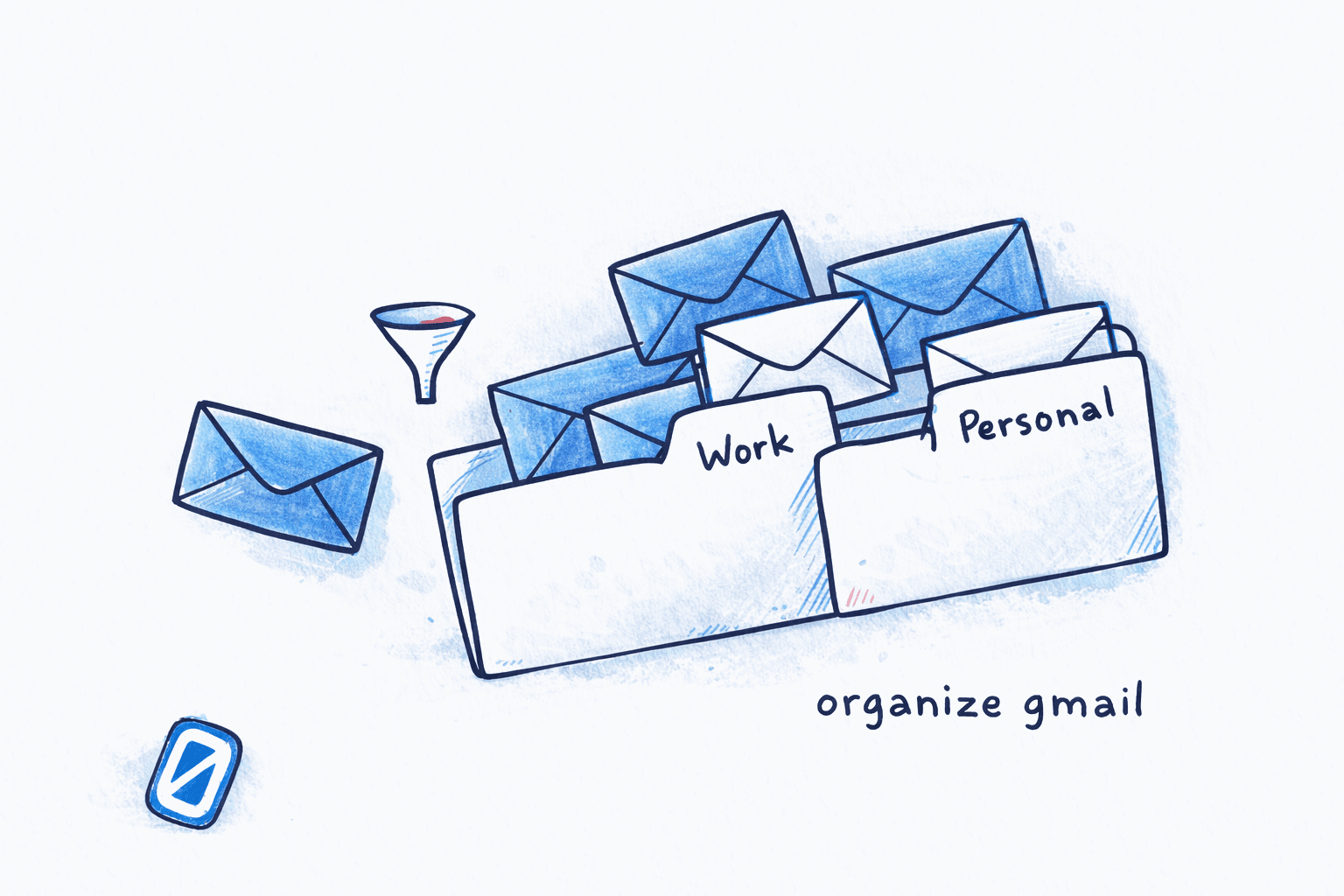
If you’re wondering how to organize Gmail, the answer comes down to three tools working together: labels for categorizing, filters for automating, and search operators for finding anything instantly. Most people only use one of the three, which is why their inbox stays messy.
This guide walks you through setting up all three, step by step. You’ll also learn why Gmail’s search-first design makes heavy folder structures unnecessary, something backed by a well-known IBM study of 345 email users.
Why Gmail Uses Labels Instead of Folders#
The gmail labels vs folders debate comes down to one key difference: Gmail doesn’t have folders at all. It has labels. The distinction matters more than you’d think.
In Outlook or Apple Mail, moving an email to a folder relocates it. That email can only live in one folder at a time. If you file a client invoice under “Acme Corp,” it won’t show up under “Invoices” unless you duplicate it.
Gmail labels work like tags. One email can carry multiple labels simultaneously, appearing under each one without creating copies. That client invoice can be labeled “Acme Corp,” “Invoices,” and “Q3” all at once. Click any of those labels in the sidebar, and the invoice appears.
| Feature | Gmail Labels | Traditional Folders |
|---|---|---|
| Multiple categories per email | Yes | No |
| Color coding | Yes (24 preset + custom) | Limited |
| Nesting/hierarchy | Yes (sublabels) | Yes (subfolders) |
| Works with search | Labels are searchable via label: | Folder-only in some clients |
| Archive behavior | Removes “Inbox” label only | Moves to separate location |
When you archive an email in Gmail, you’re not moving it somewhere else. You’re removing the “Inbox” label. The email stays in All Mail and keeps every other label you applied. This is a fundamental shift from the folder model, and once you understand it, learning how to organize Gmail becomes much more intuitive.
How to Create and Nest Labels in Gmail#
The first step in how to organize Gmail is building a clean label structure. It takes about ten minutes and saves hours of scrolling later. Here’s the process.
Create a New Label
DesktopIn the left sidebar, scroll down and click + Create new label. Enter the label name (keep it short, like "Clients" or "Receipts") and click Create.
If you don't see '+ Create new label,' click 'More' at the bottom of the sidebar to expand the full label list.
Nest a Sublabel Under a Parent
DesktopClick + Create new label again. Enter the sublabel name (e.g., "Acme Corp"). Check the box next to Nest label under, select the parent label (e.g., "Clients") from the dropdown, and click Create.
Color-Code Your Labels
DesktopIn the left sidebar, hover over any label name. Click the three-dot menu icon that appears, then select Label color and pick a color. Use bold colors for high-priority labels and muted tones for reference labels.
Gmail offers 24 preset colors plus custom options. You can set both background and text color for up to 100 unique combinations.
A practical label structure for most people looks something like this:
- Action Required (red): emails that need a response or task
- Waiting On (yellow): sent something, awaiting a reply
- Reference (blue): receipts, confirmations, documentation
- Projects/ (green parent): with sublabels for each active project
- Clients/ (purple parent): with sublabels per client or account
The goal isn’t to replicate a filing cabinet. Five to ten top-level labels with selective nesting covers most workflows. If you find yourself creating more than 20 labels, you’re probably overcomplicating things. That time is better spent elsewhere, like learning to process email faster.
How to Set Up Gmail Filters for Automatic Sorting#
Labels become powerful when emails get labeled automatically. That’s where filters come in. Here is the complete gmail filters setup process: a Gmail filter watches every incoming message and applies actions (label, archive, star, forward, delete) when it matches your criteria.
Create a Filter from the Search Bar#
Open the Filter Creation Panel
DesktopClick the search options icon (the sliders icon) at the right end of the Gmail search bar. This opens a panel with fields for From, To, Subject, Has the words, Size, and Date. Fill in your criteria and click Create filter.
Choose Filter Actions
DesktopSelect the actions you want: Apply the label (pick or create one), Skip the Inbox (Archive it), Mark as read, Star it, or others. Check Also apply filter to matching conversations to retroactively process existing emails. Click Create filter.
Filters only process new incoming emails by default. Always check 'Also apply filter to matching conversations' if you want existing emails sorted too.
Create a Filter from an Existing Email#
There’s a faster shortcut: open any email, click the three-dot menu in the top right, and select Filter messages like this. Gmail pre-fills the sender’s address. Add a label action, and every future email from that sender gets sorted automatically.
Five Filters Worth Setting Up First#
Start with these before building anything complex:
- Newsletter filter:
from:(substack.com OR newsletter@)→ Apply label “Newsletters,” Skip Inbox - Receipts filter:
from:(receipt@ OR noreply@) subject:(receipt OR order confirmation)→ Apply label “Receipts,” Mark as read - Calendar/scheduling filter:
from:(calendar-notification@google.com OR calendly.com)→ Apply label “Calendar,” Skip Inbox - Your boss/key contacts:
from:(boss@company.com)→ Star it, Never send to Spam - CC’d threads:
cc:me→ Apply label “CC’d,” Skip Inbox
I’ll be honest: the CC filter was the one that surprised me most. Roughly half the emails clogging most inboxes are threads where you’re CC’d, not directly addressed. Routing those out of the primary inbox clears significant noise. Once you understand how to organize Gmail with filters like these, the maintenance practically disappears. For more on reducing email volume, see our email productivity tips for busy professionals.
What Are the Best Gmail Search Operators?#
Search is the third pillar of how to organize Gmail effectively. You don’t need to memorize dozens of operators. Six cover 90% of real-world searches.
| Operator | What It Does | Example |
|---|---|---|
from: | Emails from a specific sender | from:jane@acme.com |
to: | Emails sent to a specific address | to:billing@company.com |
subject: | Words in the subject line | subject:invoice Q3 |
has:attachment | Only emails with attachments | has:attachment from:boss |
before: / after: | Date range | after:2026/01/01 before:2026/04/01 |
label: | Emails with a specific label | label:clients/acme-corp |
You can combine operators freely. Need the PDF your accountant sent last January? Type from:accountant@firm.com has:attachment after:2026/01/01 before:2026/02/01 and it appears in under two seconds.
A few less common operators worth knowing:
is:unread: shows only unread messageslarger:5M: finds emails with large attachments eating your storagefilename:pdf: searches for specific attachment typesin:anywhere: includes Spam and Trash in the search
If you’re comparing Gmail and Outlook, search is one area where Gmail has a clear edge. Google built Gmail’s entire architecture around search, not folders, and it shows.
Does Organizing Email Into Folders Actually Work?#
Before going further into how to organize Gmail, it’s worth asking whether organizing email into folders works at all. A 2011 study by Steve Whittaker and colleagues at IBM Research, published at CHI (the premier conference on human-computer interaction), tracked 345 long-term email users across more than 85,000 email retrieval actions.
The finding: people who organized emails into elaborate folder systems did not find their emails faster than people who simply searched. Folder-based retrieval took an average of about 73 seconds per lookup, while search-based retrieval averaged about 66 seconds. Over the course of a workweek, that gap compounds. More importantly, the time people spent filing emails into folders in the first place was pure overhead. Searchers skipped that cost entirely.
The study’s conclusion was blunt: “People who create complex folders indeed rely on these for retrieval, but these preparatory behaviors are inefficient and do not improve retrieval success.”
That doesn’t mean labels are useless. It means that knowing how to organize Gmail well is about using labels as lightweight tags for automation (via filters) and visual scanning, not building a rigid filing system you maintain manually. The five-filter setup above, combined with Gmail’s search, will outperform any 50-folder hierarchy.
For a deeper look at why traditional inbox organization often backfires, our email overload solution piece explores the psychology behind it.
If maintaining filters and labels still feels like busywork, Swizero takes a different approach entirely: AI ranks your Gmail down to a handful of cards, so there’s nothing left to organize.
Tips for How to Organize Gmail Long-Term#
These gmail organization tips are backed by the IBM research and real-world workflows that hold up over months, not just the first weekend.
- Audit your labels quarterly. Open Settings → Labels and delete any label with zero emails or that you haven’t clicked in months. Clutter in the sidebar is clutter in your head.
- Use “Multiple Inboxes” layout. Go to Settings → Inbox → Inbox type → Multiple Inboxes. You can display up to five label-based sections alongside your primary inbox, like a dashboard. Try
label:action-required,label:waiting-on, andis:starred. - Search before you file. The IBM study showed that search-first users spent less total time on email management than meticulous filers. When in doubt, don’t label it. Just search for it when you need it.
- Combine filters with “Skip the Inbox.” The real power of filters isn’t labeling; it’s removing low-priority mail from your inbox entirely. Newsletters, automated notifications, and CC’d threads can be labeled and archived in one step, so your inbox only shows emails addressed to you.
- Set up a weekly review. Pick one time per week (Friday afternoon works well) to scan your labels, clear “Waiting On” items that resolved, and adjust filters that aren’t catching the right messages. Ten minutes of maintenance prevents hours of inbox drift. If you’re figuring out how often to check email, building a weekly review habit matters as much as the daily routine.
Frequently Asked Questions#
How do I organize my Gmail inbox quickly?#
The fastest way to learn how to organize Gmail is to start with three actions: create five core labels (Action Required, Waiting On, Reference, Projects, Clients), set up filters to auto-label newsletters and receipts, and switch your inbox type to “Multiple Inboxes” in Settings. The whole setup takes under 15 minutes and handles most incoming mail automatically from that point forward.
What is the difference between Gmail labels and folders?#
Labels are tags that can be applied to a single email simultaneously, so one message can appear under multiple labels without being duplicated. Folders, used in clients like Outlook, physically move an email to one location. Gmail does not have folders at all; what looks like a folder in IMAP clients is actually a label mapped to a folder structure. Understanding this distinction is essential to how to organize Gmail properly.
Can I create subfolders in Gmail?#
Gmail calls them “sublabels” or “nested labels.” When creating a new label, check “Nest label under” and select a parent label. You can nest labels multiple levels deep. Click the arrow next to any parent label in the sidebar to expand or collapse its children.
How many Gmail labels can I create?#
Gmail allows up to 500 labels, including sublabels. In practice, most people benefit from 10 to 20 well-chosen labels. Going beyond 30 usually creates more organizational overhead than it solves.
Do Gmail filters work on existing emails?#
By default, filters only apply to new incoming messages. To apply a filter retroactively, check the box labeled “Also apply filter to matching conversations” during filter creation. This processes all existing emails that match your criteria.
How do I find old emails in Gmail without labels?#
Use search operators. Type the sender’s address with from:, add a date range with after: and before:, or search for attachment types with filename:. Gmail indexes the full text of every email, so even a partial phrase from the message body will surface it. This is why knowing how to organize Gmail around search, not just labels, matters so much.
Is it better to archive or delete emails in Gmail?#
Archive if there’s any chance you’ll need the email later. Archiving removes the Inbox label but keeps the email searchable in All Mail. Delete only for genuine junk. Gmail offers 15 GB of free storage shared with Drive and Photos, so most people hit storage limits from large attachments, not from archived emails.
What is the best way to organize Gmail for work?#
The best way to learn how to organize Gmail for work is to combine labels for project and client tracking, filters to auto-sort recurring email types (newsletters, notifications, CC’d threads), and the Multiple Inboxes layout to surface action items. Keep the primary inbox reserved for emails that require your direct response. For a broader comparison of how different email setups handle work email, see our best email apps comparison.
Sources#
- Am I Wasting My Time Organizing Email? A Study of Email Refinding. Whittaker, Matthews, Cerruti, Badenes, & Tang, CHI 2011. 345 users, 85,000 refinding actions; search-based retrieval outperformed folder-based retrieval.
- Create & Manage Labels in Gmail. Google Support. Official documentation for label creation, nesting, and color coding.
- Create Rules to Filter Your Emails. Google Support. Official documentation for Gmail filter creation and management.
- Refine Searches in Gmail. Google Support. Full list of Gmail search operators with examples.
- Stop Organizing Your E-mail, Says Study. MIT Technology Review, 2011. Summary of the Whittaker et al. study on email refinding efficiency.
Your inbox doesn't have to feel like this.
Apply what you just learned, faster.
Put this into practice with Swizero