Gmail Tips and Tricks: 15 Features Most People Miss
By Chris Stefaner, Co-founder of Swizero
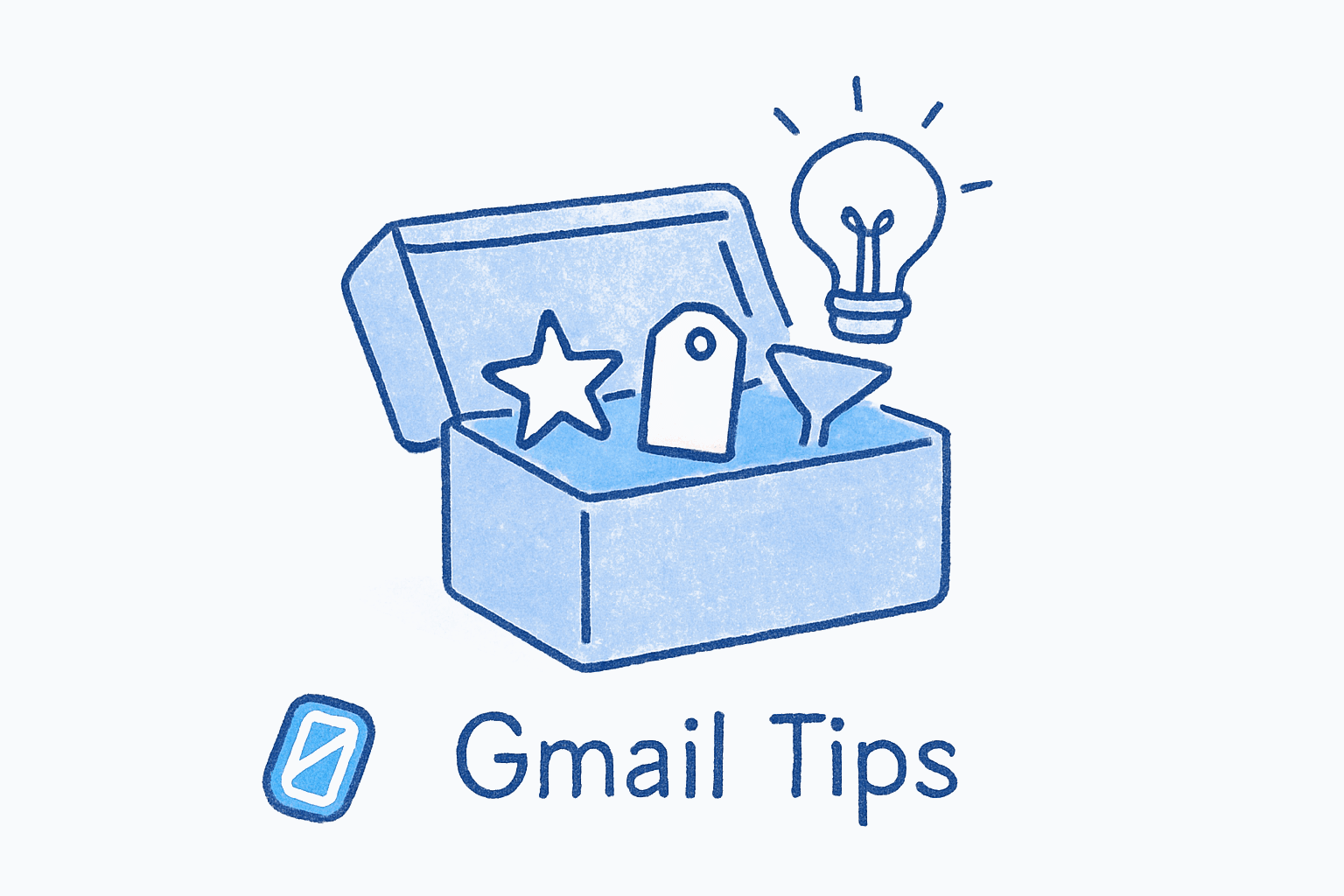
Gmail has dozens of features buried in settings menus, keyboard shortcuts, and AI tools that most people never touch. The three most impactful: Gemini-powered email summaries that condense long threads into a few sentences, search operators that find any email in seconds, and keyboard shortcuts that let you process your entire inbox without touching the mouse.
This guide covers 25 Gmail tips and tricks organized by category, from quick productivity wins to hidden gems you probably didn’t know existed. Honestly, researching this list surprised me; I’d been using Gmail for over a decade and still hadn’t enabled half of these.
Productivity Features That Save Real Time#
1. Keyboard shortcuts. Gmail ships with dozens of shortcuts disabled by default. Press C to compose, E to archive, # to delete, Shift + U to mark unread. Once you turn them on, you can clear your inbox without lifting your hands from the keyboard.
Enable Keyboard Shortcuts
DesktopClick the gear icon in the top-right corner, select See all settings, scroll to Keyboard shortcuts under the General tab, and toggle to Keyboard shortcuts on. Click Save Changes at the bottom.
Press ? (question mark) anytime in Gmail to see the full shortcut cheat sheet.
2. Auto-advance. By default, Gmail drops you back to your inbox after you archive or delete a message. Auto-advance sends you straight to the next email instead, so you stay in flow. Enable it under Settings → See all settings → Advanced → Auto-advance.
3. Templates. If you type the same reply more than twice a month, save it as a template. Compose the message, click the three-dot menu in the compose window, and select Templates → Save draft as template. Next time, load it in two clicks.
Enable and Save a Template
DesktopGo to See all settings → Advanced tab → find Templates and select Enable. Save changes. Then compose an email, click the three-dot menu (bottom-right of compose window) → Templates → Save draft as template → Save as new template.
4. Scheduled send. Write emails when the ideas are fresh; deliver them when the timing is right. Click the dropdown arrow next to the Send button and choose Schedule send. You can queue up to 100 scheduled messages at once.
5. Snooze. Snooze temporarily removes an email from your inbox and returns it at a date and time you choose. Hover over a message and click the clock icon. Useful for emails that need attention on a specific day but clutter your inbox right now.
6. Multiple inboxes. Split your inbox into sections based on labels, stars, or search queries. Go to Settings → See all settings → Inbox tab → Inbox type → Multiple inboxes.
Gmail AI Features Powered by Gemini#
7. Email summaries. Open any long thread and Gmail displays a Gemini-generated summary at the top. For threads with more than two replies, click “Summarize this email” to get the key points without reading every message. This is one of the most useful gmail hidden features added in 2026.
8. Help Me Write. Click the pen-and-sparkle icon in any compose window and type a prompt. Gemini drafts a reply based on your instructions and the conversation context. You can refine the tone before sending.
9. Suggested replies. Gmail now generates contextual one-click replies that adapt to your writing style. They appear at the bottom of an open email. Most people dismiss them, but they handle simple acknowledgments in one tap.
10. Natural language search. Ask Gemini questions directly in the side panel instead of memorizing search operators. Try “When did Maria send me the Q2 budget spreadsheet?” and Gemini pulls the answer from your inbox.
11. File references with @. When composing a reply, type @ followed by a file name to pull content from Google Drive directly into your email.
What Are the Best Gmail Search Operators?#
Most people use the Gmail search bar like a basic text search. Adding operators turns it into a precision tool. For more on processing email faster, search operators are one of the single biggest time savers.
12. Filter by sender and recipient. from:name@company.com finds everything from that address. to:client@example.com finds everything you sent to them. Combine both to trace a specific conversation.
13. Subject line search. subject:invoice returns only emails with “invoice” in the subject line, skipping body matches. Useful when a common word appears in hundreds of threads.
14. Attachment filters. has:attachment finds every email with a file attached. Get more specific with filename:pdf or filename:xlsx to find particular file types.
15. Date ranges. after:2026/01/01 before:2026/03/01 narrows results to a specific window. The shorthand older_than:30d or newer_than:7d uses relative dates.
16. Boolean combinations. Chain operators together: from:boss@company.com has:attachment is:unread finds unread emails from your manager that have files. Add OR between terms to broaden: from:alice OR from:bob. Pair a narrow query with the select-all banner and you have the fastest way to delete emails in Gmail in bulk.
Use a Complex Search Query
DesktopClick the search bar at the top of Gmail. Type a combined query like `from:name@company.com has:attachment after:2026/01/01`. Press Enter. To save this search as a filter, click Show search options (the small icon at the right end of the search bar) and then Create filter.
Bookmark your most-used search queries for one-click access.
Organization and Inbox Management#
17. Filters and automatic labeling. Filters let Gmail sort incoming mail before you see it. Go to Settings → Filters and Blocked Addresses → Create a new filter. Define rules based on sender, subject, keywords, or size, then assign labels, archive, mark as read, or forward automatically.
Good filters are a form of building email habits that actually work; they take 10 minutes to set up and save hours over months.
18. Nested labels. Gmail labels work like tags, not folders; one email can carry multiple labels. Create sub-labels by right-clicking an existing label and selecting “Add sublabel.” Use a structure like Projects/ClientName/Active to stay organized without a complex folder tree.
19. Stars and importance markers. Gmail offers 12 different star icons beyond the default yellow star. Enable them in Settings → General → Stars, drag icons into the “In use” row, then use has:yellow-star or has:blue-info in search to filter by type.
20. Nudges. Gmail surfaces emails you might have forgotten to reply to, or sent messages that never got a response. Enable under Settings → General → Nudges. They work as a safety net for dropped threads.
Set Up a Gmail Filter
DesktopClick the gear icon → See all settings → Filters and Blocked Addresses tab → Create a new filter. Enter your criteria (sender, subject, keywords), click Create filter, then choose actions like Apply the label, Skip the Inbox (Archive it), or Mark as read.
Filters only apply to new incoming mail by default. Check 'Also apply filter to matching conversations' to retroactively organize existing emails.
Privacy and Security Features#
21. Confidential mode. Send emails that expire after a set period and prevent recipients from forwarding, copying, printing, or downloading. You can also require an SMS passcode. Click the lock-and-clock icon in the compose window to enable it.
22. The + address trick. Add +anything after your Gmail username (e.g., yourname+newsletters@gmail.com) and emails still arrive in your primary inbox. Use unique plus-addresses when signing up for services; if one starts receiving spam, you know exactly which service leaked your address.
23. Block and unsubscribe. Click the three-dot menu next to the reply button and select Block [sender name]. For marketing emails, Gmail shows an Unsubscribe link next to the sender name. Using both aggressively is one of the simplest gmail productivity tips most people put off for too long.
Which Gmail Tips and Tricks Do Most People Miss?#
24. Offline mode. Gmail works without an internet connection. Go to Settings → Offline → Enable offline mail. Gmail syncs a local copy of your recent emails (7, 30, or 90 days). Read, compose, search, and archive offline; queued messages send when you reconnect.
Enable Offline Gmail
DesktopGo to See all settings → click the Offline tab → check Enable offline mail. Choose how many days of email to store (7, 30, or 90 days). Select whether to keep or remove offline data when you sign out. Click Save Changes.
Offline mode only works in Chrome. Other browsers do not support it.
25. Mute conversations. Open a group thread that doesn’t involve you, click the three-dot menu, and select Mute. Future replies skip your inbox entirely. The conversation is still searchable; it just stops interrupting you.
If tweaking Gmail settings one by one feels like a never-ending project, Swizero takes a different approach: a fixed card limit that surfaces only what matters, so you process email in minutes instead of configuring your way to productivity.
Tips for Getting More Out of Gmail#
-
Customize your density. Click the gear icon → Display density. “Compact” view fits more emails on screen, which matters if you process high volumes daily.
-
Use reading pane. Under Settings → Inbox, enable the reading pane to preview emails without opening them. The right-side split works especially well on wide monitors.
-
Create canned search bookmarks. Run a search query you use often (like
is:unread is:important), then bookmark the URL. One click returns you to that exact filtered view. -
Try the AI approach to sorting. Once you hit the limits of filters and labels, AI-powered sorting tools can handle the categorization automatically, learning from your behavior instead of requiring manual rules.
-
Set a processing schedule. Pick two or three times per day to work through email and close the tab in between. The research on email habits and productivity consistently points to batching over constant checking. A Gmail triage session with a finish line is what makes that schedule stick, because the session ends on its own instead of when you give up.
Frequently Asked Questions#
What are the most useful Gmail keyboard shortcuts?#
The most practical shortcuts are C to compose a new email, E to archive, R to reply, A to reply all, F to forward, and # to delete. Press ? inside Gmail to see the full list. Keyboard shortcuts must be enabled in Settings before they work.
How do I find old emails in Gmail quickly?#
Use search operators in the Gmail search bar. Combine from:, subject:, has:attachment, and date filters like after:2025/01/01 to narrow results precisely. For example, from:john subject:proposal has:attachment finds a specific email in seconds instead of scrolling through months of messages.
Can you unsend an email in Gmail?#
Yes. Gmail has an undo send feature that gives you a window of 5, 10, 20, or 30 seconds to retract a sent message. Go to Settings → General → Undo Send and set your preferred cancellation period. The longer the window, the more time you have to catch mistakes. Our full guide to how to unsend an email in Gmail covers the desktop, Gmail app, and Apple Mail differences.
Does Gmail work offline?#
Gmail supports offline mode in Chrome. Go to Settings → Offline and enable it. Gmail stores a local copy of your recent emails (7, 30, or 90 days) so you can read, compose, search, and archive without an internet connection. Queued messages send automatically when you reconnect.
How do I stop getting spam in Gmail?#
Open the spam email, click the three-dot menu, and select Block to prevent future messages from that sender. For marketing emails, click the Unsubscribe link that Gmail shows at the top of the message. Setting up filters to automatically delete or archive messages from persistent senders also helps. For the full routine, including Gmail’s Manage Subscriptions hub, see our guide to mass unsubscribing from emails.
What is Gmail confidential mode?#
Confidential mode lets you send emails that expire after a set time and prevents recipients from forwarding, copying, printing, or downloading the content. You can also require an SMS passcode for extra verification. Click the lock-and-clock icon in the compose toolbar to enable it on any outgoing message.
How do I organize Gmail with labels and filters?#
Create labels in the left sidebar, then set up filters under Settings → Filters and Blocked Addresses. Filters automatically apply labels, archive, or forward emails based on sender, subject, keywords, or attachments. Unlike folders, one email can carry multiple labels simultaneously.
Are Gmail search operators case-sensitive?#
No. Gmail search operators like from:, to:, subject:, and has:attachment are not case-sensitive. The search terms themselves are also case-insensitive, so searching subject:Invoice returns the same results as subject:invoice.
Sources#
- Gmail Is Entering the Gemini Era — Google, 2026. Details on Gemini AI summaries, Help Me Write, and suggested replies.
- Gemini in Gmail: How to Use AI for Email — Google Workspace, 2026. Official guide to Gemini features in Gmail.
- 50+ Gmail Search Operators to Find Emails Fast — Mailmeteor, 2026. Comprehensive search operator reference.
Your inbox doesn't have to feel like this.
Apply what you just learned, faster.
Put this into practice with Swizero