Mass Unsubscribe from Emails: Stop the Flood for Good
By Chris Stefaner, Co-founder of Swizero
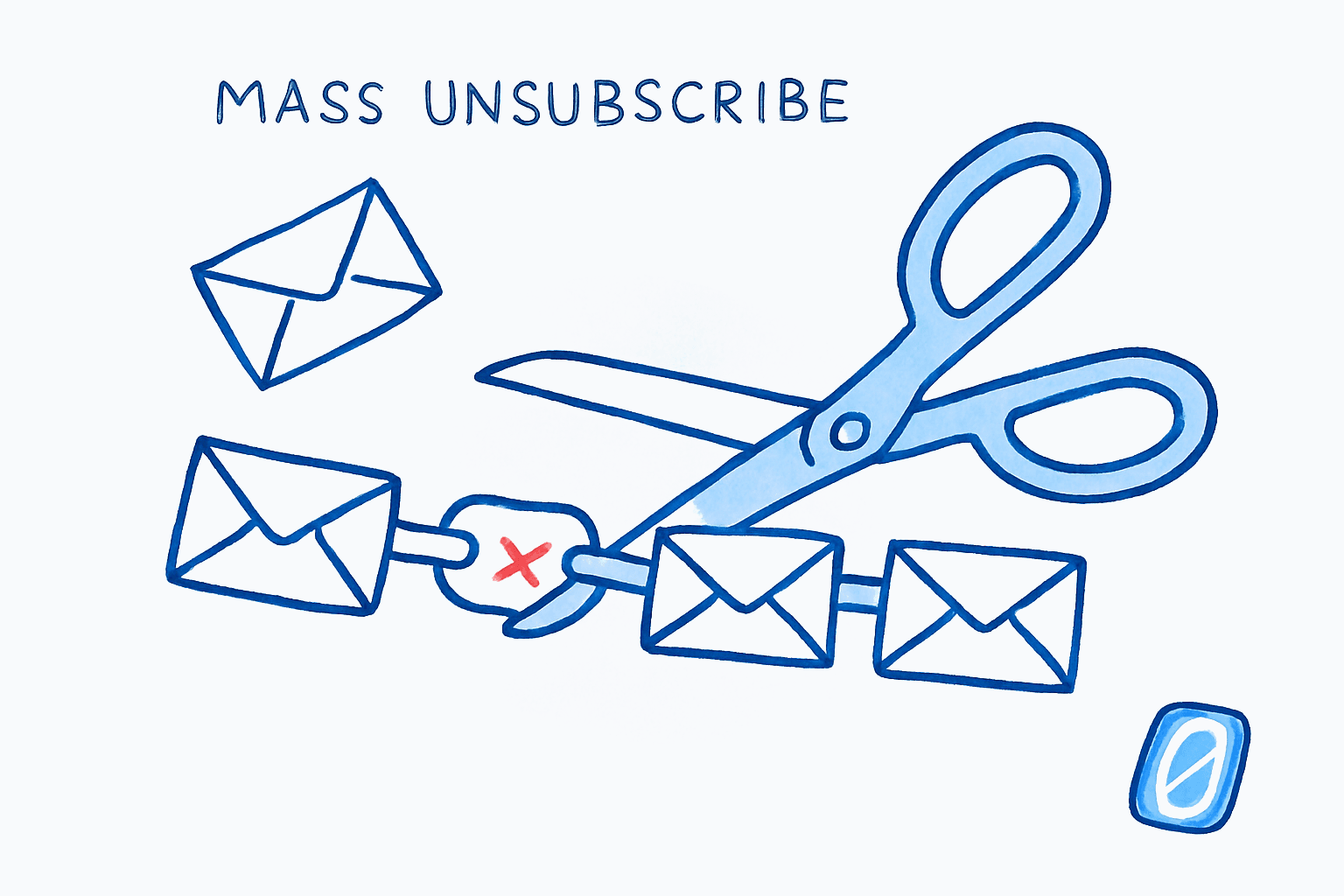
Gmail now has a built-in “Manage Subscriptions” hub that lets you mass unsubscribe from emails without opening a single newsletter. To find it, click More in Gmail’s left sidebar, then Manage subscriptions. You’ll see every sender sorted by frequency, each with a one-click Unsubscribe button.
That handles most of the problem. But some senders ignore the unsubscribe, others don’t include the right headers for Gmail to detect, and a few keep mailing you for days. This guide covers Gmail’s native tools for mass unsubscribing, plus filters and prevention strategies for the senders that don’t play nice.
How Does Gmail’s “Manage Subscriptions” Work?#
Gmail launched Manage Subscriptions in July 2025, and it is the closest thing to a mass unsubscribe button built directly into your inbox. The feature scans your recent emails and groups every subscription sender into a single list, ranked by how often they email you.
When you click Unsubscribe next to a sender, Gmail sends an unsubscribe request on your behalf using the List-Unsubscribe header that bulk senders are now required to include. Since February 2024, Gmail and Yahoo’s bulk sender rules mandate that senders honor unsubscribe requests within 48 hours. That is a significant improvement over the old CAN-SPAM standard of 10 business days.
One limitation: Manage Subscriptions only shows senders that include the List-Unsubscribe header in their emails. Senders who skip this header (or send from personal addresses) won’t appear. For those, you’ll need the search-and-filter approach below.
1. Use Manage Subscriptions to Mass Unsubscribe From Emails#
This is the fastest method and the one you should start with.
Open Manage Subscriptions
DesktopIn Gmail on desktop, click More in the left sidebar to expand the menu. Click Manage subscriptions. On mobile, tap the hamburger menu (☰) in the top-left, then scroll down and tap Manage subscriptions.
If you don't see Manage Subscriptions, check that your Gmail app is updated. The feature rolled out to web in July 2025, Android shortly after, and iOS the same month.
Review and Unsubscribe From Frequent Senders
DesktopYour subscriptions appear sorted by frequency. The senders emailing you the most are at the top. Click Unsubscribe next to any sender you want to stop hearing from. Gmail sends the unsubscribe request automatically.
It can take up to 48 hours for senders to process the request. You may receive a few more emails from a sender after clicking Unsubscribe.
Work through the list from top to bottom. The most frequent senders are the biggest contributors to inbox clutter, so starting there gives you the highest return on effort. It is the same logic behind a good Gmail inbox triage session: handle the highest-impact items first, then stop.
2. Search for Hidden Subscriptions Gmail Missed#
Manage Subscriptions won’t catch everything. To find the rest, use Gmail’s search bar.
Search for "unsubscribe" in Gmail
DesktopClick the search bar at the top of Gmail and type unsubscribe. Press Enter. Gmail returns every email in your account that contains the word "unsubscribe" in its body, which covers nearly all marketing and newsletter emails.
Refine your search with "unsubscribe from:example.com" to target a specific sender, or "unsubscribe newer_than:30d" to see only recent subscriptions.
Scroll through the results and open emails from senders you want to stop. Look for the Unsubscribe link next to the sender name at the top of the email (Gmail surfaces this automatically when it detects a List-Unsubscribe header). If that link isn’t there, scroll to the bottom of the email and find the unsubscribe link in the footer.
I’ll be honest: this part is tedious. There’s no “select all and unsubscribe” button in Gmail, so you’re clicking through one sender at a time. That said, most people find that 80% of their email overload comes from 10 to 15 senders. Once those are gone, the rest is manageable.
3. Create Filters to Auto-Delete Stubborn Senders#
Some senders are slow to honor unsubscribe requests. Others never do. For those, Gmail filters are your backup plan.
Create a Gmail Filter to Auto-Delete
DesktopClick the gear icon (⚙) in the top-right corner of Gmail, then click See all settings. Go to the Filters and Blocked Addresses tab. Click Create a new filter. In the From field, enter the email address of the sender. Click Create filter, then check Delete it. Click Create filter again to confirm.
To catch newsletters from an entire domain, enter the domain in the "From" field (e.g., "newsletters.company.com") instead of a specific address.
Filters run automatically on every future email that matches your criteria. Filtered messages skip your inbox entirely and go straight to Trash (or you can choose Skip the Inbox and Apply the label to archive them instead of deleting).
You can also create a broader filter using the keyword “unsubscribe” in the Has the words field. This catches most marketing emails. Fair warning, though: some legitimate emails (like account confirmations) include the word “unsubscribe” in their footers. A blanket filter can be aggressive. If you go this route, use Skip the Inbox rather than Delete it so you can review what gets filtered. Over-eager filters are one of the leading causes of not receiving emails in Gmail that you actually wanted.
4. Use the Promotions Tab as a Buffer#
Gmail’s Promotions tab isn’t technically an unsubscribe tool, but it keeps marketing emails from ever hitting your primary inbox. If you haven’t already, enable it.
Enable the Promotions Tab
DesktopClick the gear icon (⚙) in the top-right corner, then click See all settings. Go to the Inbox tab. Under Categories, check the box next to Promotions. Click Save Changes at the bottom.
Once Promotions is enabled, Gmail automatically routes most marketing emails there. Your Primary tab stays clean. You can check Promotions once a week (or never) and batch-delete everything in it. The select-all method behind bulk deleting emails in Gmail empties an entire category in about three clicks.
This approach works well alongside unsubscribing. Unsubscribe from senders you never want to hear from again; let the Promotions tab catch the rest. Over time, you might find that the notification fatigue from constant emails drops significantly just by separating marketing messages from real correspondence.
If you find yourself repeating this unsubscribe routine every few months, the problem isn’t the newsletters; it is that your inbox has no natural limit. Swizero caps your inbox at a handful of cards per session, so only the emails that actually matter reach you.
Tips for Staying Unsubscribed#
-
Block repeat offenders. If a sender ignores your unsubscribe request after 48 hours, open one of their emails, click the three-dot menu (⋮) next to the reply button, and select Block [Sender Name]. Gmail will send all future emails from that address straight to Spam.
-
Use ”+” aliases to track who sells your address. When signing up for a newsletter, use
yourname+sitename@gmail.com. Gmail delivers it to your regular inbox, but now you know exactly which service shared your address if spam starts arriving. It makes unsubscribing targeted instead of a guessing game, and it is one of the more useful Gmail tricks most people miss. -
Audit subscriptions quarterly. The average person’s email subscriptions creep back up within a few months. Set a calendar reminder to revisit Manage Subscriptions every quarter. Ten minutes of cleanup prevents months of clutter. If you’ve ever struggled with building sustainable email habits, this is one of the simplest.
-
Think before you subscribe. The most effective way to stop unwanted emails is to not sign up in the first place. Before entering your email for a discount code or free PDF, ask: “Do I want emails from this company for the next two years?” If not, use a throwaway alias or skip it.
What About the Gmail App on iPhone?#
The process is similar but slightly different on mobile. In the Gmail app, tap the hamburger menu (☰), scroll down, and tap Manage subscriptions. The same list of senders appears, and you can unsubscribe with a single tap.
For individual emails, open the message and look for the Unsubscribe link near the sender’s name at the top. If it doesn’t appear, scroll to the footer of the email and tap the unsubscribe link there.
Creating filters is harder on mobile. Gmail’s app doesn’t support filter creation, so you’ll need to switch to a desktop browser for Step 3 above. The email triage approach of handling your most critical actions first works well here: unsubscribe from the biggest offenders on your phone, then set up filters on desktop later.
Frequently Asked Questions#
Can you mass unsubscribe from all emails in Gmail at once?#
Not with a single button. Gmail’s Manage Subscriptions feature lets you unsubscribe from senders one at a time, but there is no “unsubscribe from all” option. You can speed up the process by working through Manage Subscriptions (which sorts senders by frequency) and clicking Unsubscribe on each one. Most people can clear 20 to 30 senders in about 10 minutes.
How long does it take for Gmail unsubscribe to work?#
Under Gmail and Yahoo’s 2024 bulk sender requirements, senders must honor unsubscribe requests within 48 hours. The older CAN-SPAM standard allows up to 10 business days. Most legitimate senders process the request within a few hours, but you may receive one or two more emails before it takes effect.
Why do I keep getting emails after unsubscribing in Gmail?#
There are a few reasons. The sender may need up to 48 hours to process the request. Some companies have multiple mailing lists, so unsubscribing from one doesn’t remove you from all of them. In rare cases, the sender is violating the CAN-SPAM Act. If emails continue after several days, use Gmail’s Block feature or create a filter to auto-delete messages from that sender.
Is it better to unsubscribe or block emails in Gmail?#
Unsubscribing tells the sender to remove you from their list, which stops emails at the source. Blocking moves future emails from that sender to your Spam folder without notifying them. Unsubscribe first. If the sender ignores your request, then block. Blocking is also the right move for emails that look like spam or come from addresses you don’t recognize.
Does searching “unsubscribe” in Gmail find all newsletters?#
It catches most of them. Nearly all marketing emails include the word “unsubscribe” in the footer because the CAN-SPAM Act requires a visible opt-out mechanism. However, some transactional emails (order confirmations, shipping updates) also contain this word. A search for “unsubscribe” gives you a broad starting point, but review the results before mass-deleting.
Will unsubscribing from emails stop spam?#
Unsubscribing works for legitimate marketing emails and newsletters from real companies. It does not work for actual spam from malicious senders. Clicking “unsubscribe” in a suspicious email can actually confirm that your address is active, leading to more spam. For suspicious messages, use Gmail’s Report spam button instead of the unsubscribe link.
Can I set Gmail to automatically unsubscribe from new senders?#
Gmail does not have an automatic unsubscribe feature for new senders. You can create filters to auto-delete or auto-archive emails matching certain criteria (like containing the word “unsubscribe”), but this is a blunt tool that may catch emails you want to keep. The most reliable approach is to check Manage Subscriptions periodically and find an inbox system with a built-in finish line rather than constantly reacting to new clutter.
How do I stop promotional emails on Gmail without unsubscribing?#
Enable Gmail’s Promotions tab. It automatically sorts marketing emails into a separate tab so they never appear in your Primary inbox. You still receive the emails, but they don’t create notifications or compete for your attention. Check the Promotions tab once a week and bulk-delete everything, or ignore it entirely.
Sources#
- Manage your subscriptions in Gmail - Google Support. How to access and use the Manage Subscriptions feature.
- Declutter your inbox with Gmail’s newest feature - Google Blog, July 2025. Announcement of the Manage Subscriptions rollout.
- CAN-SPAM Act: A Compliance Guide for Business - Federal Trade Commission. Legal requirements for commercial email opt-out mechanisms.
- Unsubscribe from an email - Google Support. How Gmail’s individual unsubscribe button works.
Your inbox doesn't have to feel like this.
Apply what you just learned, faster.
Put this into practice with Swizero