How to Recall an Email in Outlook: The Complete Fix
By Chris Stefaner, Co-founder of Swizero
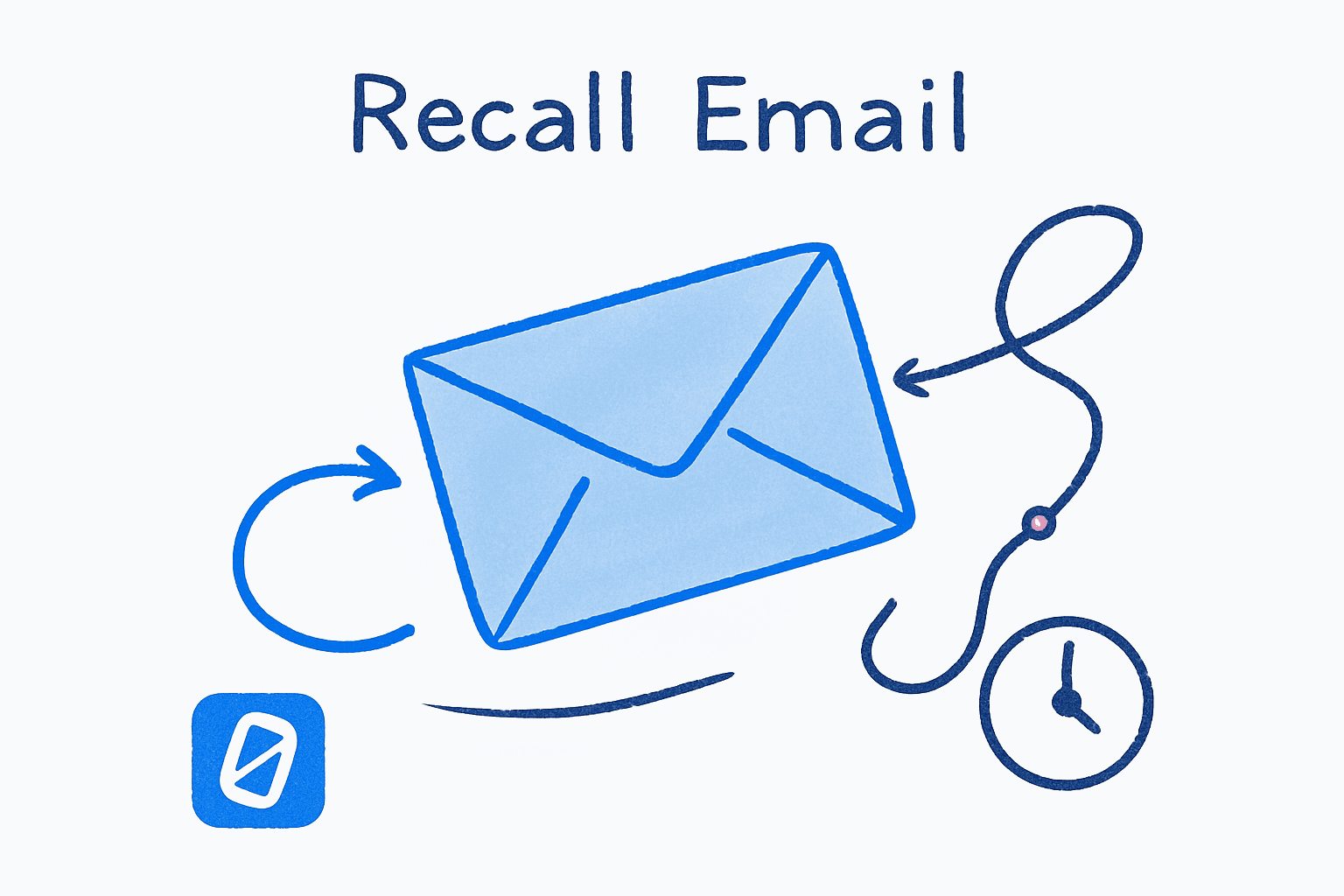
You can recall an email in Outlook, but the method depends on which version you’re using and whether you and the recipient share the same Microsoft 365 organization. Classic Outlook uses Message Recall to pull an email from a recipient’s inbox after delivery. New Outlook and Outlook on the web offer Undo Send, which delays delivery for up to 30 seconds so you can cancel before the message ever leaves.
The catch: classic Message Recall has a long history of failing silently, and when it does fail, the recipient gets a notification telling them you tried to take it back. Undo Send is more reliable but requires you to act within seconds. This guide covers every method across desktop, web, and mobile, so you can pick the one that actually works for your situation.
How Does Outlook Message Recall Actually Work?#
Message Recall is Outlook’s original “unsend” feature, and it works differently than most people expect. When you trigger a recall, Outlook doesn’t intercept the email in transit. Instead, it sends a second message to the recipient’s Exchange server requesting that the original be deleted from their mailbox.
This server-side deletion only succeeds if specific conditions are met. Both you and the recipient must be on the same Microsoft 365 or Exchange organization. The recipient must not have opened the email yet (in classic recall). And the message must still be sitting in their Inbox folder; if a rule moved it to a subfolder, the recall fails.
Microsoft overhauled message recall in 2023, moving it from a client-side process to a cloud-based one. The old version had roughly a 40% success rate. The new cloud-based version claims over 90% success within the same organization, and it can now recall messages even after the recipient has read them.
One thing hasn’t changed: recall does not work for external recipients. If you emailed someone outside your organization, on Gmail, Yahoo, or a personal Outlook.com account, recall will not work. Period.
How to Recall an Email in Outlook on Desktop (Classic Outlook)#
Classic Outlook for Windows still supports the original Message Recall feature. This is the version most corporate environments use, though Microsoft is gradually migrating users to New Outlook.
Open Your Sent Items
DesktopClick Sent Items in the left sidebar to find the email you want to recall.
Open the Email in a Separate Window
DesktopDouble-click the email to open it in its own window. The recall option is not available from the reading pane.
You must open the email in a separate window. Right-clicking or previewing in the reading pane will not show the recall option.
Select Recall This Message
DesktopIn the message window ribbon, go to Message tab, click Actions (or the three-dot menu), and select Recall This Message. Choose whether to delete unread copies or replace the message with a new one.
Check 'Tell me if recall succeeds or fails for each recipient' to get a status report.
After submitting the recall, Outlook sends the request to the Exchange server. You’ll receive a Message Recall Report within about 30 seconds telling you whether it succeeded or failed for each recipient.
How to Recall an Email in New Outlook for Windows#
New Outlook simplifies the process. Because it uses Microsoft’s cloud-based recall system, the recall is processed server-side with a higher success rate than the classic client-based approach.
Open the Sent Email
DesktopGo to Sent Items in the left sidebar and double-click the message you want to recall to open it in a separate window.
Click Recall Message
DesktopIn the ribbon at the top of the message window, click Recall Message. If you do not see it, click the three-dot menu (⋯) and look for Recall Message there. Confirm the recall when prompted.
New Outlook's cloud-based recall can work even if the recipient has already read the message, as long as you're both in the same Microsoft 365 organization.
Exchange Online will attempt the recall for up to 24 hours. You’ll receive a single consolidated recall report listing the outcome for each recipient.
How to Use Undo Send in Outlook (The Reliable Option)#
Undo Send is different from Message Recall. Instead of trying to retrieve a message after it’s been delivered, Undo Send holds the email in your outbox for a short delay before sending it. During that window, you can cancel the send entirely.
This is the same approach Gmail uses, and it’s far more reliable than recall because the email never actually leaves your mailbox. Undo Send works in New Outlook for Windows, Outlook on the web, and Outlook mobile apps.
Setting Up Undo Send in New Outlook#
Open Settings (gear icon), go to Mail then Compose and reply. Scroll to the Undo send section and set the delay to your preferred duration. New Outlook supports delays of 5, 10, 15, 20, 25, or 30 seconds. Choose 30 seconds for the maximum protection window, then save your changes.
Using Undo Send After Sending#
After you click Send, a small notification appears at the bottom of the screen reading “Sending…” with an Undo link. Click Undo before the timer expires, and the email returns to your drafts. If you miss the window, the email is sent and you’ll need to try Message Recall instead.
Undo Send on Outlook.com (Web)#
Outlook on the web (outlook.com and outlook.office.com) also supports Undo Send. Go to Settings (gear icon), select Mail, then Compose and reply, and set the Undo Send delay. The process for canceling a sent email is the same: watch for the Undo notification after clicking Send.
Can You Recall an Email in Outlook on Mobile?#
Outlook’s mobile app for iPhone and Android added recall support as part of the cloud-based recall rollout. To recall a message on mobile, open the Sent folder, tap the message, tap the three-dot menu in the top-right corner, and select Recall. Confirm the recall when prompted.
The same restrictions apply on mobile: both sender and recipient must be in the same Microsoft 365 organization. The recall is processed server-side by Exchange Online, so the success rate matches the desktop experience.
Undo Send on mobile works similarly to the web version. After tapping Send, watch for the Undo notification at the bottom of the screen. The delay window matches whatever you’ve configured in your Outlook settings.
When Does Outlook Recall Work (and When Does It Fail)?#
Understanding the limitations saves you from a false sense of security. Here’s the breakdown:
| Scenario | Recall works? | Notes |
|---|---|---|
| Same Microsoft 365 org, message unread | Yes | Best-case scenario, over 90% success with cloud-based recall |
| Same org, message already read | Sometimes | Cloud-based recall (2023+) can succeed; classic recall cannot |
| Recipient moved message to a folder | No | Inbox rules or manual moves prevent recall |
| External recipient (Gmail, Yahoo, etc.) | No | Recall only works within your Exchange organization |
| Recipient using a non-Outlook client | No | Third-party apps like Thunderbird or Apple Mail ignore recall requests |
| Distribution list or shared mailbox | Varies | Success depends on individual recipient conditions |
The notification problem deserves special attention. When a classic recall fails, the recipient receives a message saying you attempted to recall the email. This often draws more attention to the mistake you were trying to hide. The cloud-based recall in Microsoft 365 is better about this, sending a single consolidated report to you rather than notifying the recipient of failed attempts.
Honestly, if you’re emailing anyone outside your organization, recall is useless. Undo Send is the only reliable safety net for those situations.
If you find yourself constantly second-guessing emails after hitting Send, the issue might not be the send button. Swizero takes a different approach: a fixed card limit means you only see the emails that matter right now, so you’re less likely to fire off rushed replies under pressure.
Tips for Preventing Email Mistakes in Outlook#
-
Set Undo Send to the maximum 30 seconds. There’s no downside to the delay. Recipients won’t notice, and you’ll have a real window to catch mistakes. This one setting prevents more regret than recall ever will. If you want to process email faster overall, the 30-second buffer actually lets you send with more confidence, not less.
-
Use the delay delivery rule for high-stakes emails. In Classic Outlook, you can create a rule that delays all outgoing mail by 1 to 2 minutes. Go to Rules then Manage Rules & Alerts, create a new rule, and select “defer delivery by a number of minutes.” This gives you a genuine buffer for every message.
-
Proofread the recipient line, not just the body. The most common recall scenario isn’t a typo in the text; it’s sending the message to the wrong person. Before hitting Send, check the To and CC fields first. Auto-complete in Outlook is especially aggressive about suggesting similar names.
-
Draft replies to emotional emails, then walk away. The emails you most want to recall are the ones you wrote reactively. That urgency is often tied to the anxiety that inboxes create, not to actual deadlines. Give yourself a personal rule: if the email made you feel something when you read it, draft your reply but don’t send it for at least 15 minutes. For more on writing better, more deliberate emails, slowing down beats any recall feature.
-
Consider whether recall will make things worse. If the recipient has already read the message, a recall attempt in Classic Outlook sends them a notification that highlights the mistake. Sometimes the better move is to send a follow-up correction rather than attempting a recall that backfires.
Frequently Asked Questions#
Can you recall an email in Outlook after it has been read?#
With the classic Message Recall feature, no. If the recipient has already opened the message, the recall attempt fails and they may receive a notification that you tried to take it back. However, Microsoft’s newer cloud-based recall system, available in Microsoft 365 since 2023, can sometimes succeed even after the recipient has read the message, as long as both parties are in the same Exchange organization.
Does Outlook recall work with Gmail or external email addresses?#
No. Outlook’s Message Recall only works when both the sender and recipient are in the same Microsoft 365 or Exchange organization. If you send an email to a Gmail, Yahoo, or any external address, recall will not work. For external recipients, Undo Send is your only option, and it must be used within seconds of clicking Send.
What is the difference between recall and undo send in Outlook?#
Message Recall attempts to retrieve an email from the recipient’s mailbox after it has already been delivered. It requires Exchange and has multiple failure conditions. Undo Send holds the email in your outbox for a short delay (5 to 30 seconds) before delivering it, letting you cancel the send entirely. Undo Send is more reliable because the email never leaves your mailbox during the delay period.
How long do you have to recall an email in Outlook?#
For Message Recall, Exchange Online will attempt the recall for up to 24 hours after sending. However, the chances of success drop significantly after the first few minutes because the recipient is more likely to have opened the message. For Undo Send, the window is whatever you’ve configured in your settings: between 5 and 30 seconds.
Does the recipient know if you recall an email in Outlook?#
With classic Message Recall, yes. If the recall fails, the recipient receives a notification that you attempted to recall the message. Even successful recalls can sometimes generate notifications depending on the recipient’s Outlook configuration. The newer cloud-based recall system in Microsoft 365 is designed to be quieter, sending recall reports to the sender rather than notifying recipients of the attempt.
Can you recall an email in Outlook on Mac?#
Outlook for Mac does not support classic Message Recall. However, if you’re using New Outlook for Mac (the version that mirrors New Outlook for Windows), you may have access to cloud-based recall through your Microsoft 365 organization. Undo Send is available in Outlook on the web, which works the same way on Mac as on Windows.
Is there a way to delay all outgoing emails in Outlook?#
Yes. In Classic Outlook, you can create a mail flow rule that delays all outgoing messages by a set number of minutes. Go to Rules, then Manage Rules & Alerts, create a new rule that applies to all messages you send, and add the action “defer delivery by a number of minutes.” This acts as a built-in buffer for every email. New Outlook does not currently support custom delay rules, but you can use the Undo Send feature for a similar effect.
Sources#
- Cloud-Based Message Recall in Exchange Online — Microsoft Tech Community, 2023. Announcement of the redesigned cloud-based recall system for Microsoft 365.
- How Does the New Message Recall Work in Microsoft 365 — CodeTwo, 2023. Analysis showing the original recall had roughly 40% success rate; the new version targets over 90%.
- How to Recall an Email in Outlook: Requirements, Limitations & Steps — Microsoft Support. Official documentation on recall requirements and limitations.
- Work with Cloud-Based Message Recall, Microsoft Learn. Admin documentation for the cloud-based recall feature in Exchange Online.
Your inbox doesn't have to feel like this.
Apply what you just learned, faster.
Put this into practice with Swizero