How to Schedule an Email: Gmail, Outlook, and Apple Mail
By Chris Stefaner, Co-founder of Swizero
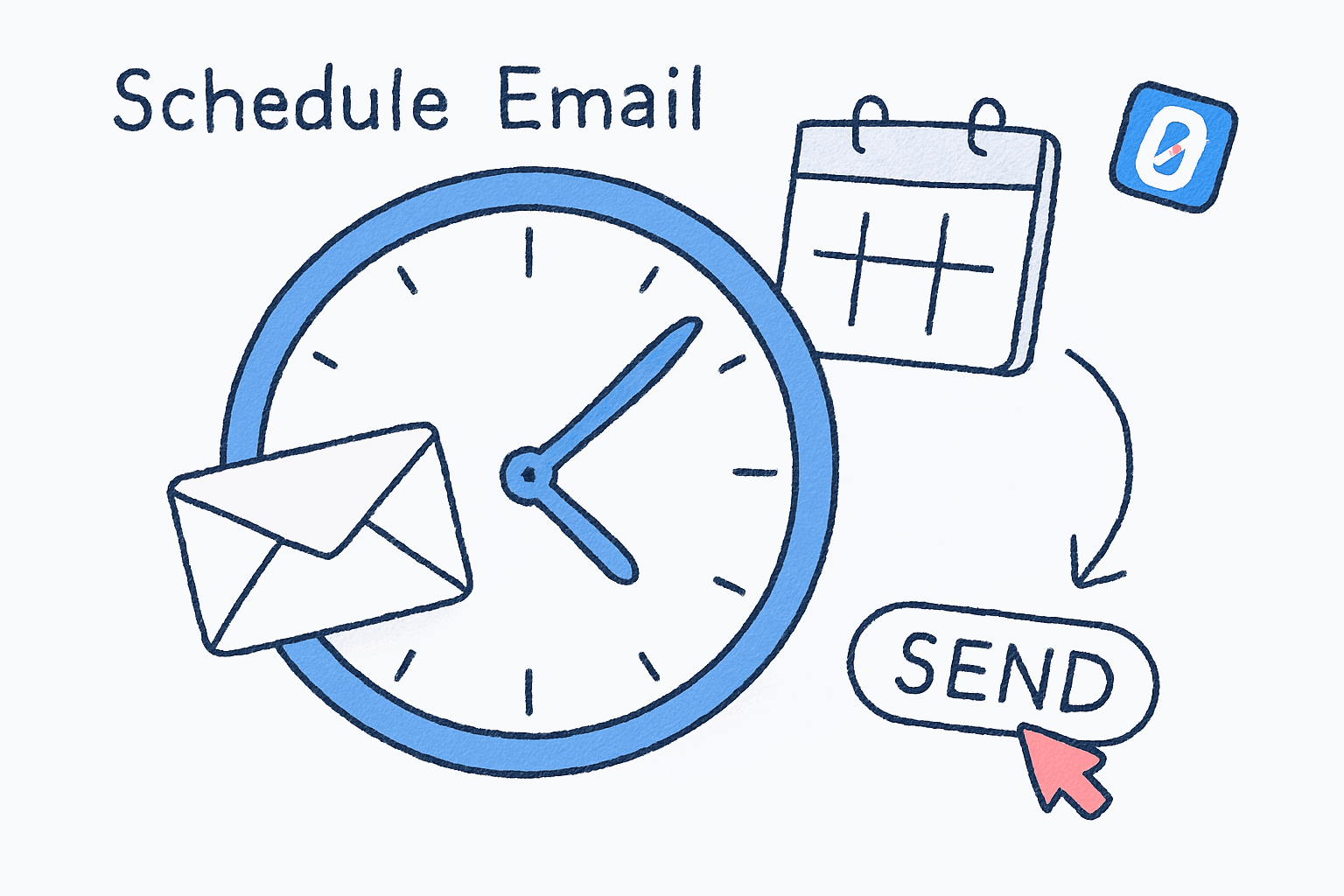
You can schedule an email in Gmail by clicking the dropdown arrow next to the Send button and selecting “Schedule send.” In Outlook, the option is under the dropdown next to Send (new Outlook) or under Options > Delay Delivery (classic). In Apple Mail, long-press the Send button on iPhone or click the dropdown arrow next to Send on Mac.
The whole process takes about five seconds in any of these apps. But choosing when to send is where most people stop thinking, and it is the part that actually matters. Sending at the right time can mean the difference between an email that gets read in minutes and one that gets buried under a morning avalanche. Below, you will find step-by-step instructions for scheduling emails across all three major platforms, on both desktop and mobile, plus research-backed guidance on when to send for maximum impact.
How to Schedule an Email in Gmail (Desktop)#
Gmail’s schedule send feature works entirely server-side. Once you schedule a message, it sends at the chosen time even if your computer is off, your browser is closed, or you are on a different continent. No extensions required.
Open the Schedule Send Menu
DesktopCompose your email as usual. Instead of clicking the blue Send button, click the small dropdown arrow directly to the right of it. Select Schedule send from the dropdown menu.
If you do not see the dropdown arrow, make sure you are using the full Gmail interface at mail.google.com, not a third-party wrapper.
Gmail presents three suggested times: “Tomorrow morning” (8:00 AM), “Tomorrow afternoon” (1:00 PM), and “Monday morning” if you are composing on a weekend. For more control, click Pick date & time to open a calendar and clock picker where you can select any date and time up to 49 years in the future.
Pick a Custom Date and Time
DesktopClick Pick date & time at the bottom of the suggestions list. Select a date from the calendar, choose a time using the clock field, and click Schedule send to confirm.
Gmail uses your local time zone for scheduling. If your recipient is in a different zone, you will need to do the time conversion yourself.
Your scheduled email moves to the Scheduled folder in the left sidebar. You can open it anytime before the send time to edit, reschedule, or cancel.
Gmail Schedule Send Limits#
Gmail allows a maximum of 100 scheduled emails at any given time. If you hit that limit, you will need to wait for some to send or cancel a few before scheduling more. For most people, this limit is never a factor; it mainly affects users running bulk outreach from a personal account.
How to Schedule an Email in Gmail on iPhone or Android#
The Gmail mobile app supports scheduled sending with nearly the same interface as desktop. The main difference: you access it through the overflow menu rather than a dropdown arrow.
Schedule from the Gmail App
MobileCompose your message, then tap the three-dot menu (⋮) in the top-right corner of the compose screen. Tap Schedule send. Choose a suggested time or tap Pick date & time for a custom schedule.
Scheduled sends from the Gmail app are server-side. The email sends at the chosen time even if your phone is off or the app is closed.
One detail that trips people up: the Gmail app does not show a dropdown arrow next to Send like desktop does. The schedule option is hidden behind the three-dot menu. If you have been looking for it next to the Send button, that is why you could not find it.
How to Schedule an Email in Outlook#
Outlook’s scheduling process depends on which version you are using. Microsoft has three distinct Outlook interfaces in active use, and they all handle delay delivery differently.
New Outlook and Outlook on the Web#
The new Outlook (the default on Windows since late 2024) and Outlook on the web share the same scheduling interface.
Schedule Send in New Outlook
DesktopCompose your email. Click the dropdown arrow next to the Send button. Select Schedule send. Choose a suggested time or click Custom time to pick a specific date and time. Click Send to confirm.
Like Gmail, new Outlook handles scheduled sends server-side. The message delivers at the chosen time regardless of whether you are online.
Classic Outlook (Desktop App)#
If you are still on classic Outlook (common in enterprise environments), the process is different, and there is an important catch.
Delay Delivery in Classic Outlook
DesktopIn the compose window, click the Options tab in the ribbon. Click Delay Delivery. Check the box for Do not deliver before and set your desired date and time. Click Close, then click Send.
In classic Outlook, your computer must stay on and Outlook must remain open for the delayed email to send. If you close Outlook or shut down, the email waits in your Outbox until you relaunch.
That last point is a genuine trap. Classic Outlook’s delay delivery is client-side, not server-side. If you schedule an email for 8:00 AM Tuesday and close your laptop Monday night, that email sits in your Outbox until you open Outlook again. Many people have learned this the hard way.
If your organization is still on classic Outlook, check with your IT department about migrating to the new Outlook. The server-side scheduling alone makes it worth the switch.
Outlook Mobile App (iPhone and Android)#
Schedule Send on Outlook Mobile
MobileCompose your message. Tap the three-dot menu near the Send button. Tap Schedule send. Choose a suggested time or tap Pick a time to set a custom date and time.
Outlook mobile scheduling is server-side. Your phone can be off and the email still sends on time.
One limitation worth noting: Outlook mobile only supports scheduling for Microsoft 365, Exchange, and Outlook.com accounts. If you have an IMAP or POP connection set up in Outlook, the schedule send option will not appear.
How to Schedule an Email in Apple Mail#
Apple added native Send Later to Mail with iOS 16 and macOS Ventura in 2022. If your devices are up to date, you do not need any third-party tools.
Apple Mail on iPhone and iPad#
Long-press the blue Send arrow in the compose window. A menu appears with suggested times (“Send 9:00 PM Tonight,” “Send 8:00 AM Tomorrow”) and a Send Later option for custom scheduling. Tap Send Later, pick your date and time, then tap Done.
Apple Mail on Mac#
Click the dropdown arrow (∨) next to the Send button. Choose a suggested time or click Send Later… to open a mini calendar and time picker. Select your preferred date and time, then click Done.
The Apple Mail Caveat#
Apple Mail’s scheduling on iPhone requires your device to be powered on and connected to the internet at the send time. Unlike Gmail and new Outlook, which handle scheduling server-side, Apple Mail relies on your device to actually transmit the message. If your iPhone battery dies overnight, that 8:00 AM email will not go out until you charge it. This is a meaningful difference, especially for early-morning scheduled sends.
When Should You Schedule an Email?#
Knowing how to schedule is the easy part. Knowing when is where scheduling becomes genuinely useful.
Brevo’s 2025 analysis of over 44 billion email campaigns found that 10:00 AM on Tuesdays and Thursdays consistently delivers the highest open rates across industries. HubSpot’s survey of 150+ marketing professionals confirmed Tuesday as the top-performing day, with 27% of respondents choosing it as their best day for sends.
But “best time” depends on what you are sending and who is receiving it.
| Industry / Context | Best Day(s) | Best Time | Source |
|---|---|---|---|
| B2B Professional Services | Monday or Tuesday | 8:00–10:00 AM | Brevo 2025 Benchmark |
| E-Commerce | Tuesday or Thursday | 10:00 AM | Brevo 2025 Benchmark |
| SaaS / Tech | Tuesday or Thursday | 2:00–3:00 PM | Brevo 2025 Benchmark |
| Internal / Team Emails | Tuesday–Thursday | 9:00–11:00 AM | MailerLite 2026 Analysis |
| Cross–Time Zone | Weekdays | Recipient’s 9:00–10:00 AM | General best practice |
For personal, one-to-one business emails, the principles are simpler: send during the recipient’s working hours, aim for mid-morning when they are actively processing their inbox, and avoid Monday mornings (when inboxes are already overflowing from the weekend).
Why Does Scheduling Emails Matter Beyond Open Rates?#
Most scheduling advice focuses on optimizing open rates. That is useful for marketing teams, but for individuals, the real benefits are different.
Respecting After-Hours Boundaries#
Sending an email at 11 PM does not just look unprofessional. Research on workplace telepressure shows that after-hours emails create anxiety for recipients, even when no immediate reply is expected. The mere act of receiving a work email outside business hours triggers what researchers call “anticipatory stress,” where the recipient feels compelled to at least read and mentally file the message.
Scheduling lets you write when inspiration strikes (yes, including 11 PM) without pushing that cognitive burden onto your recipient. You draft it now; they receive it at 9:00 AM when they are already in work mode. If you have read our guide on setting after-hours email boundaries, scheduling is the mechanical tool that makes those boundaries practical.
Managing Time Zones#
If you work with people in different time zones, scheduling is less of a convenience and more of a necessity. An email you send at 3:00 PM Pacific arrives at 11:00 PM in London. That is not just inconvenient; it signals (unintentionally) that you expect off-hours engagement.
The fix is straightforward: when composing an email to someone in another zone, schedule it for their mid-morning. Gmail, new Outlook, and Apple Mail all use your local time zone for the schedule picker, so you will need to do a quick mental conversion. A simple formula: if your recipient is in a zone 5 hours ahead, and you want them to receive it at 10:00 AM their time, schedule for 5:00 AM your time.
Batching Your Email Work#
This is where scheduling connects to a broader email productivity strategy. Instead of responding to emails throughout the day as they arrive, you can batch your email work into one or two focused sessions. During those sessions, you compose all your replies, schedule the non-urgent ones for appropriate send times, and send the urgent ones immediately.
The result is fewer interruptions, deeper focus during the rest of your day, and emails that still arrive at optimal times. For people who check email too frequently, scheduling provides a practical alternative: write replies whenever you want, but let the scheduling system handle the timing.
If batching your email work sounds appealing but your inbox makes it hard to focus, Swizero reduces your inbox to a fixed card limit so you can process everything in one focused session and move on with your day.
Tips for Scheduling Emails Effectively#
-
Default to 10:00 AM Tuesday in the recipient’s time zone. This is the most broadly supported “best time” across research. When you are unsure, it is a safe default that outperforms random timing.
-
Do not schedule replies too far into the future. If someone emails you Monday asking a question, scheduling your reply for Thursday looks like you either ignored them or are gaming send times. Schedule replies for the next business morning at most.
-
Use scheduling to protect your weekends. If you like to clear email on Sunday evening, schedule everything to send Monday at 8:30 AM. You get the satisfaction of an empty drafts folder without broadcasting that you work on weekends. Your team will thank you.
-
Check your Scheduled folder periodically. Both Gmail and Outlook have a Scheduled folder where pending messages sit. Review it once a week to make sure nothing is stuck or outdated. I have caught emails scheduled for the wrong date more than once this way; it is an easy mistake when you are moving fast.
-
Consider the “Swizero Run” approach. Instead of scheduling individual emails to game open rates, the more effective strategy is dedicating a focused block to process your email efficiently, then using schedule send for anything that should not land in someone’s inbox at an awkward hour.
Frequently Asked Questions#
Can you schedule an email in Gmail for free?#
Yes. Gmail’s schedule send feature is built into every free Gmail account and every Google Workspace plan. There is no premium tier or extension required. You can schedule up to 100 emails at a time.
Does a scheduled email send if my computer is off?#
In Gmail and new Outlook, yes. Both handle scheduling server-side, so the email sends at the chosen time regardless of whether your device is on. In classic Outlook and Apple Mail, no. Classic Outlook requires the desktop app to be open, and Apple Mail on iPhone requires the device to be powered on and connected to the internet.
Can the recipient tell if an email was scheduled?#
No. Scheduled emails look identical to regular emails. The recipient sees the send time you chose, not the time you composed the message. There is no “scheduled” label or indicator on the received email.
What happens if I edit a scheduled email in Gmail?#
Open the Scheduled folder in the left sidebar, click the email, and then click Cancel send. The message returns to your drafts. Edit it, then schedule it again or send it immediately. You cannot edit a scheduled email in place; you must cancel and reschedule.
Can you schedule recurring emails in Gmail or Outlook?#
Neither Gmail nor Outlook natively supports recurring scheduled emails (for example, the same message every Monday at 9:00 AM). For recurring sends, you would need a third-party tool or, in Outlook, a Power Automate flow. If your “recurring email” is something like a weekly status update, a better solution is to create a template and schedule it fresh each week.
Does schedule send work on Outlook IMAP accounts?#
No. Outlook’s schedule send feature only works with Microsoft 365, Exchange, and Outlook.com accounts. If you connect a Gmail, Yahoo, or other IMAP account to Outlook, the schedule send option will not appear for emails sent from that account.
What is the best time to schedule a professional email?#
Research from Brevo’s 2025 analysis of 44 billion campaigns shows that 10:00 AM on Tuesdays and Thursdays produces the highest open rates across most industries. For one-to-one professional emails, aim for mid-morning in the recipient’s local time zone on a weekday.
How far in advance can you schedule an email?#
Gmail allows scheduling up to 49 years in advance. Outlook supports scheduling several years out. Apple Mail does not publish a specific limit, but supports scheduling at least months in advance. For practical purposes, scheduling more than a few weeks ahead is rare and worth double-checking as the date approaches.
Sources#
- Schedule emails to send - Google Gmail Help. Official documentation for Gmail’s schedule send feature.
- Delay or schedule sending email messages in Outlook - Microsoft Support. Covers both new and classic Outlook scheduling.
- The Best Time to Send an Email: Day, Hour, Industry - Brevo, 2025. Analysis of 44 billion email campaigns across industries.
- The Best Time to Send Email in 2026 - MailerLite, 2026. Statistical analysis of 2 million+ campaigns.
- Workplace telepressure, email, and burnout - Barber & Santuzzi, 2015. Research on after-hours email and employee well-being.
Your inbox doesn't have to feel like this.
Apply what you just learned, faster.
Put this into practice with Swizero