How to Unsend an Email in Gmail (Undo Send 30-Second Max)
By Chris Stefaner, Co-founder of Swizero
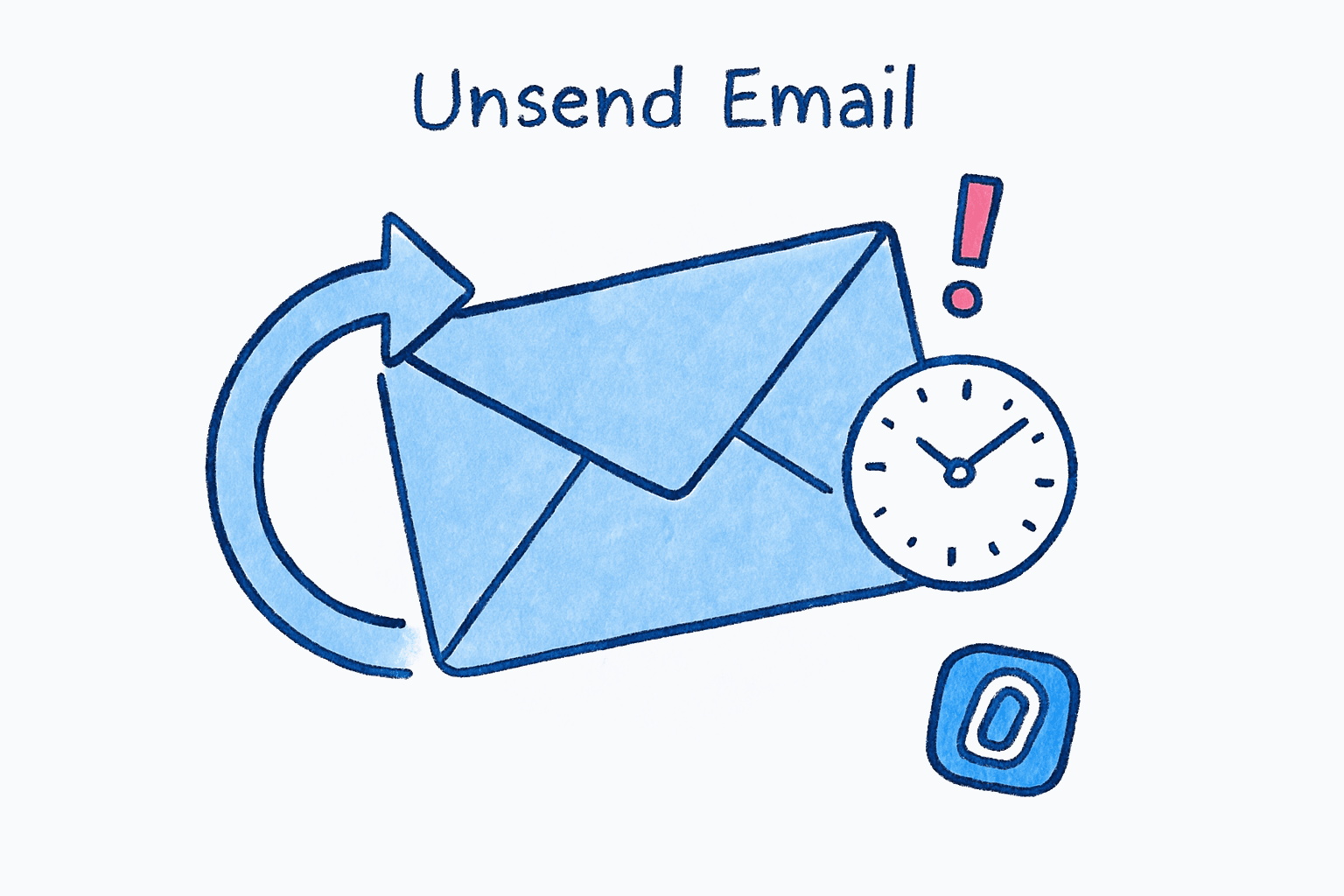
You can unsend an email in Gmail, but only within a few seconds of hitting Send. Gmail’s Undo Send feature holds your message in a temporary queue before delivering it. During that window, you can cancel the send entirely. The default window is 5 seconds on desktop and 7 seconds in the Gmail iPhone app.
The critical detail most people miss: the window can be extended to 30 seconds on desktop, but you need to change the setting before you need it. Once the cancellation period ends, the email is delivered and there is no way to pull it back. Below, you’ll find step-by-step instructions for unsending on desktop, the Gmail app on iPhone, and how to extend your Undo Send window to the maximum 30 seconds.
How to Unsend an Email in Gmail on Desktop#
Gmail’s Undo Send works by delaying delivery, not by retrieving a sent message. When you click Send, Gmail holds the email in a temporary outbox. A black notification bar appears at the bottom-left of your screen with an Undo link. Click it, and the message returns to your compose window as if you never sent it.
The default cancellation period is 5 seconds. That is barely enough time to realize you made a mistake, let alone find and click the button. Section 3 below shows how to extend it.
Click Undo After Sending
DesktopAfter clicking Send, look at the bottom-left corner of your Gmail window. A black bar appears with the text "Message sent" and an Undo link. Click Undo before the bar disappears.
If you close or navigate away from Gmail before clicking Undo, the message will be delivered. Stay on the page until you're sure.
If you catch it in time, the email reappears in your compose window with all recipients, attachments, and formatting intact. You can edit it and resend, or discard it entirely.
How to Unsend an Email in the Gmail App on iPhone#
The Gmail iOS app also supports Undo Send, but the window is shorter: roughly 7 seconds. You cannot extend this from within the app. There is no setting for it.
After tapping Send, a small Undo button appears at the bottom of the screen. Tap it quickly to cancel.
Tap Undo in the Gmail App
Gmail AppAfter tapping Send, watch for the Undo button at the bottom of the screen. Tap it within 7 seconds to cancel the send and return the message to your drafts.
The Gmail app's 7-second window cannot be changed. For a longer window on your phone, open Gmail in Safari at mail.google.com instead. The mobile web version uses your desktop cancellation period setting.
Honestly, 7 seconds is tight. I’ve missed it more than once, especially when sending from a notification or while multitasking. If you regularly send important emails from your phone, the Safari workaround described above is worth using for sensitive messages.
How to Extend the Undo Send Window to 30 Seconds#
This is the single most important step in this entire guide, and it takes less than a minute. Change this setting now, while you’re thinking about it, and you’ll have six times longer to catch mistakes on every future send.
Gmail offers four cancellation periods: 5, 10, 20, or 30 seconds. There is no reason not to choose 30.
Open Gmail Settings
DesktopClick the gear icon in the top-right corner of Gmail, then click See all settings from the quick settings panel.
Change the Cancellation Period
DesktopOn the General tab (the default view), find the Undo Send row. Click the dropdown next to Send cancellation period and select 30 seconds. Scroll to the bottom of the page and click Save Changes.
This setting applies to every email you send from Gmail on desktop and the mobile web version. It does not affect the Gmail iOS app's 7-second window.
This delay applies to every email you send, not just the ones you regret. If you send time-sensitive messages frequently, 20 seconds may be a better balance.
After saving, every email you send from Gmail on desktop will be held for 30 seconds before delivery. You can still click Undo at any point during that window. The recipient will not see the email until the 30 seconds pass.
One thing to be aware of: if you send time-sensitive messages frequently (calendar invites, urgent replies in real-time conversations), the 30-second delay means the recipient won’t see your message for half a minute after you click Send. For most people, this tradeoff is worth it. For those who need instant delivery occasionally, you can always close the Undo bar early by clicking elsewhere, which sends the message immediately.
Can You Unsend an Email After the Undo Window Closes?#
No. Once the cancellation period ends, the email has been delivered to the recipient’s mail server. Gmail does not offer a recall feature that can pull back a delivered message.
This is a fundamental limitation of how email works. Unlike messaging apps where the platform controls both sender and receiver, email uses open protocols (SMTP) where messages pass between independent servers. Once your email reaches the recipient’s server, Gmail has no authority to delete it.
A few things people commonly try that do not work:
- Deleting the email from your Sent folder only removes your copy. The recipient already has the message on their mail server, and their inbox is completely unaffected. This is one of the most common misconceptions about email: because standard email protocols (SMTP) pass messages between independent servers, there is no mechanism for a sender to delete a message from a recipient’s inbox after delivery. The same holds at scale, which is why you can delete all emails in Gmail from your own account without touching a single copy sitting on someone else’s server.
- Turning off your internet connection after sending will not help. Gmail queues the message and sends it as soon as connectivity returns.
- Asking Gmail support to recall the email is not something Google offers for consumer Gmail accounts.
If you need to correct a mistake after the window has closed, your best option is a clear follow-up email: “Please disregard my previous message. Here is the corrected version.” For practical templates on how to handle this gracefully, see our guide on how to write a follow-up email. And for advice on crafting the apology or correction itself, our piece on how to end an email covers professional closings for sensitive situations.
If you regularly find yourself wanting to unsend emails, the issue may be replies fired off too quickly. Swizero shows you AI-drafted replies you can review before sending, so fewer messages leave your inbox that you’ll wish you could take back.
How to Unsend an Email in Apple Mail on iPhone#
Apple Mail (the built-in iOS Mail app) introduced Undo Send in iOS 16. The default delay is 10 seconds, and you can increase it to 20 or 30 seconds. Unlike the Gmail app, you can configure this delay directly from your iPhone’s settings.
After sending a message in Apple Mail, a blue Undo Send button appears at the top of your inbox. Tap it before it disappears to reopen the draft.
Tap Undo Send at the Top of the Inbox
MobileAfter tapping Send in Apple Mail, a blue Undo Send bar appears at the top of your inbox. Tap it within the delay period to pull the message back into drafts.
The Undo Send bar appears at the top of your inbox view, not as a bottom snackbar like Gmail.
How to Extend the Apple Mail Undo Send Delay#
Change the Undo Send Delay in Settings
MobileOpen the iPhone Settings app, scroll down and tap Apps, then tap Mail. Tap Undo Send Delay and choose 20 seconds or 30 seconds. You can also choose Off to disable the delay entirely.
This setting only affects the Apple Mail app. It has no effect on the Gmail app or any other third-party email app installed on your iPhone.
How Can You Prevent Emails You’ll Want to Unsend?#
-
Change the setting right now. If you haven’t already extended your Undo Send window to 30 seconds, do it before you finish reading this page. You’ll forget otherwise, and the default 5 seconds is not enough. Instructions are in Section 3 above. It sits alongside the other Gmail settings most people never switch on, nearly all of which ship disabled by default.
-
Add the recipient address last. Type your message, attach files, and proofread before filling in the To field. This eliminates the risk of sending a half-written draft by accidentally hitting Send. It is one of the simplest email habits that high-volume senders rely on.
-
Re-read the thread before replying. A 2024 survey by Babbel found that 88% of workers have sent an email they regretted, and the most common causes were misread context and unclear messaging. Taking 15 seconds to re-read the full thread catches most of these mistakes. Working through mail in a deliberate Gmail triage session rather than reacting message by message makes that pause the default instead of the exception.
-
Slow down on your phone. The Gmail app’s 7-second undo window is unforgiving. If you’re sending something important from your phone, consider drafting it and sending from desktop later, where you’ll have the full 30-second safety net. For more on building a system that helps you process email faster without rushing, that guide covers the mechanics.
Frequently Asked Questions#
Can you unsend an email in Gmail?#
Yes, but only within a short window after clicking Send. Gmail’s Undo Send feature delays delivery for 5 to 30 seconds (depending on your settings). During that window, clicking Undo cancels the send and returns the message to your compose window. Once the window closes, the email has been delivered and cannot be recalled.
How do I unsend an email in Gmail on my phone?#
In the Gmail app on iPhone or Android, tap Undo at the bottom of the screen immediately after sending. The window is approximately 7 seconds and cannot be extended within the app. For a longer window on mobile, use Gmail in your phone’s web browser (mail.google.com), which uses your desktop cancellation period setting.
Can you recall an email in Gmail after 1 minute?#
No. Gmail’s maximum Undo Send window is 30 seconds. After that, the email has been delivered to the recipient’s server and cannot be recalled, retracted, or deleted from their inbox. The only option at that point is to send a follow-up message with the correction.
Does deleting a sent email unsend it?#
No. Deleting an email from your Sent folder only removes your copy. The recipient already has the message on their mail server. There is no way to delete an email from someone else’s inbox using Gmail or any standard email client.
What is the maximum undo send time in Gmail?#
The maximum cancellation period in Gmail is 30 seconds. You can set it by going to Settings, then the General tab, then changing the Send cancellation period dropdown to 30 seconds. The Gmail mobile app has a fixed window of approximately 7 seconds that cannot be changed.
Can you unsend an email after the undo window closes?#
No. Once the Undo Send window expires, the email has been permanently delivered. Gmail does not support message recall for delivered emails. Unlike Outlook (which has a limited recall feature within the same Microsoft 365 organization), Gmail has no equivalent capability for retrieving emails after delivery.
How does Gmail’s Undo Send actually work?#
Gmail does not send your email immediately when you click Send. Instead, it holds the message in a temporary queue for the duration of your cancellation period (5, 10, 20, or 30 seconds). If you click Undo during that time, the message is pulled from the queue and never delivered. If you do nothing, the message is sent automatically when the timer expires.
Is there a way to unsend an email sent hours ago?#
No. There is no Gmail feature, browser extension, or workaround that can recall an email after it has been delivered. The best course of action is to send a follow-up email with the correct information or contact the recipient directly if the original message contained sensitive or confidential content.
Does Gmail have an email recall feature like Outlook?#
Gmail does not have a true recall feature. Its “Undo Send” option only works within seconds of sending, before the email is delivered. Outlook’s recall feature (available for Microsoft 365 work accounts) can sometimes delete an unread message from a recipient’s inbox after delivery, but only when both users are on the same Exchange or Microsoft 365 organization. Gmail has no equivalent capability. Our full Gmail vs Outlook comparison covers where else the two platforms diverge.
What should I do if I sent an email to the wrong person?#
If you are still within the Undo Send window, click or tap Undo immediately. If the window has passed, your best options are: send a follow-up email to clarify or correct the information, or contact the recipient directly (by phone or message) and ask them to disregard or delete it. For sensitive content sent to the wrong person, a direct conversation is usually faster and more reliable than any technical workaround.
Sources#
- Send or unsend Gmail messages, Google Support. Official documentation for Gmail’s Undo Send feature, including cancellation period settings.
- How to unsend an email in Gmail and increase your undo send time, Google Blog. Guide to enabling and extending the Undo Send cancellation period.
- Unsend email with Undo Send in Mail on iPhone, Apple Support. Official guide for Apple Mail’s Undo Send Delay settings on iPhone.
- 88% of workers have sent an email they regret, CNBC, 2024. Survey of 2,000 U.S. office workers by Babbel on email regret rates.
Your inbox doesn't have to feel like this.
Apply what you just learned, faster.
Put this into practice with Swizero