Not Receiving Emails on Gmail or iPhone? Every Fix, Step by Step
By Chris Stefaner, Co-founder of Swizero
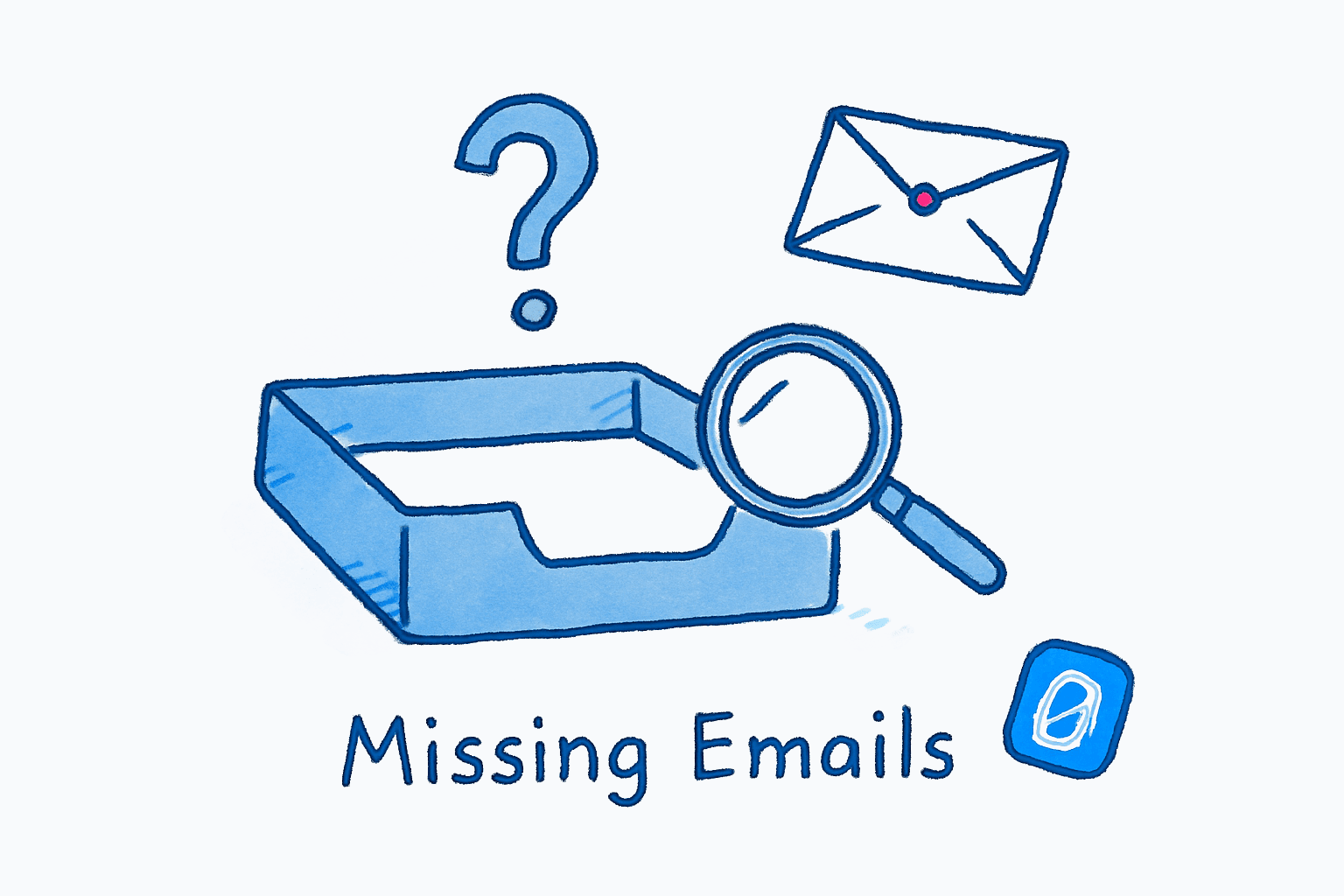
If you’re not receiving emails in Gmail, the most likely cause is a full Google storage quota. Google gives every account 15 GB shared across Gmail, Google Drive, and Google Photos, and once that quota is full, incoming emails bounce back to the sender. The fix takes about two minutes.
But storage is not the only culprit. Filters, forwarding rules, spam misclassification, blocked senders, and sync settings on your iPhone can all silently swallow your messages. This guide covers every common cause, starting with the most likely, and gives you the exact steps to fix each one on Gmail desktop, the Gmail app, and the iPhone Mail app.
1. Check Your Google Storage#
When your Google account hits its 15 GB limit, Gmail stops delivering new messages entirely. Senders get a bounce notification, and those emails do not queue up for later delivery. They are gone unless the sender re-sends after you free up space.
To check your storage, go to one.google.com/storage. You will see a breakdown of usage across Gmail, Drive, and Photos.
If you are at or near the limit, here is the fastest way to reclaim space:
Find and Delete Large Emails
DesktopIn Gmail search, type has:attachment larger:10M and press Enter. This shows every email with attachments over 10 MB. Select the ones you no longer need and click the trash icon.
Emails in Trash still count toward your storage quota for 30 days. Go to Trash and click Empty Trash now to free space immediately.
Also empty your Spam folder. Gmail keeps spam for 30 days, and those emails count against your 15 GB. Navigate to the Spam label in the left sidebar and click Delete all spam messages now. If attachments alone are not enough to get you under the cap, the select-all method for deleting all emails in Gmail works on any label, Promotions and Spam included.
2. Check Your Spam Folder#
Gmail’s spam filters are aggressive. Legitimate emails end up in Spam more often than most people realize, especially newsletters, transactional emails from new senders, and messages from domains without proper authentication (SPF/DKIM records). If the Spam folder is mostly newsletters you no longer read, it is worth taking ten minutes to mass unsubscribe from those senders so the real messages are easier to spot.
Open the Spam folder in the left sidebar. If you find a missing email there, select it and click Not spam. Gmail moves it to your inbox and learns to trust that sender in the future.
If a specific sender’s emails consistently land in Spam, add them to your Google Contacts. Gmail treats messages from contacts with higher trust. Building a reliable contacts list is one of the email habits that actually makes a measurable difference.
3. Review Your Filters and Blocked Addresses#
Gmail filters can silently archive, delete, or redirect incoming emails before you ever see them. A filter you set up months ago and forgot about could be routing important messages straight to Trash or skipping your inbox entirely.
Review Gmail Filters
DesktopClick the gear icon in the top-right corner of Gmail, then click See all settings. Select the Filters and Blocked Addresses tab. Review every filter listed. Look for any with "Delete it" or "Skip the Inbox" actions.
Filters with Skip the Inbox cause emails to bypass your inbox entirely. They still arrive but go straight to All Mail or a label, where you might never see them.
While you are on that tab, scroll down to the Blocked addresses section. If you see a sender you want to hear from, click Unblock next to their address.
4. Disable Accidental Forwarding#
If someone (or you) set up email forwarding, Gmail may be sending all incoming messages to another address and deleting the local copy. This is one of the sneakier causes because your inbox looks normal; it is just empty.
Check Forwarding Settings
DesktopIn Gmail Settings, click the Forwarding and POP/IMAP tab. If "Forward a copy of incoming mail to" is selected, either switch to Disable forwarding or change the dropdown to Keep a copy in the Inbox.
If you do not recognize the forwarding address, someone may have configured it without your knowledge. Disable it and change your Google password.
Why Am I Not Receiving Emails on My iPhone?#
If Gmail works fine on desktop but emails are not showing up on your iPhone, the problem is almost always a sync or authentication issue between your phone and Google’s servers.
Check Fetch Settings in Apple Mail#
The iPhone Mail app does not support Gmail’s push notifications by default. If your fetch settings are set to “Manual,” your inbox only updates when you open the app and pull down to refresh.
Set Gmail to Fetch Automatically
MobileOpen Settings → Mail → Accounts → Fetch New Data. Tap your Gmail account and select Fetch. Choose a schedule (every 15 or 30 minutes). For the most current emails, select Automatically.
Push is not available for Gmail in Apple Mail. Fetch on a schedule is the closest alternative.
Enable IMAP on Your Google Account#
IMAP (Internet Message Access Protocol) is how email clients like Apple Mail sync with Gmail’s servers. If IMAP is disabled on your Google account, your iPhone cannot pull new messages.
Enable IMAP in Gmail
DesktopOn a computer, open Gmail and go to Settings → See all settings → Forwarding and POP/IMAP. Under IMAP Access, select Enable IMAP and click Save Changes.
Update or Reinstall the Gmail App#
If you use the Gmail app on iPhone instead of Apple Mail, make sure it is up to date. Outdated versions can lose their authentication tokens, especially after an iOS update. Open the App Store, search for Gmail, and tap Update if available. If emails still are not arriving, sign out of your Google account in the Gmail app, then sign back in.
Enable Background App Refresh#
If the Gmail app only shows new emails when you open it, Background App Refresh may be off. Go to Settings → General → Background App Refresh and make sure the toggle is on for Gmail. Without this, the app cannot check for new messages in the background, so you will not get notifications.
What If Gmail Is Down?#
Sometimes the problem is not on your end. Gmail experiences occasional outages that affect email delivery globally. Before troubleshooting your own settings, check Google Workspace Status Dashboard to see if Gmail is reporting an incident. If it is, the only fix is to wait.
Honestly, I have spent 20 minutes debugging my filters before realizing Gmail itself was having a bad day. Check the status page first; it takes five seconds and can save you real frustration.
If email troubleshooting has you questioning whether Gmail is still working for you, Swizero sits on top of Gmail and surfaces your most important messages first, so you never wonder if you’re missing something critical.
Tips to Stop Gmail From Not Receiving Emails Again#
-
Check your storage quarterly. Set a calendar reminder to visit one.google.com/storage every few months. Catching a nearly full account before it hits 100% prevents bounced emails, which you cannot recover once the sender’s message bounces back.
-
Audit your filters once a year. Filters accumulate. A filter you created three years ago to skip newsletters might now be catching emails from a vendor who changed their sending domain. One yearly pass through Settings → Filters and Blocked Addresses keeps your inbox predictable.
-
Add important senders to Contacts. Gmail gives messages from your Contacts a higher trust score. If an important sender’s emails keep landing in Spam, adding them to Google Contacts is the most reliable long-term fix. It works better than clicking “Not spam” on individual messages because it establishes ongoing trust for every future email from that sender. Sender trust is also the signal apps use to triage your Gmail inbox by importance rather than by arrival time.
-
Use labels instead of forwarding. Forwarding rules are fragile. They break silently, they can be hijacked, and they create a single point of failure. If you need emails in two places, use labels and IMAP sync instead of routing everything through forwarding.
-
Test after changes. After modifying any filter, forwarding rule, or IMAP setting, send yourself a test email from a different account. It takes ten seconds and confirms your change actually worked. Most people skip this step and discover the problem days later when an important email goes missing.
Frequently Asked Questions#
Why is my Gmail not receiving emails from a specific sender?#
The most likely cause is a filter that archives or deletes emails from that sender, or the sender’s address is on your blocked list. Check Settings → Filters and Blocked Addresses to review. If neither applies, the sender’s domain may lack SPF or DKIM authentication, which causes Gmail to route their messages to Spam.
How do I know if my Gmail storage is full?#
Visit one.google.com/storage. The page shows your total usage across Gmail, Google Drive, and Google Photos. If you are at or above 15 GB (the free tier limit), Gmail stops accepting new emails. Senders receive a bounce notification, and those messages are not delivered.
Why am I not receiving emails on my iPhone but they show up on desktop?#
This is usually a sync issue. Gmail does not support push notifications in Apple Mail, so your iPhone relies on fetch schedules. Go to Settings → Mail → Accounts → Fetch New Data and make sure your Gmail account is set to fetch every 15 or 30 minutes. Also confirm that IMAP is enabled in your Gmail settings on desktop.
Can I recover emails that bounced because my Gmail was full?#
No. When Gmail bounces an email due to full storage, the message is returned to the sender. It is not stored anywhere in your account. You need to free up storage and then ask the sender to resend the message. Email offers very few take-backs in either direction: even on the sending side, Gmail’s undo send window closes after at most 30 seconds.
Do emails in Spam and Trash count toward my Gmail storage limit?#
Yes. Emails in both Spam and Trash count against your 15 GB quota until they are permanently deleted. Gmail auto-deletes Trash after 30 days and Spam after 30 days, but you can empty both folders manually to reclaim space immediately.
Why did Gmail suddenly stop receiving emails?#
The most common sudden cause is hitting your storage limit. This can happen unexpectedly if someone shares a large file to your Google Drive or if Google Photos backs up a batch of high-resolution images. Check one.google.com/storage to see if you are at capacity.
How do I fix Gmail not getting emails on my Android phone?#
The same principles apply as iPhone. Make sure the Gmail app is updated, your Google account is synced (Settings → Accounts → Google → toggle Sync Gmail on), and your storage is not full. Restarting the app or removing and re-adding the account resolves most sync issues.
Should I use Apple Mail or the Gmail app on iPhone?#
Both work, but the Gmail app receives new emails faster because it connects directly to Google’s servers. Apple Mail relies on fetch schedules since Gmail does not support push for third-party apps. If getting emails as soon as they arrive matters to you, the Gmail app is the better choice.
Sources#
- Manage your storage, Google One. Check and manage storage across Gmail, Drive, and Photos.
- If you can’t receive email on your iPhone or iPad, Apple Support. Official troubleshooting guide for email delivery on iOS.
- Fix sync errors with the Gmail app, Google Support. Steps for resolving Gmail sync issues on iPhone and iPad.
- Google Workspace Status Dashboard, Google. Real-time status of Gmail and other Google services.
- Troubleshoot problems receiving emails in Gmail, Google Workspace Help. Comprehensive admin-level troubleshooting guide.
Your inbox doesn't have to feel like this.
Apply what you just learned, faster.
Put this into practice with Swizero